
Service and service delivery managers
Service manager: Service Review Record
You chair the monthly or quarterly review, and write it up afterwards.
This guide is for the person who runs service reviews: a service delivery manager, a service owner, or whoever chairs the monthly or quarterly review with a customer or with internal stakeholders. It follows one review cycle from start to finish: setting up the page, recording the meeting, publishing and exporting the record, keeping actions current, and carrying open work into the next review.
By the end you will be able to:
- keep one Confluence page per review, with a consistent structure from one review to the next;
- record KPIs with target, actual, RAG status and comment, and an overall status for the period;
- capture improvement actions with an owner, a due date and a status, and let the page mark overdue actions for you;
- trace an action from the review that raised it to the review that closed it;
- send the customer a PDF or Word copy, knowing exactly how it differs from the page;
- use the page, its history and the issued PDF as evidence for ITIL 4 continual improvement and ISO/IEC 20000 service reporting.
The examples follow a fictional quarterly review of a payroll service. It is dated mid-period — a Q3 2026 review held on 10 September 2026 — so read it as “Q3 to date”; a real quarterly review would normally follow the end of the quarter. The screenshots are rendered from the app’s own source code in a local harness using the same Atlassian design-system components; Confluence’s page and dialog chrome is simplified, so a live site may differ in detail — see About the screenshots.
Before you start
You need:
- the app installed on your Confluence site. If typing
/in the editor and searching for “Service Review Record” finds nothing, ask your site administrator — see Confluence site administrator; - permission to create and edit pages in the space where your reviews live;
- a desktop browser for editing. The configuration dialog is wider than a phone screen.
Worth knowing before the first review:
- The record lives in the page. Everything you type is stored inside the macro on that page. There is no separate database. The app is designed so that page restrictions, page history, copying and export apply to the record as they do to the rest of the page. The live-site checks for these in the vendor’s internal test plan had not been run at the time of writing; where this guide relies on one, it says so.
- The app does not calculate RAG. Target and actual are free text (“95%”, “4.5 out of 5”, “No more than 2”), so the app cannot compare them. You choose every status. Agree with your customer what Green, Amber and Red mean before the first review, and write it down — the service level agreement is the natural place (see Service level manager: Service Level Targets).
- Nothing is required. You can save a half-finished record at any point. The dialog warns about gaps, but never stops you saving.
- Each record stands alone. There is no roll-up of KPIs or actions across reviews, no automatic carry-forward, and no reference number on an action. Sections 2.4 and 5 describe the conventions that fill those gaps by hand.
A page structure that works
One page per review, under one parent page per service:
Payroll service — service reviews (parent page: terms of reference, RAG definitions)
├── Payroll service — Q1 2026 review
├── Payroll service — Q2 2026 review
└── Payroll service — Q3 2026 review (one Service Review Record macro)
This keeps each record as its own page with its own history, which is what an auditor asks for, and puts the reviews in date order in the page tree. The parent page is a good home for the things that do not change each quarter: the terms of reference, the attendee list you expect, and your RAG definitions.
If you review services for several customers, keep each customer’s reviews apart before anything else. Use one space per customer, or one restricted parent page per customer with the service pages beneath it:
Customer A — service reviews (restricted to your team and Customer A's reviewers)
└── Payroll service — service reviews
    ├── Payroll service — Q2 2026 review
    └── Payroll service — Q3 2026 review
Customer B — service reviews (restricted to your team and Customer B's reviewers)
└── …
The record has no permissions of its own. Page restrictions apply to it exactly as they do to the rest of the page, so the restriction you set is the only thing keeping one customer’s figures from another. When you copy a page forward (section 5), check that the copy sits under the right customer and carries the restrictions you expect.
1. Before the meeting: set up the record
1.1 Create the review page
Create a page under the service’s parent page and give it a title that matches your period convention, for example “Payroll service — Q3 2026 review”. For the second and later reviews, copy the previous review’s page instead — see section 5.
The record’s own heading is always a level-3 heading. Put the macro directly under the page title or under a level-2 heading of your own, not under a level-3 or lower heading, so the page’s outline reads correctly for people using screen readers.
1.2 Insert the macro
- Edit the page.
- Type
/and search for Service Review Record. Its description reads “Record a service review with KPIs, RAG status, risks and improvement actions.” - Insert it. Until it is configured, the macro shows a grey box headed Service Review Record with the line “Edit this macro to record the service, review period and outcomes.”
- If the configuration dialog does not open by itself, select the macro and choose its edit option. The dialog is titled Configure service review record.
While the dialog reads the saved record it shows a spinner (screen readers announce it as “Loading configuration”). It always opens on the Review tab.
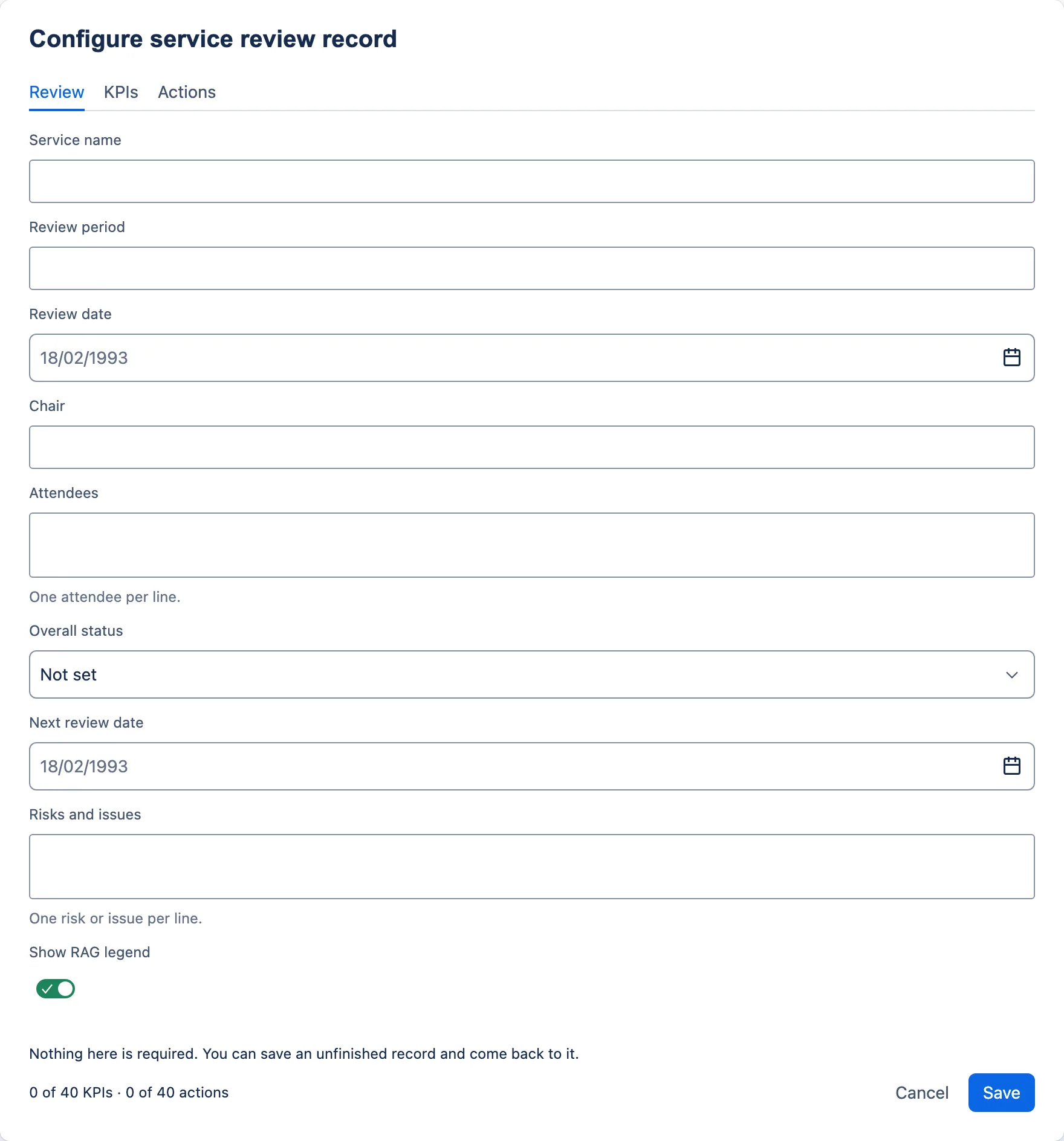
The dialog has three tabs — Review, KPIs and Actions — and a footer that always reads “Nothing here is required. You can save an unfinished record and come back to it.”, with a running count of KPIs and actions, Cancel and Save. Moving between tabs keeps what you have typed.
1.3 Fill in the Review tab
| Field | What to put in it |
|---|---|
| Service name | The service as your customer knows it. Becomes the record’s heading. |
| Review period | The period under review, as free text. Pick one convention and keep it: “Q3 2026 (July to September)” for quarterly reviews, “August 2026” for monthly ones. The same wording in the page title makes reviews easy to find by search. |
| Review date | The date of the meeting — not the end of the period. |
| Chair | Name and role: “Priya Shah, Service Owner”. |
| Attendees | One attendee per line, with role or organisation in brackets. The page joins the lines with commas. For apologies, see section 6. |
| Overall status | Leave as Not set until the meeting has agreed it. |
| Next review date | Book it before the meeting ends and record it here. |
| Risks and issues | One risk or issue per line. Pre-fill any carried from the last review. |
| Show RAG legend | On by default. See section 3.3. |
Service name, review period and chair take up to 120 characters each. Attendees and Risks and issues take up to 2,000; as you near that limit, a line under the field counts down (“150 of 2000 characters left.”) and then reads “This field is full at 2000 characters.” Every field stops accepting typing at its limit rather than cutting text off later.
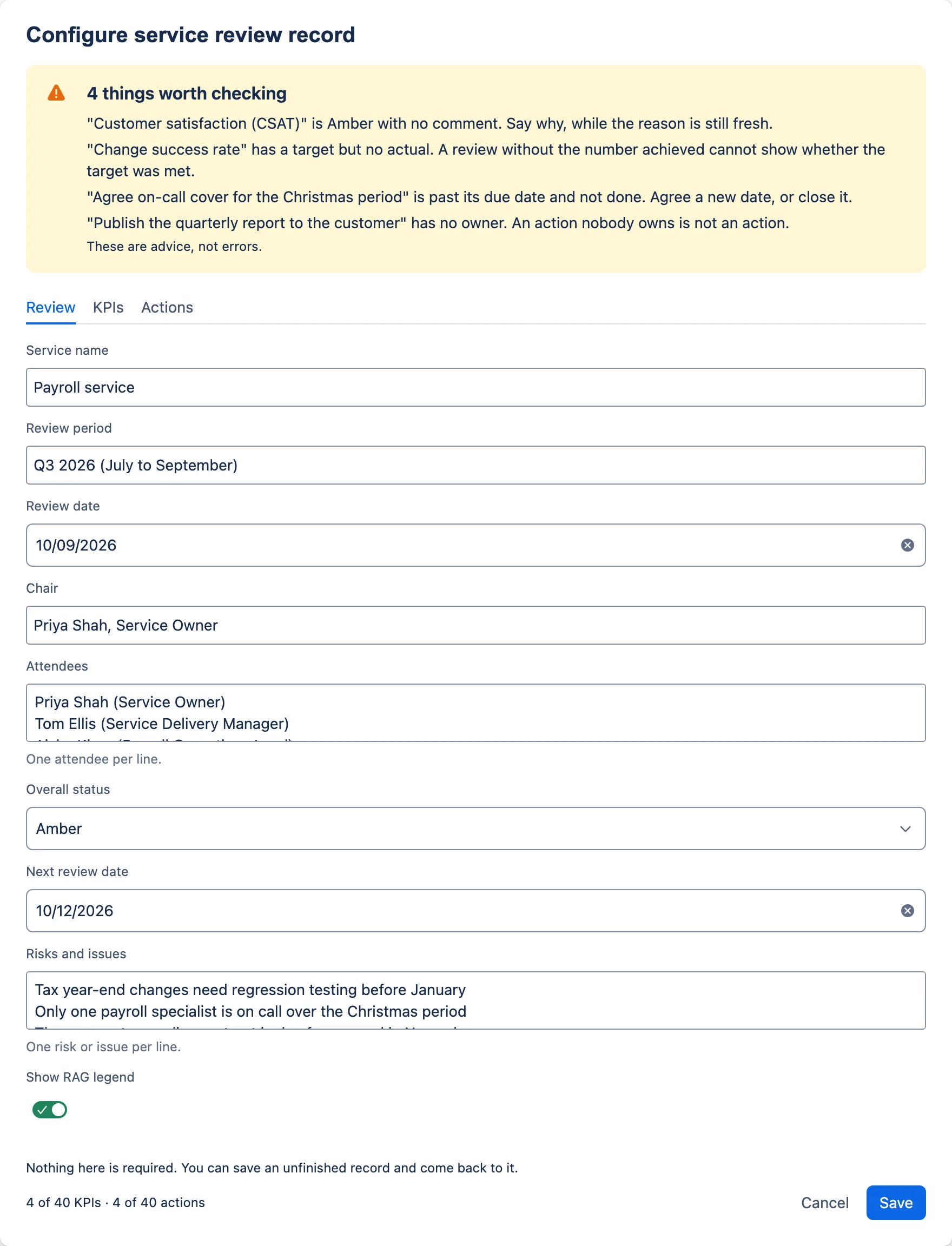
1.4 Pre-fill the KPIs
On the KPIs tab, choose Add KPI once for each measure. Each KPI is a box with five fields: metric, target, actual, status and comment. The fields are labelled with the KPI’s number (“KPI 2 target”) so that no two fields in a long record share a name. The cursor goes to the new KPI’s metric field.
Before the meeting, fill in the metric and target for every KPI, and the actual once the figures are in. Leave status as Not set if you want the meeting to agree it.
- Add KPIs in the order you will present them. New KPIs are always added at the end and cannot be moved afterwards. If the order matters — contractual SLA measures first, say — plan it before you start typing.
- State the target as it is written in the agreement, so nobody argues about the wording in the room.
- A KPI needs a metric to be saved. A KPI box with a target but no metric is dropped when you save, along with everything else in it. The warnings banner tells you before you do.
Metric, target, actual and comment take up to 240 characters each, with no countdown; typing simply stops at the limit. A record holds up to 40 KPIs.
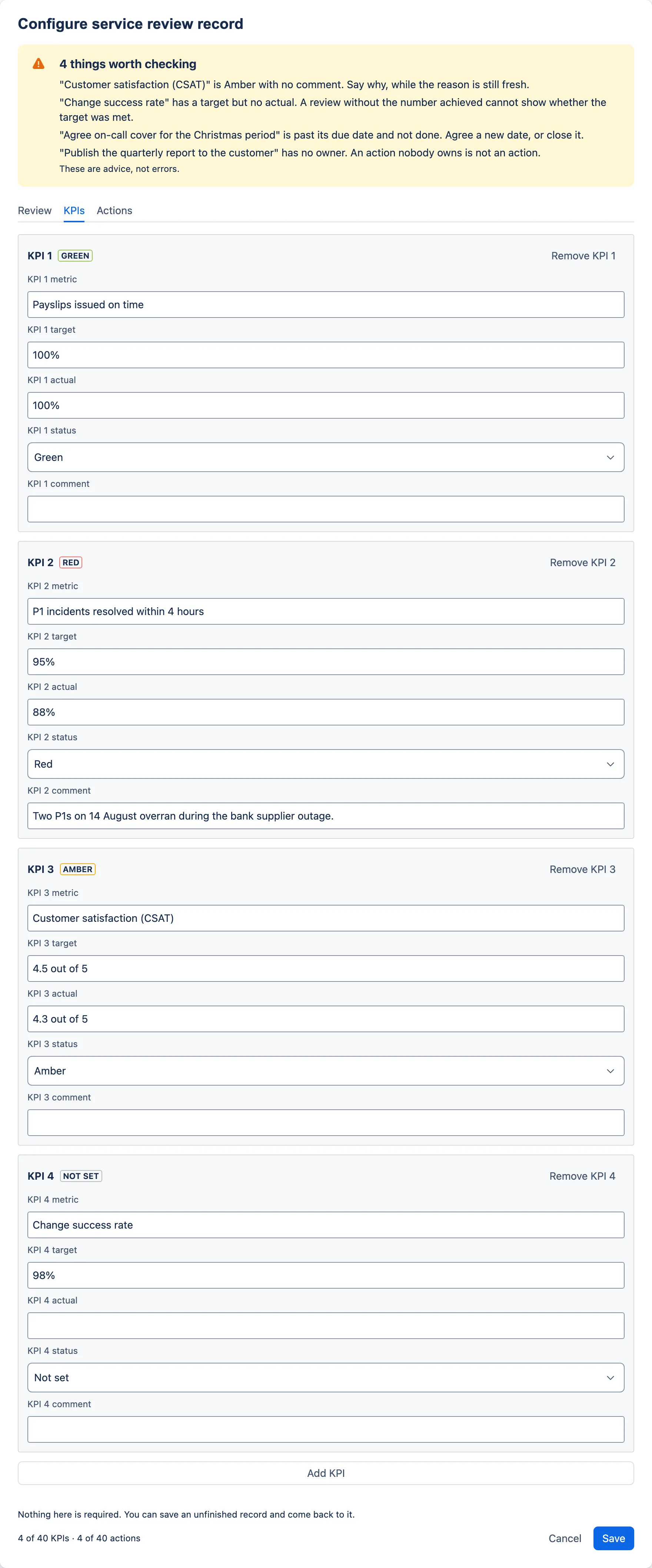
Showing the trend. Each record holds one period’s figures, and nothing carries a trend from one review to the next. Monthly reviews are mostly about trend, so add it by hand in one of these ways and keep to it:
- put the previous periods’ figures in the comment, after the reason: “Two P1s overran during the supplier outage. Jul 93%, Aug 91%.” Always put the reason first. Figures alone do not explain a Red or Amber, and a comment with anything in it stops the dialog’s “with no comment” reminder;
- keep a small trend table, or a Confluence chart, in the page text above the macro, and extend it each review;
- on the service’s parent page, link each review page in date order, so readers can step back through the history.
1.5 Bring forward open actions
For the first review there is nothing to bring forward. For every later review, the open actions come across when you copy the previous page — see section 5.
1.6 Save and publish
Choose Save. The dialog closes and the record appears in the page. Save stores the record in the page you are editing. If your page has a separate publish step, publish or update it as usual so that readers see the change; a Confluence live doc has no separate publish step. Where this guide says “publish”, read it as whatever makes your change visible and creates a page version.
2. During the meeting
Keep one person responsible for the record. Each save writes the whole record at once, so if two people have the dialog open at the same time, the later save is likely to replace the earlier one in full.
2.1 Set a status and a comment for each KPI
For each KPI, record the actual if it was not in before, choose a status — Green, Amber, Red or Not set — and add a comment. To take a status back off, choose Not set.
Write a comment against every Red and Amber while the reason is fresh; the dialog reminds you if you do not. A good comment says why the target was missed and gives the reference of the action that deals with it (see section 2.4): “Two P1s on 14 August overran during the bank supplier outage. See PAY-2026-09-02.”
2.2 Agree the overall status
Set Overall status on the Review tab once the KPIs have been discussed. If you show the RAG legend, the page tells readers that RAG reflects performance against the agreed target for the period — so the overall status should be a judgement on that, not on the service’s health in general. A service that met every target but faces a contract renewal risk belongs at Green, with the risk under Risks and issues.
2.3 Capture improvement actions
On the Actions tab, choose Add action for each one. Each action has a description, an owner, a due date and a status (Open, In progress or Done; new actions start as Open).
- Name one owner. A person, not a team. The dialog warns about any action without one.
- Agree the due date in the room. An action with no due date is never marked overdue, so it can quietly drift.
- Write the description as an outcome someone can close: “Agree on-call cover for the Christmas period”, not “On-call”.
- An action needs a description to be saved. An action box with an owner and a date but no description is dropped when you save.
Description and owner take up to 240 characters each. A record holds up to 40 actions.
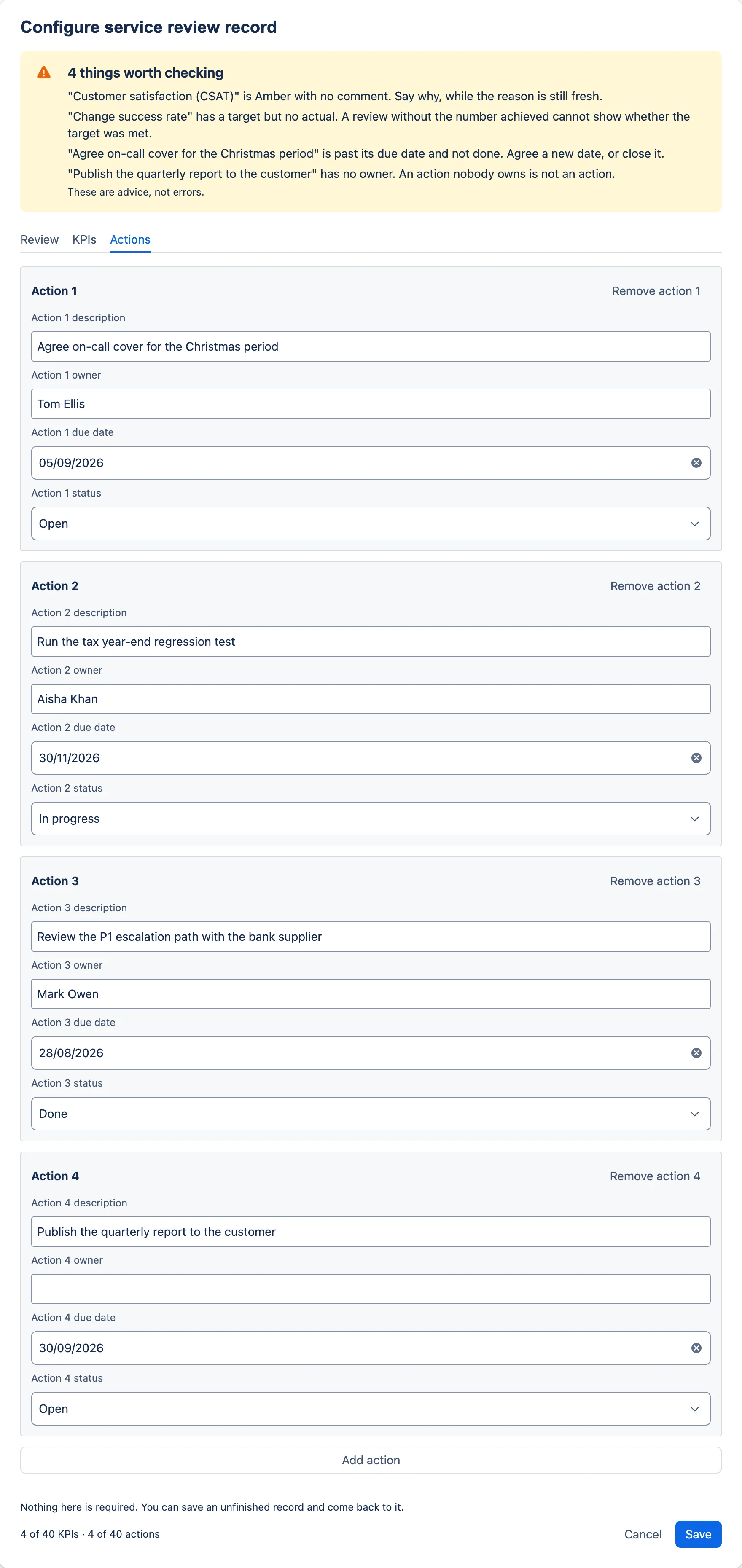
2.4 Give each action a reference
Actions have no reference number of their own. “Action 3” in the dialog is only the box’s position: it changes when a box above it is removed, and when the record is copied forward, so Action 3 in July can be Action 1 in August. There is no closure date either — setting Done records that an action is done, not when. If anyone audits your action tracking, carry that information in the description. These are conventions, not features; the app does not check them.
| When | Add to the description | Example |
|---|---|---|
| The action is raised | A reference that never changes: a short code for the review series, the year and month the action was raised, and a sequence number | PAY-2026-07-03: Agree on-call cover for the Christmas period |
| The due date moves | The original due date | … (originally due 5 Sept 2026) |
| The due date moves again | Keep the first original date, and say how many times it has moved | … (originally due 5 Sept 2026, moved twice) |
| The action is closed | The date it closed, when you set Done | … closed 12 Oct 2026 |
The series code makes the reference unique. It names the service (“PAY” for the payroll service); if you review services for several customers, add a customer code too (“CA-PAY-2026-07-03”), so the same reference never appears on two customers’ pages. The sequence number counts within that series and month.
Never reuse or renumber a reference, and keep it unchanged when you copy the record forward. Use the same reference wherever the action is mentioned — in a KPI comment and in a risk line — so a reader can match it from page to page. Expect Confluence search not to find text inside the record (see the site administrator’s guide); if references must be searchable, list the open ones in ordinary page text above the macro as well. The references count towards the description’s 240 characters.
2.5 Record risks and issues
Add each risk or issue raised as its own line in Risks and issues on the Review tab. Blank lines are ignored on the page. If an action addresses the risk, give its reference in the line.
2.6 Save as you go
Closing the dialog with Esc or its × saves what you have typed, but nothing saves while it is open. If the browser tab closes or the connection drops while the dialog is open, anything typed since the last save is lost. In a long meeting, save at natural breaks — after the KPIs, after the actions. Each save closes the dialog; to carry on, open it again. It reopens on the Review tab, with everything you saved.
Nothing is required, so an unfinished record saves without complaint. Fill the gaps afterwards.
3. After the meeting: tidy up, publish and share
3.1 Work through the warnings
When anything in the record looks incomplete, a yellow banner sits above the tabs, titled “1 thing worth checking” or “{N} things worth checking”. It is visible from every tab and updates as you type. It ends with “These are advice, not errors.”
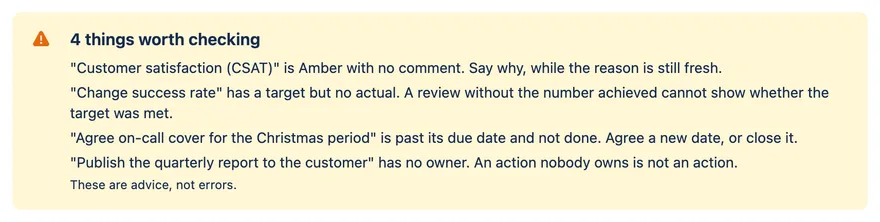
Warnings name the KPI or action in quotation marks. A KPI or action with no metric or description is named by its number instead (“KPI 3”), which matches the number on its box. The banner shows the first eight; Show all {N} lists the rest and Show fewer folds them away again. Warnings about rows that will be dropped come first.
| The banner says | What it means | What to do |
|---|---|---|
| KPI N has no metric. A KPI without one is not saved, and its target, actual and comment go with it. — naming only what the box holds, or ending at “not saved” if it holds nothing else | A KPI box has no metric. | Type the metric, or remove the box. If you save as it is, the box disappears. |
| Action N has no description. An action without one is not saved, and its owner, due date and status go with it. — naming only what the box holds | An action box has no description. | Type the description, or remove the box. |
| “{metric}” has a target but no actual. A review without the number achieved cannot show whether the target was met. | Target filled in, actual blank. | Enter the actual. If the figure is not available, say so in the actual (“Not yet reported”) so readers can see it was considered. |
| “{metric}” is Red with no comment. Say why, while the reason is still fresh. | Status Red, comment blank. The same message appears with “is Amber”. | Add a comment giving the cause, and the action that addresses it. |
| “{action}” has no owner. An action nobody owns is not an action. | Owner blank. | Name one person. If nobody in the meeting would take it, that is itself worth recording as a risk. |
| “{action}” is past its due date and not done. Agree a new date, or close it. | The action is overdue by the editor’s own date — see section 4. | Agree a new due date with the owner, or set the status to Done — recording either as in section 2.4. |
The published page does not list these warnings, but it does count them. If the saved record still has any, a line of small text at the foot of the record reads “1 record warning — edit this macro to review it.” or “{N} record warnings — edit this macro to review them.” Every reader sees it, and there is no setting to hide it. The page works the count out afresh on every view, and the overdue check uses the reader’s own date (see section 4), so the count can grow after you publish as due dates pass. The line is never exported.
Rows with no name disappear on save. When you save, the record is tidied: spaces at the start and end of each field are removed, and any KPI with no metric and any action with no description is dropped with everything in it. The remaining boxes are numbered again from 1 the next time you open the dialog.
3.2 Check the page
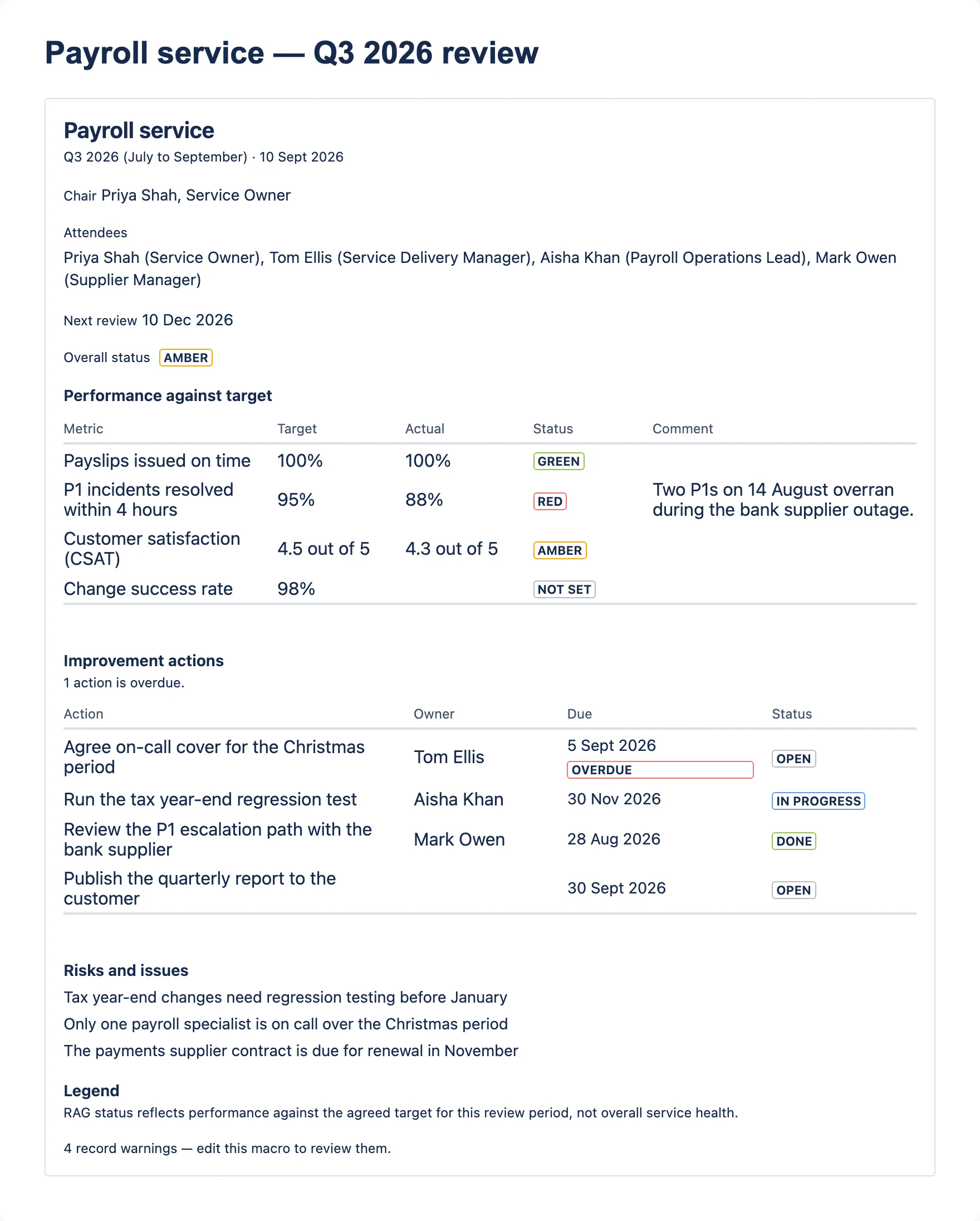
Read the published page once before you share it. From top to bottom it shows:
- the service name as the heading, or “Service review” if you left it blank;
- the review period and review date on one line, separated by “ · “;
- Chair, Attendees (your lines joined with commas) and Next review, each only if filled in;
- Overall status with its coloured label — always shown, as “Not set” if you did not choose one;
- Performance against target, then the KPI table: Metric, Target, Actual, Status, Comment;
- Improvement actions, then “1 action is overdue.” or “{N} actions are overdue.”, if any are;
- the actions table: Action, Owner, Due, Status — overdue due dates in bold with a red Overdue label;
- Risks and issues, one per line;
- Legend and the RAG legend sentence — see section 3.3 for when it appears;
- the warning line, if the saved record still has warnings — see section 3.1.
Performance against target, Improvement actions, Risks and issues and Legend are small level-4 headings, each shown only when its section has something in it. They sit under the record’s level-3 heading, so you do not need to add headings of your own for the tables.
Dates appear in the reader’s own date format: “10 Sept 2026” for a British English reader, “Sep 10, 2026” for a US English one. A date never shifts by a day for readers in other time zones.
When a detail’s value is too long to sit beside its label, the value drops onto its own line under the label, as “Attendees” does in the screenshot. Nothing is cut off.
Every status carries its text as well as its colour, so the record still reads correctly in dark theme, in greyscale print, and for readers who do not distinguish red from green. The record follows each reader’s Confluence theme:
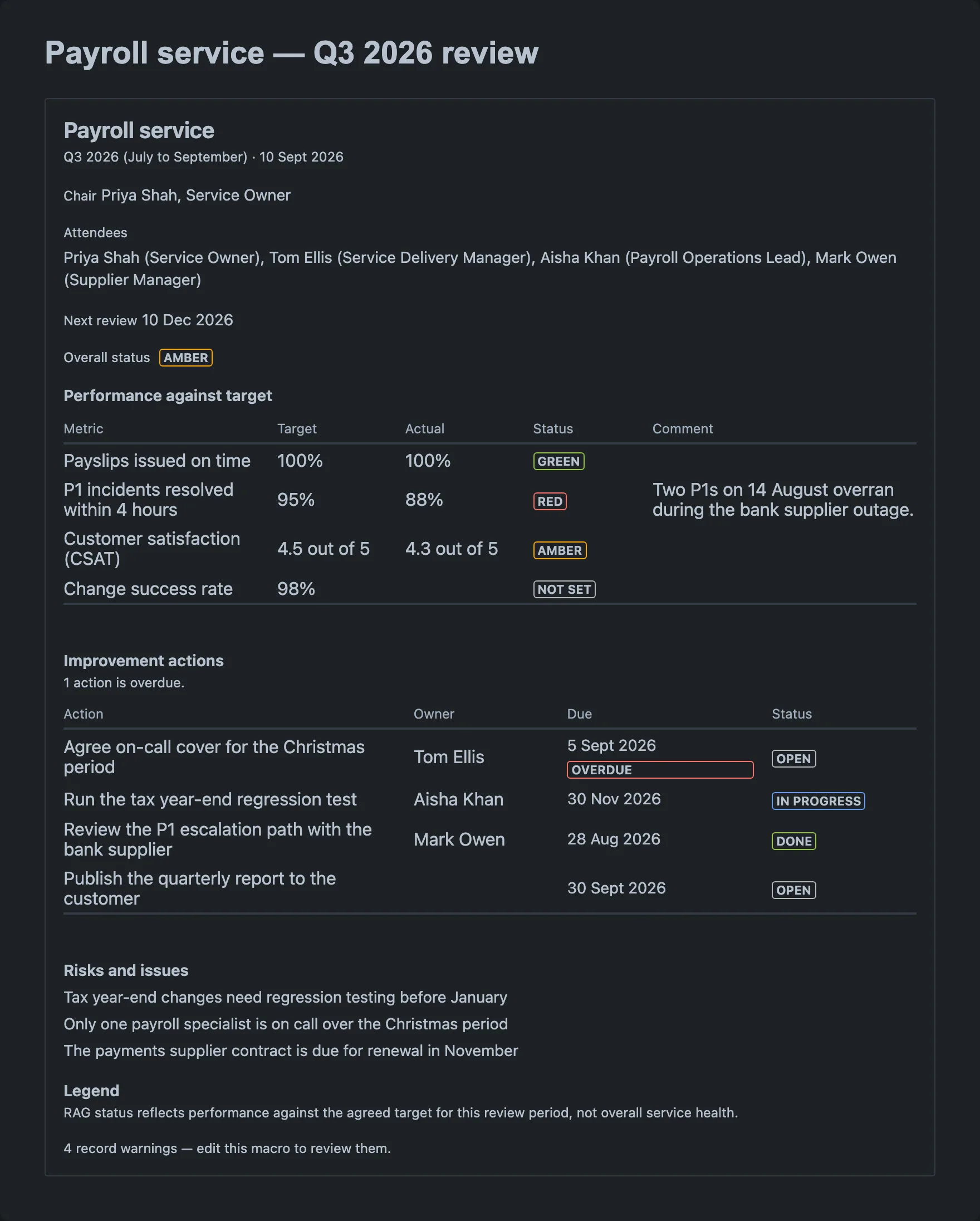
On a narrow screen the tables squeeze their columns first, so long entries wrap, sometimes mid-word, and anything that still does not fit scrolls sideways inside the record. A keyboard alone cannot scroll that region. The published-record screenshots above already show the start of this at full width: “P1 incidents resolved within 4 hours” and “4.5 out of 5” each wrap onto two lines. Short metric names and descriptions keep the tables readable. Neither a narrow browser window nor the Confluence mobile app had been checked on a live site at the time of writing (see the vendor’s internal test plan); if your customer reads reviews on a phone, look at one yourself first.
3.3 Decide whether to show the RAG legend
With Show RAG legend on, the record ends with a Legend heading and this sentence — but only once at least one KPI, or the overall status, has a status other than Not set. Until then there is no colour for it to explain, so it stays hidden whichever way the toggle is set. The warning line, when there is one, comes after it.
RAG status reflects performance against the agreed target for this review period, not overall service health.
That is a precise claim. It tells readers that each status judges this period’s result against the agreed target — and says nothing about trend, customer mood or the state of the service overall. Keep the legend on when the page will be read by people who were not in the room; it stops a page of Green being read as “the service is fine”.
Switch it off when:
- your organisation’s RAG means something else — overall health, trend, or a customer’s own assessment. The sentence would then be wrong on your page. State your own definition in the page body or on the parent page instead;
- the page already carries a RAG key, or holds more than one record, and the sentence would repeat.
The legend never appears in a PDF or Word export, whichever way the toggle is set. If the exported copy needs the definition, write it in the page body outside the macro; ordinary page text is exported by Confluence as usual.
3.4 Publish and share
Publish or update the page, then share it as you would any other page. There is no separate permission for the record: whoever can see the page can see the record. If you serve several customers, check the page sits under the right restricted parent (see A page structure that works). For readers who are new to these pages, Reading service management pages explains what they are looking at.
3.5 Export a copy for the customer
When the customer does not use your Confluence site, or wants the record for their own files, export the page: open the page’s ••• menu, choose Export, then PDF or Word. The exported PDF is also your fixed record of what was issued — see section 6.
The export is built from the same saved record as the page, so the text, figures and statuses are the same. Dates and overdue marks are worked out separately, as the last row below explains. It is laid out as a plain document rather than a picture of the page: headings, labelled lines and real tables that can be edited in Word. PDF and Word are both built from the same plain document the app supplies.
It differs from the page in these ways:
| Field | On the page | In the PDF or Word export |
|---|---|---|
| Heading | The service name, or “Service review” | “Service review — {service name}”, or “Service review” |
| Period and date | One line: “Q3 2026 (July to September) · 10 Sept 2026” | Two lines: “Review period: …” and “Review date: …” |
| Order of details | Chair, Attendees, Next review, then Overall status | Review period, Review date, Chair, Attendees, Overall status, then Next review |
| Statuses | Coloured labels with text | Plain text: “Overall status: Amber”; the KPI Status column reads Green, Amber, Red or Not set |
| Section headings | Small headings “Performance against target”, “Improvement actions”, “Risks and issues” and “Legend” | Headings “Performance against target”, “Risks and issues” and “Improvement actions”; no “Legend” |
| Section order | KPIs, then actions, then risks and issues | KPIs, then risks and issues, then actions |
| Risks and issues | One per line | A bulleted list |
| Overdue actions | “1 action is overdue.” above the table; due date in bold with a red Overdue label | No summary line; the Status column reads “Open (overdue)” or “In progress (overdue)” |
| RAG legend | Shown if the toggle is on and something has a status other than Not set | Never shown |
| Warning line | “{N} record warnings — edit this macro to review them.” at the foot, if the record has any | Never shown |
| Dates and “today” | The reader’s date format and the reader’s own date | Always day-first British English (“27 Sept 2026”). “Overdue” is decided on Atlassian’s servers, against the server’s date, which may differ from yours (the server probably runs on UTC) |
Because of the last row, an export may mark an action overdue that the page does not, or the other way round. Read the export before it goes out.
An earlier version opened from the page history is expected to appear in this export form too — see section 6.
If the record has nothing in it that counts as configured, the export contains the single sentence “This service review record has not been configured.”
At the time of writing, export had not yet been checked against a live Confluence site (see the vendor’s internal test plan). Check your first export carefully before you send one to a customer.
4. Between reviews: keep actions current
Update actions as they move, not the night before the next review. Always update the most recent review’s page — the one the next meeting will work from:
- Edit that page, open the record, and go to the Actions tab.
- Change the status to In progress or Done, or change the due date if it has been renegotiated. Record a closure or a slip in the description as in section 2.4, so it stays visible in the current record and not only in the page history.
- Save, and publish the change.
How “overdue” is decided
The page works out overdue marks each time someone opens it; nobody has to edit the page for an action to become overdue. An action is overdue when all three are true:
- it has a due date;
- that date is before today’s date on the reader’s own computer — an action due today is not overdue;
- its status is not Done. In progress does not stop an action being overdue.
Because each reader’s own date decides, two readers in different time zones can see different answers around midnight. An action due on 5 September is overdue in Sydney some hours before it is overdue in London. That is deliberate: “overdue” means what each reader would say it means where they are.
Three different clocks are involved:
| Where | Whose date |
|---|---|
| The page (“Overdue” label and the “actions are overdue” line) | Each reader’s own computer, every time the page is viewed |
| The dialog’s “is past its due date and not done” warning | The computer of the person editing, while the dialog is open |
| A PDF or Word export’s “(overdue)” | Atlassian’s servers at the moment of export — may differ, probably UTC — and then fixed in the file |
| An earlier version opened from the page history | Expected to be Atlassian’s servers, on the day you view it — see section 6 |
Because the page recalculates every time, an old review page keeps marking actions overdue long after the meeting. Section 5 explains what to do about it.
5. The next review: copy forward
There is no automatic carry-forward. The reliable way to start the next review is to copy the previous review’s page:
- Open the previous review’s page and use Confluence’s copy page option from the page’s ••• menu. Put the copy under the same parent page, and check its restrictions.
- Rename the copy to the new period: “Payroll service — Q4 2026 review”.
- Edit the page, open the record, and on the Review tab update Review period, Review date and Next review date, set Overall status back to Not set, and update Attendees and Risks and issues.
- On the KPIs tab, keep each metric and target, clear the actual and comment, and set each status back to Not set. If you keep trend in the comment, do not pre-fill it with last period’s figures here: add them in the meeting, after the reason, so an empty comment still triggers the dialog’s reminder. Add or remove KPIs if the agreement has changed.
- On the Actions tab, keep every action that is Open or In progress, with its
reference unchanged. For actions that were Done at the last review, choose one of two
conventions and keep to it:
- remove them from the new record — the previous page is their record of closure; or
- leave actions closed since the last review in the new record for one cycle, so the meeting sees them closed, and remove them at the following copy.
- Save and publish.
- Go back to the previous review’s page and mark it as superseded — see below.
Everything in the record is stored inside the page, so copying the page copies the record with it. That had not yet been confirmed on a live site at the time of writing (see the vendor’s internal test plan); check the first copy you make. A Confluence page template holding a record pre-filled with your standard KPIs and targets is an alternative starting point, with the same caveat.
Mark the old page as superseded
The copy is independent: updating an action on the new page leaves the old page as it was. The old page’s record stays as it stood when you copied it forward — the meeting’s outcome plus the action updates made before the next review (section 4). It is not the record of what the meeting agreed: that is the page version published straight after the meeting, and the issued PDF (section 6).
The old page’s overdue marks keep moving. It still holds its copy of each carried-forward action as Open or In progress, and it recalculates overdue against each reader’s today (section 4). As due dates pass, it shows red Overdue labels and a growing “{N} actions are overdue.” line, even after the actions have been closed on a newer page. An auditor sampling last quarter’s page sees overdue actions with no sign they were carried forward.
Deal with it the same way every time:
- Add a line of page text. Above the macro on the old page, add ordinary page text such as “Superseded by Payroll service — Q4 2026 review. Open actions carried forward.” with a link to the new page. The record stays as it stood, and the note explains the overdue marks.
- Optionally, also note it on each action. In addition to the page text, you can add “carried forward to Q4 2026 review” to each carried-forward action’s description on the old page. The page history shows that you made the change after the meeting.
Do not set carried-forward actions to Done to stop the overdue marks. The Status column, the overdue count and any later export would then show the action as closed when it is not — a false status on an audited record — and Done would no longer mean finished.
Earlier versions in the page history do not freeze the overdue marks either — see section 6. The issued PDF is the one copy whose overdue marks never move.
6. The record as governance evidence
The issued PDF is the fixed snapshot. The page is a living record, and it recalculates overdue marks every time it is viewed. An exported PDF is worked out once, at the moment of export — its dates and “(overdue)” marks never change afterwards. If your contract or your ISO/IEC 20000 evidence needs the report as issued, export it on the day you issue it and keep the PDF with the rest of the service records. That is the copy to show an auditor who asks what the customer was told.
Page history is the record of change. Confluence keeps versions of the page; when a version is made depends on the kind of page (a live doc has no separate publish step). Because the record is stored in the page, each version should hold the record as it stood at that point. The version made straight after the meeting is the record of what the meeting agreed. Open the version itself to see an old state of the record, rather than relying on a comparison between versions.
Expect an earlier version to look like the export, not like the live page. Atlassian’s documentation says that when a page is viewed in the page history, a macro is shown in the form its export function produces; this macro has one, so expect it here. So an old version shows the export’s heading, section order and headings, statuses as plain text, no RAG legend, no warning line and no “actions are overdue” line (see the table in section 3.5). Its “(overdue)” marks are worked out when you view the version, against Atlassian’s server date that day (probably UTC) — not the meeting date. The words and figures are the stored record as it was; only the presentation and the overdue marks are worked out afresh. None of this had been checked on a live site at the time of writing (see the vendor’s internal test plan); check it once before you rely on page history for an audit. Only the issued PDF is fixed.
Publishing once straight after the meeting, and again after each round of action updates, keeps the history easy to read. For audited records, use a page with a separate publish step rather than a live doc, so that a version is made at the moment you choose; on a live doc, rely on the issued PDF as the record of what was agreed.
Action tracking: see section 2.4.
Attendees and apologies. There is no separate apologies field yet; it is on the roadmap. Until then, add apologies as the last line of Attendees, clearly labelled:
Priya Shah (Service Owner)
Tom Ellis (Service Delivery Manager)
Aisha Khan (Payroll Operations Lead)
Apologies: Sam Lee (Finance), Jo Patel (HR)
The page joins all lines with commas, so the label is what tells readers where attendance ends. This matters most when an action lands on someone who was not in the room.
If the app is ever removed from your site, the record’s contents stay stored in the page, but the macro no longer displays. Exported PDFs are unaffected — another reason to keep them.
Removing, cancelling and discarding
Removing a KPI or an action
Each box has a Remove KPI N or Remove action N button at the top. A completely empty box is removed at once. A box with anything in it asks first: the Remove button is replaced by a yellow message titled “This cannot be undone”, naming exactly what will go.
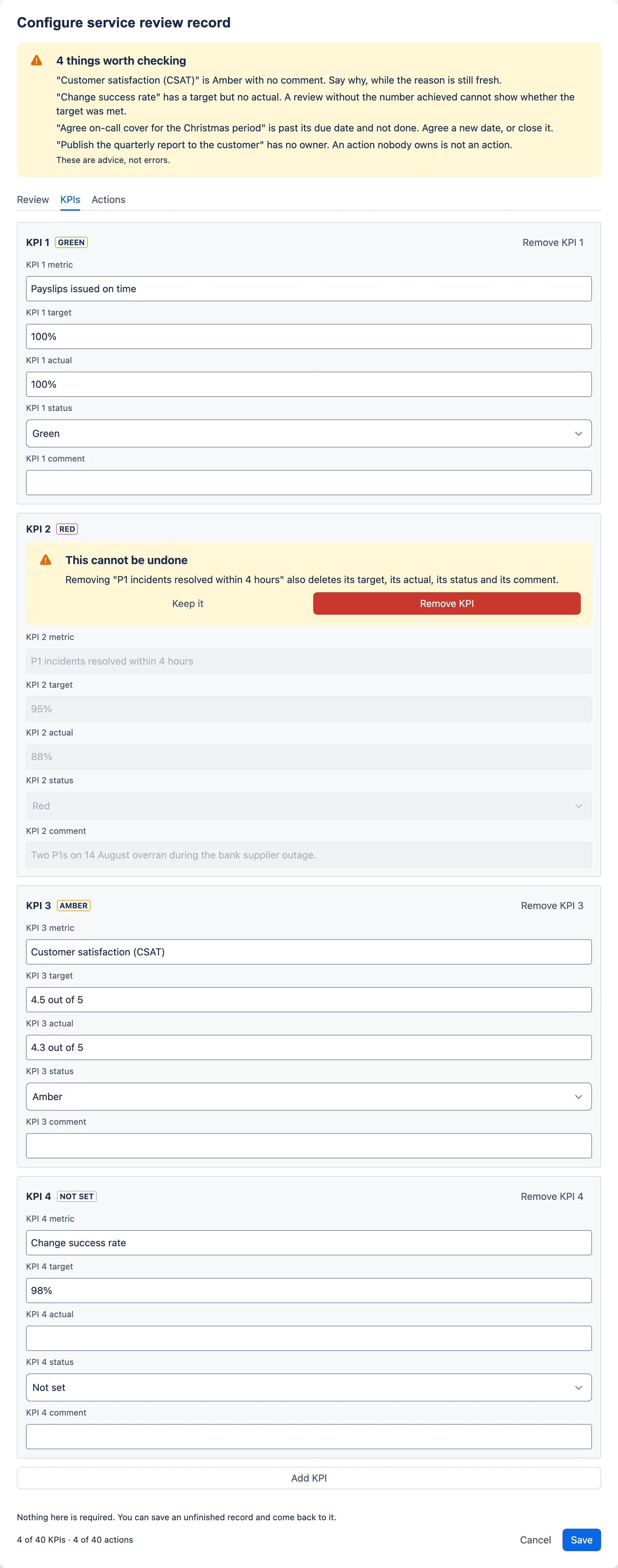
- The message reads
Removing "{metric}" also deletes …followed by only the parts that are filled in — for a KPI, its target, its actual, its status, its comment; for an action, its owner, its due date, its status. If only the metric or description is filled in, it readsRemoving "{name}" deletes the text you typed. - A status other than Not set (for a KPI) or Open (for an action) counts as content, so removing a Done action always asks.
- Keep it has the focus when the message appears, so pressing Enter keeps the row. The red Remove KPI or Remove action button removes it.
- While the question is on screen that box’s fields are locked, so it cannot change between asking and confirming.
- Only one question is on screen at a time. Choosing Remove on another box replaces it. Choosing Cancel in the footer replaces it with the discard question, or closes the dialog if nothing has changed.
There is no undo inside the dialog. If you remove the wrong row, Cancel and then Discard changes throws away everything since the dialog opened, including the removal. After a save, the page history is the way back.
Save, Cancel and Discard
- Save stores the tidied record and closes the dialog. While it saves, the button shows a spinner and Cancel is unavailable.
- Cancel with nothing changed closes the dialog at once.
- Cancel after any change shows a yellow message titled “This cannot be undone”: “This service review record has unsaved changes. Closing now throws them away.” Keep editing has the focus and returns you to the dialog; Discard changes closes it without saving. While the question is showing, the footer’s Cancel and Save are hidden.
- Esc, or the dialog’s own ×, saves. Confluence closes the dialog on those without asking the app, so the app saves what you typed as it closes, exactly as Save would. Only Cancel, then Discard changes, throws changes away. Esc is also the usual way out of a date picker or a drop-down list, so expect it to save.
- “Any change” is strict. Adding a KPI and emptying it again still counts.
What happens if…
…I saved, but the page still shows “Edit this macro to record the service, review period and outcomes.” Nothing you saved counts as content. The record needs at least one of: a service name, review period, review date, chair, attendees, overall status other than Not set, next review date, risks and issues, a KPI with a metric, or an action with a description. The RAG legend toggle on its own does not count, and nor do KPI or action boxes that were dropped for having no metric or description. If your page has a publish step, also check that you published after you saved.
…a KPI or action vanished after I saved. It had no metric (KPI) or no description (action). It was dropped with everything in it, as the warnings banner said it would be. Retype it, or restore the page from its history if the content matters.
…typing stopped in a field. The field is at its limit — see Fields for each one. Emoji and some other characters use up the limit slightly faster than they appear to. Put the detail in the page body, or shorten the entry.
…Add KPI or Add action is greyed out. The record is full, and the dialog says “A service review can hold up to 40 KPIs.” or “A service review can hold up to 40 actions.” Remove rows you no longer need, or split the review across two records.
…Save shows “Could not save”. The message reads “This configuration could not be saved. Your changes are still here — please try again.” Your typing is still in the dialog. Check your connection and choose Save again.
…the dialog shows “This configuration could not be read”. Something is stored for this record but could not be opened. The dialog says: “Something is saved for this service review record, but it could not be opened. Editing from here would replace it with a blank one, so this dialog will not save.” It offers only Close, and says “Nothing has been changed.” Close it and reload the page. If it keeps happening, restore the last good version from the page history, and tell your site administrator.
…a reader, an export, an old version or last quarter’s page shows an action as overdue and I did not expect it. Each place works out overdue with its own date — see How “overdue” is decided. For old pages, see Mark the old page as superseded.
…the page shows the record, but the export says “This service review record has not been configured.” That is a fault, not a problem with your record; the page is unaffected. Note the page URL, the date and time of the export with your time zone, and whether it was PDF or Word. Give those to your site administrator, who can pass them to the app’s vendor. The vendor, not your administrator, holds the app’s logs, through Forge; the administrator’s steps are in the site administrator’s runbook. If a customer pack is due today, try the other format: the place where Confluence hands the record to the export has been reported to differ between PDF and Word. If both fail, there is no tested workaround in the app. Send the page link to readers who have access, or copy the figures into your document by hand.
…the empty date fields show a date I did not enter. The grey date in an empty date field is the date picker’s example of the date format. It is not saved and does not appear on the page.
Limitations worth knowing
- Fixed limits on rows (40 KPIs, 40 actions) and on the length of every text field — see Fields.
- No reordering. New KPIs and actions go at the end. To change the order you would have to remove rows and add them again.
- No RAG calculation. Target and actual are free text; every status is your judgement.
- No roll-up or trend across reviews. Each record stands alone. There is no list of every open action for a service. Record trend by hand (section 1.4).
- No stable action reference and no closure date. Use the conventions in section 2.4.
- No automatic carry-forward. Copy the page, as in section 5.
- Old pages keep recalculating overdue. Mark them as superseded, and keep the issued PDF.
- No apologies field. Use a labelled line in Attendees.
- No autosave and no undo inside the dialog. Save at natural breaks.
- The export differs from the page in layout, section order and headings; it omits the RAG legend, the warning line and the overdue summary line; and its dates are worked out on Atlassian’s servers.
- The page’s warning line cannot be hidden. It counts the warnings; only the dialog lists them.
- Editing is a desktop job. The dialog is wider than a phone screen.
- Screen readers are not told when warnings change while you edit. The banner sits above the tabs, so it is read when the dialog opens.
- Not yet confirmed on a live site: export, page copy, page history and the Confluence mobile app (see the vendor’s internal test plan).
Quick reference
Fields
| Tab | Field | Type | Limit | Notes |
|---|---|---|---|---|
| Review | Service name | Text | 120 characters | The record’s heading; “Service review” if blank |
| Review | Review period | Text | 120 characters | Free text; first half of the subtitle |
| Review | Review date | Date | — | Second half of the subtitle |
| Review | Chair | Text | 120 characters | |
| Review | Attendees | Multi-line text | 2,000 characters, countdown near the limit | “One attendee per line.” Joined with commas on the page |
| Review | Overall status | Choice | Green, Amber, Red, Not set | Starts as Not set; always shown on the page |
| Review | Next review date | Date | — | Shown as “Next review” |
| Review | Risks and issues | Multi-line text | 2,000 characters, countdown near the limit | “One risk or issue per line.” |
| Review | Show RAG legend | Toggle | — | On by default; shown only once something has a status other than Not set; page only, never exported |
| KPIs | KPI N metric | Text | 240 characters | A KPI without a metric is not saved |
| KPIs | KPI N target | Text | 240 characters | |
| KPIs | KPI N actual | Text | 240 characters | |
| KPIs | KPI N status | Choice | Green, Amber, Red, Not set | Starts as Not set |
| KPIs | KPI N comment | Text | 240 characters | |
| Actions | Action N description | Text | 240 characters | An action without a description is not saved |
| Actions | Action N owner | Text | 240 characters | |
| Actions | Action N due date | Date | — | No due date means never overdue |
| Actions | Action N status | Choice | Open, In progress, Done | Starts as Open; only Done stops an action being overdue |
A record holds up to 40 KPIs and 40 actions. The footer counts both as “{k} of 40 KPIs · {a} of 40 actions”, including boxes not yet named.
Statuses
| Status | Colour on the page | A common convention (the app defines none) |
|---|---|---|
| Green | Green | Agreed target met this period |
| Amber | Yellow | Target missed within an agreed tolerance, or at risk |
| Red | Red | Target missed beyond the agreed tolerance |
| Not set | Grey | No judgement recorded |
The app does not work out any status for you. Agree your definitions with the customer and record them, for example on the service’s parent page. For when an action counts as overdue, see How “overdue” is decided.
Action reference conventions
Summarised from section 2.4.
| When | Add to the description |
|---|---|
| Raised | {customer code}-{service code}-{year}-{month}-{sequence}: … (customer code only if you serve several) |
| Due date moves | (originally due {first due date}) |
| Due date moves again | (originally due {first due date}, moved {N} times) |
| Closed | closed {date} |
Warnings
| Message | What to do |
|---|---|
| KPI N has no metric. A KPI without one is not saved, and its … go with it (only what the box holds) | Add the metric or remove the KPI |
| Action N has no description. An action without one is not saved, and its … go with it (only what the box holds) | Add the description or remove the action |
| “{metric}” has a target but no actual. A review without the number achieved cannot show whether the target was met. | Enter the actual, or say why it is missing |
| “{metric}” is Red with no comment. Say why, while the reason is still fresh. (Also “is Amber”.) | Add a comment with the cause |
| “{action}” has no owner. An action nobody owns is not an action. | Name one person |
| “{action}” is past its due date and not done. Agree a new date, or close it. | Agree a new date, or set Done |
Other messages
| Where | Message | Buttons |
|---|---|---|
| Removing a KPI or action with content | “This cannot be undone” — Removing "{name}" also deletes … or Removing "{name}" deletes the text you typed. |
Keep it · Remove KPI / Remove action |
| Cancel with unsaved changes | “This cannot be undone” — “This service review record has unsaved changes. Closing now throws them away.” | Keep editing · Discard changes |
| Save failed | “Could not save” — “This configuration could not be saved. Your changes are still here — please try again.” | — (choose Save again) |
| Stored record unreadable | “This configuration could not be read” | Close |
| 40 KPIs reached | “A service review can hold up to 40 KPIs.” | — |
| 40 actions reached | “A service review can hold up to 40 actions.” | — |
| Page, not yet configured | Service Review Record — “Edit this macro to record the service, review period and outcomes.” | — |
| Page, foot of the record | “1 record warning — edit this macro to review it.” / “{N} record warnings — edit this macro to review them.” | — |
| Export, not yet configured | “This service review record has not been configured.” | — |