
Process and practice owners
Process owner: RACI Matrix
You own a process or an ITIL 4 practice and have to show who does what.
This guide is for the person who owns a process or an ITIL 4 practice — incident management, change enablement, service request management, problem management — and has to write down who is Responsible, Accountable, Consulted and Informed for each step. Often that happens live, in a workshop, with the people in the matrix watching the screen.
By the end you will be able to:
- prepare a matrix so the workshop time goes on decisions, not typing;
- build it in Confluence with the RACI Matrix macro, as RACI or RASCI;
- use the editor’s warnings to find the gaps in accountability before anyone else does;
- publish it, keep it current, and export it to PDF or Word.
You need to be comfortable editing a Confluence page. Nothing here is technical.
Running a workshop? Read step 10 before you start. Steps 1 to 9 are the mechanics it relies on.
About the screenshots. They are rendered from the app’s own source code in a local harness, using the same Atlassian design-system components. The Confluence page and dialog frame around them is simplified, so a live site may differ in detail. The full note is in the guides index.
Before you start
What you need
- Permission to edit the page where the matrix will live.
- The app installed on your Confluence site. If “RACI Matrix” does not appear when you search for macros, ask your site administrator — see Confluence site administrator.
- A desktop browser. The configuration dialog is wider than a phone. Reading the finished matrix works on any screen; building it does not.
Prepare the content
Ten minutes of preparation saves most of a workshop. Decide these before you open the macro.
Choose roles, not people. Roles become the columns. Write “Change manager”, not “Priya”. People move on; the matrix should survive a reorganisation without an edit. A page full of named individuals is also a page of personal data that every reader can see. The Roles tab says the same: Name the role, not the person. Use the role names your organisation already uses, and use them the same way in every matrix you own, so a reader moving from your incident matrix to your change matrix recognises the columns.
One line per activity. Activities become the rows. Start each with a verb — “Log and classify the incident”, “Authorise the change” — and keep it short. Anything that qualifies the activity (a time limit, a scope, an exception) goes in the activity’s note, not its name. Short names read better on the page and are much easier for screen reader users; see Accessibility.
Decide the order now. Roles appear left to right, and activities top to bottom, in the order you add them. There is no way to move a row once it exists. Put activities in the order the work happens. Put roles in a consistent order too — for example from the front line to the governance roles.
RACI or RASCI. Plain RACI covers most processes. RASCI adds S — Supportive, for a role that helps the responsible role complete the work without owning it: an asset manager supporting a fulfilment team, say. If you find yourself wanting to mark three roles as Responsible when only one of them is really doing the work, RASCI is probably the honest choice. You can switch at any time, with one catch covered in step 8.
One matrix per process. Each process has its own owner, its own activities and its own review cycle, so give each one its own matrix. A single macro holds up to 15 roles and 60 activities. The limits exist for the reader: a table wider than fifteen columns stops being readable on a page, and a process with more than sixty activities is usually two processes. The editor says so when you reach either limit. The caps also keep what is stored in the page to a sensible size.
Settle the vocabulary. The legend the macro prints under the matrix uses these meanings, and it helps if the room uses them too:
| Letter | Meaning shown on the page |
|---|---|
| R — Responsible | Does the work. |
| A — Accountable | Answers for the outcome. One person only. |
| S — Supportive (RASCI only) | Helps the responsible role complete the work. |
| C — Consulted | Gives input the work relies on, whenever it is needed. |
| I — Informed | Is kept up to date, or told the outcome, without being asked for input. |
The distinction that matters most is A against R. Responsibility can be spread across several roles. Accountability cannot: one role answers for each activity. The macro holds you to that with warnings, not with blocks.
Someone in the room will point at “One person only” and ask how “Change manager”, a post held by three people, can be one person. The answer: A sits with one role, and at any moment one person holding that role answers for the activity — the change manager on duty, the incident manager assigned to this incident. What the legend rules out is two roles sharing A, or a committee holding it. A CAB, a board or a forum cannot be held to account the way a person can, so it is Consulted, and the role that takes the decision on its advice is Accountable. Step 6 comes back to this.
1. Insert the macro on a page
- Open the page and edit it. Put a heading of your own above where the matrix will go (a level 1 or level 2 heading). The macro’s title is always a level 3 heading, so it reads best under one of yours.
- Type
/and search for RACI Matrix, or find it by name in Confluence’s macro browser. Its description reads: Document who is Responsible, Accountable, Consulted and Informed for a process or service. - Insert it. Until it is configured, the macro shows a quiet box headed RACI Matrix with the line Edit this macro to add the roles and activities you want to map. That is normal, not an error.
- If the configuration dialog does not open by itself, select the macro on the page and choose to edit it from the macro’s toolbar. The dialog is titled Configure RACI matrix. A spinner shows briefly while it loads.
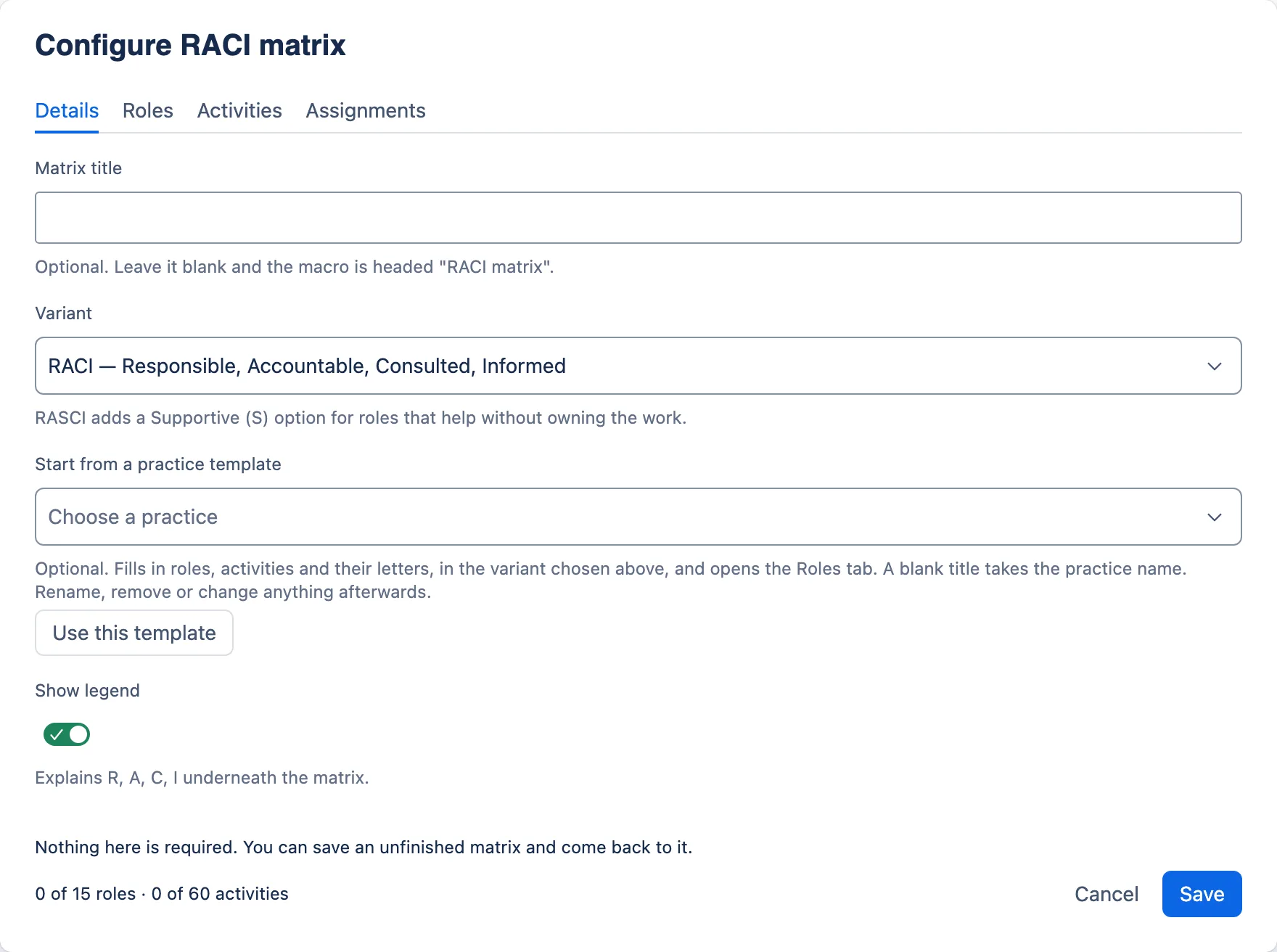
Two things in the footer are true for the whole dialog:
- Nothing here is required. You can save an unfinished matrix and come back to it. A half-finished matrix is a normal stage of the work.
- The counter on the left — for example “5 of 15 roles · 7 of 60 activities” — counts every row in the editor, including rows you have not named yet.
2. Set the details
The Details tab has three settings, and a fourth while the matrix is still empty.
| Field | What it does |
|---|---|
| Matrix title | Up to 120 characters. Optional. Leave it blank and the macro is headed “RACI matrix”. Use the process name: “Major incident management”. |
| Variant | RACI — Responsible, Accountable, Consulted, Informed (the default) or RASCI — adds Supportive. The helper text under it changes with your choice. |
| Start from a practice template | Shown only while the matrix has no roles and no activities. Choose one of the 34 practices of ITIL® 4 and select Use this template. It fills in roles, activities and their letters, in the variant chosen above, opens the Roles tab, and — if the title is blank — sets it to the practice name. Selecting the button before choosing a practice shows Choose a practice first. and moves you back to the picker. See Starting from a template. |
| Show legend | On by default. Prints the meaning of each letter under the matrix. The helper reads Explains R, A, C, I underneath the matrix. (or R, A, S, C, I for RASCI). |
Leave the legend on unless the page already explains the letters. Readers outside the process — auditors, new starters, the customer — rely on it.
Starting from a template
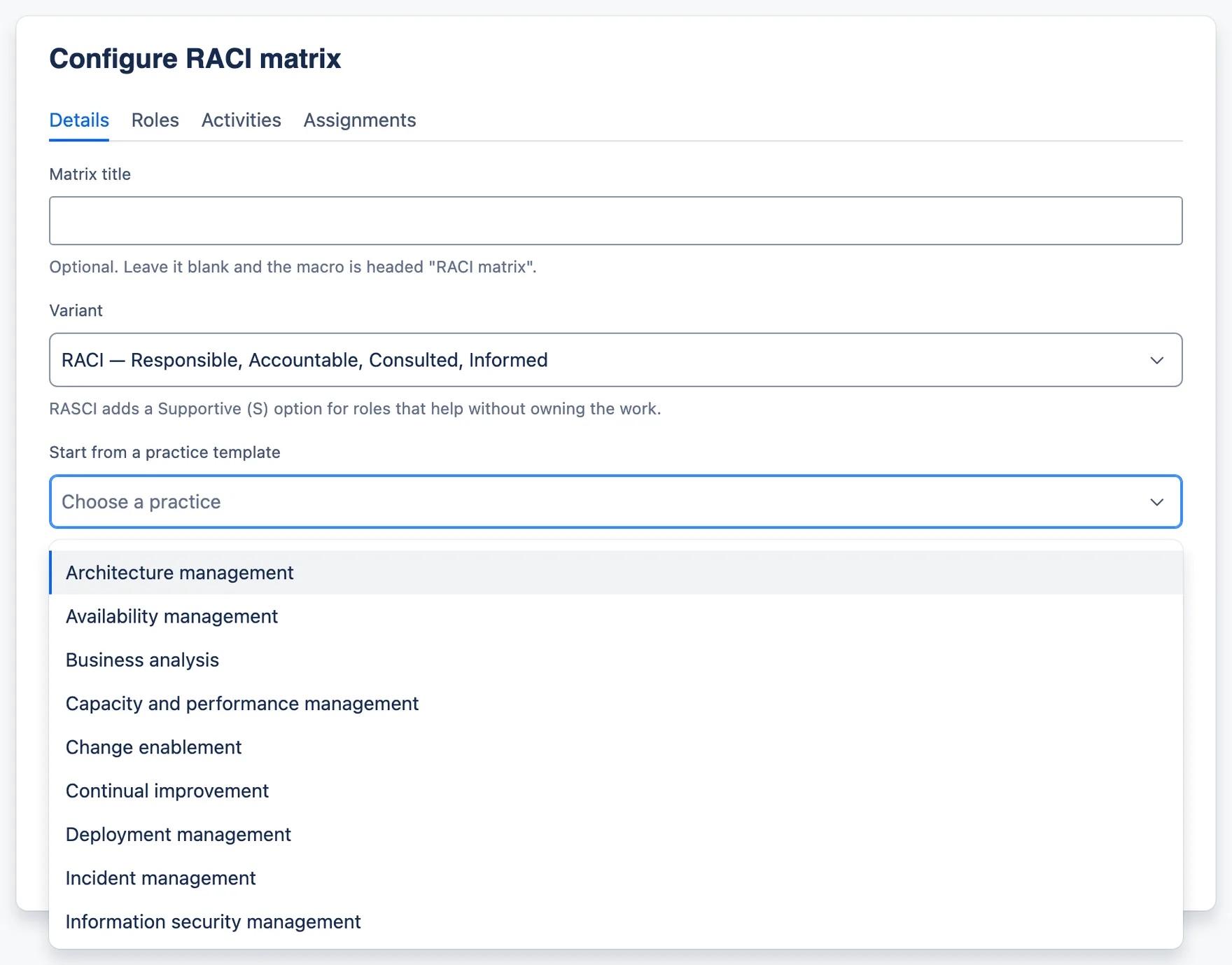
A template is a starting point for a workshop, not an answer. Each one is a plausible allocation for a mid-sized IT organisation, written for this app and checked so that it raises none of the warnings in step 6, in RACI or RASCI: every activity has exactly one accountable role and at least one responsible role, every role has a letter somewhere, and no role is accountable for everything. Duties that should be separate are kept separate — whoever implements a change does not authorise it, and audit sits with a role independent of the work audited. Your organisation will differ, so treat every letter as a question to put to the room.
- Choose the variant first. Templates are written in RASCI. With RACI chosen, the Supportive assignments are left out; switching to RASCI afterwards does not bring them back. Supportive is used sparingly — fewer than half the templates have any S at all, and none has more than a handful — so for most practices the two variants differ only in the legend.
- Accountable roles are people. Every A sits with a single named role, never a team, board or department, to match the legend’s “One person only”. Groups still appear, doing the work or being consulted.
- Your title is kept. If the title is blank, the practice name becomes the title.
- It never replaces work. The picker disappears once the matrix has a role or an activity. To start again from a template, remove every role and activity, or insert a fresh macro.
- “Practice owner” means the owners of other practices. Where a template lists a “Practice owner” role, it stands for the owners of the other practices the work touches, not the practice the template is for.
- Rename roles to match your organisation. “Change authority” might be your CAB, and “Support group” your second-line team. Remove the roles you do not have, and reassign their letters before you do.
- Nothing links the matrix back to the template. Once it is applied, the matrix is yours, and later changes to the app’s templates never alter it.
The templates are original work, not reproduced from any ITIL publication.
3. Add the roles
Open the Roles tab. The intro line reads Roles become the columns of the matrix. Name the role, not the person.
- Select Add role. A new row labelled Role N appears at the end of the list, and the cursor goes into it.
- Type the role name (up to 60 characters).
- Repeat for each role, in the order you want the columns.
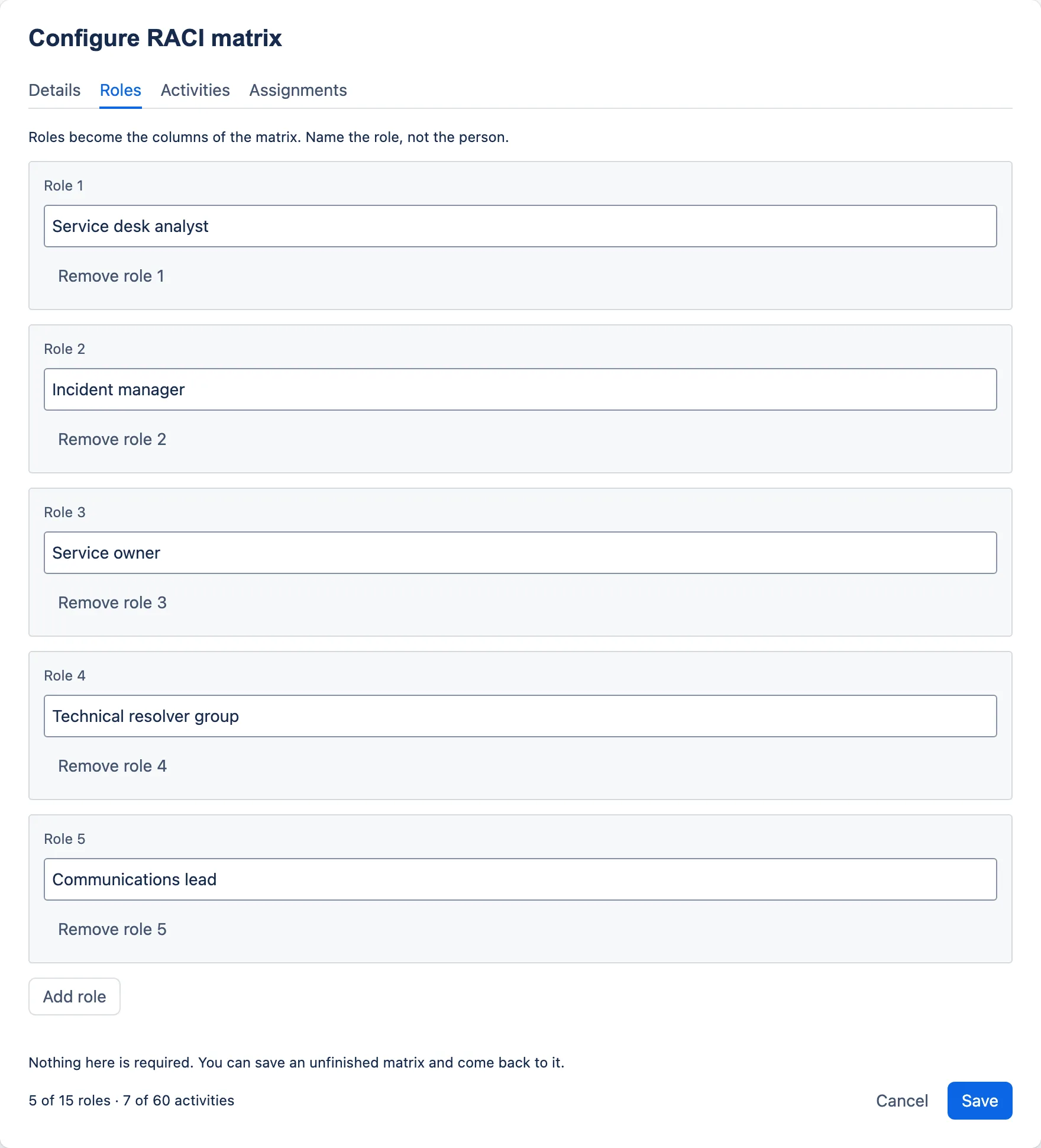
At fifteen roles the Add role button is replaced by: You have reached the limit of 15 roles. A matrix wider than this stops being readable on a page.
To correct a role’s name, just retype it. Renaming keeps every letter already assigned to that role, so renaming is always safer than removing and re-adding.
4. Add the activities
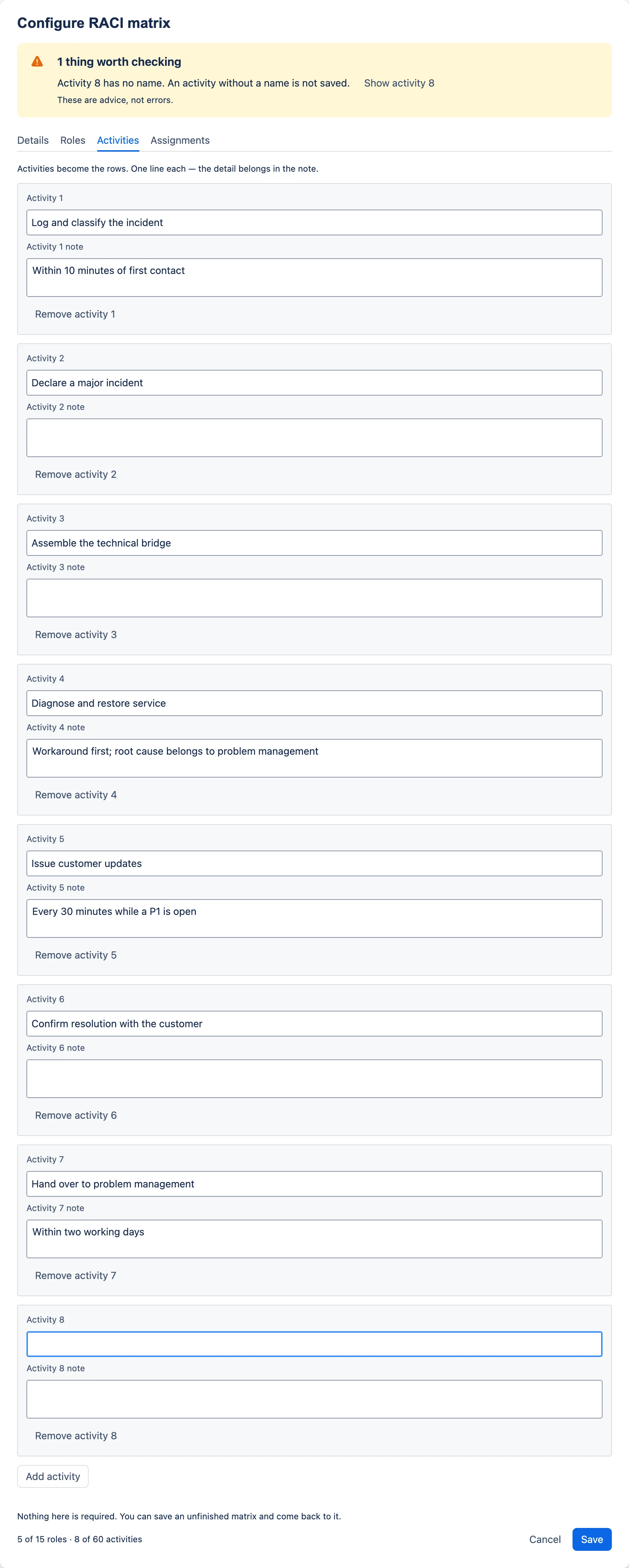
Open the Activities tab. The intro line reads Activities become the rows. One line each — the detail belongs in the note.
- Select Add activity. A new row labelled Activity N appears at the end, with the cursor in the name field.
- Type the activity (up to 160 characters).
- Add a Note if the activity needs qualifying (up to 240 characters). On the page the note appears in small text under the activity name.
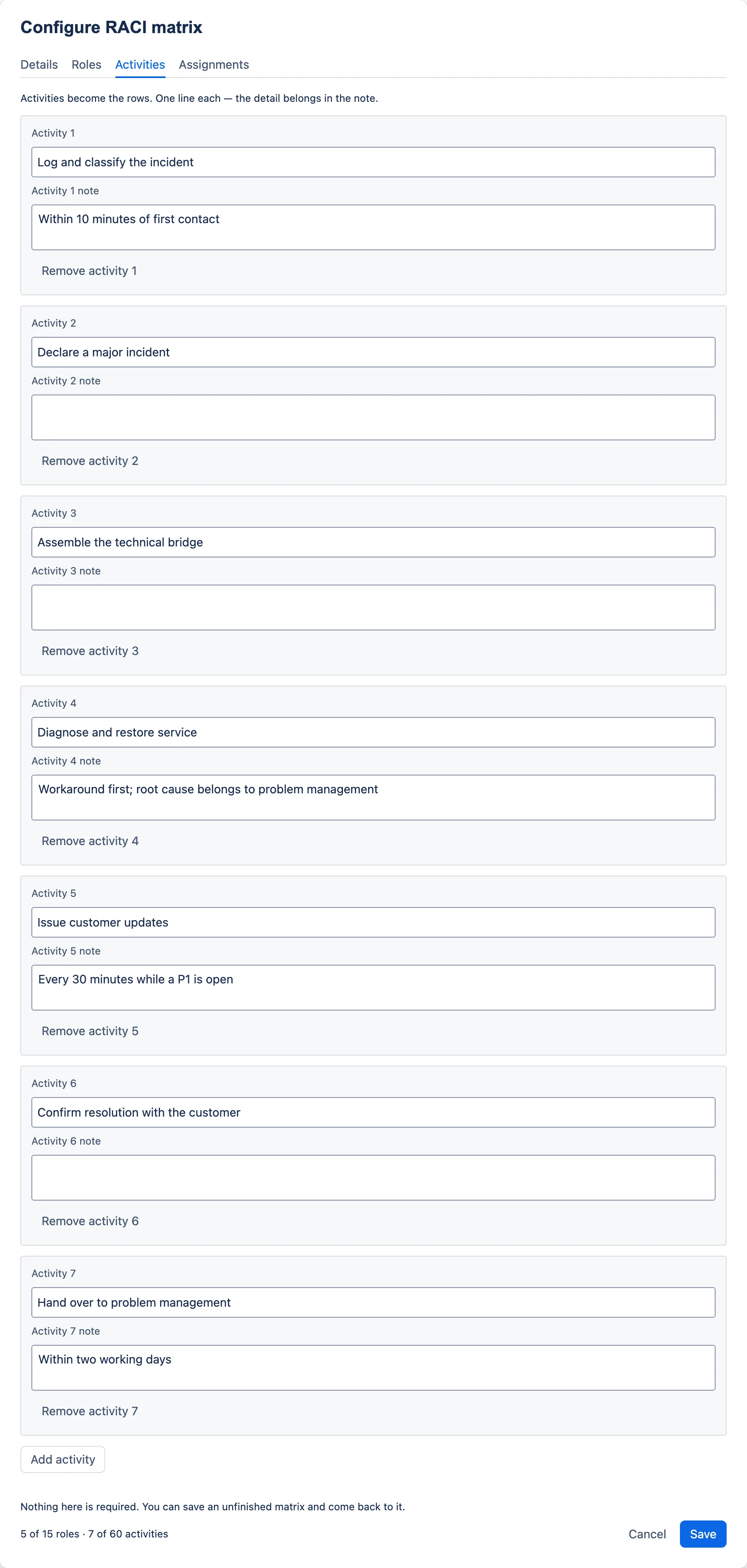
At sixty activities the Add activity button is replaced by: You have reached the limit of 60 activities. Consider splitting the process across two matrices.
A good note is the kind of detail an auditor or a new starter would otherwise have to ask about: “Normal changes only; standard changes are pre-authorised”, “Within two working days”. It is not the place for the procedure itself — link to that from elsewhere on the page.
5. Assign the letters
Open the Assignments tab. It shows one activity at a time, with one choice per role. That keeps a large matrix manageable on screen, and it is exactly the shape of a workshop conversation: one step of the process, everyone in the room, who does what.
If you have no roles or no activities yet, the tab says Add at least one role and one activity before assigning letters.
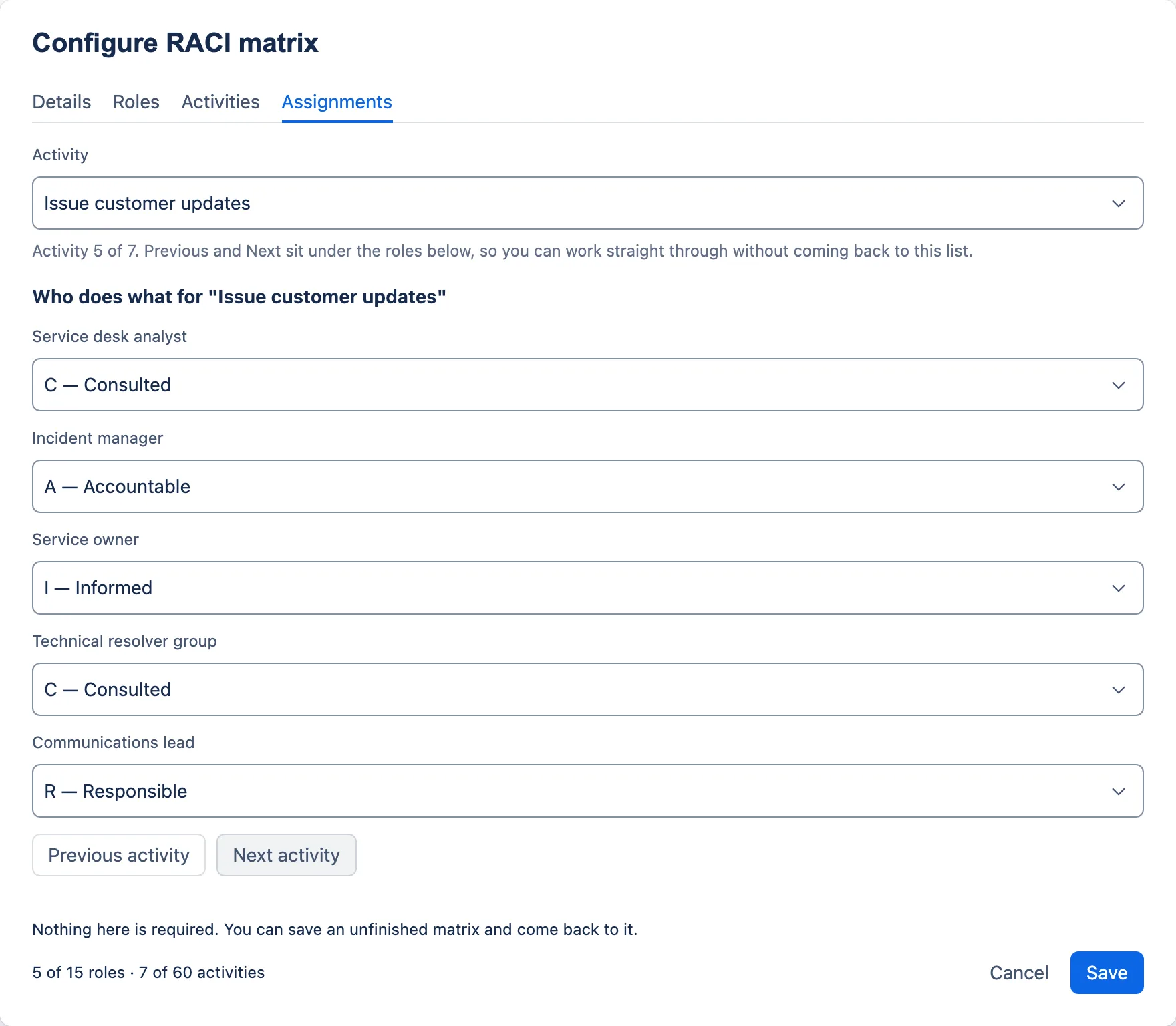
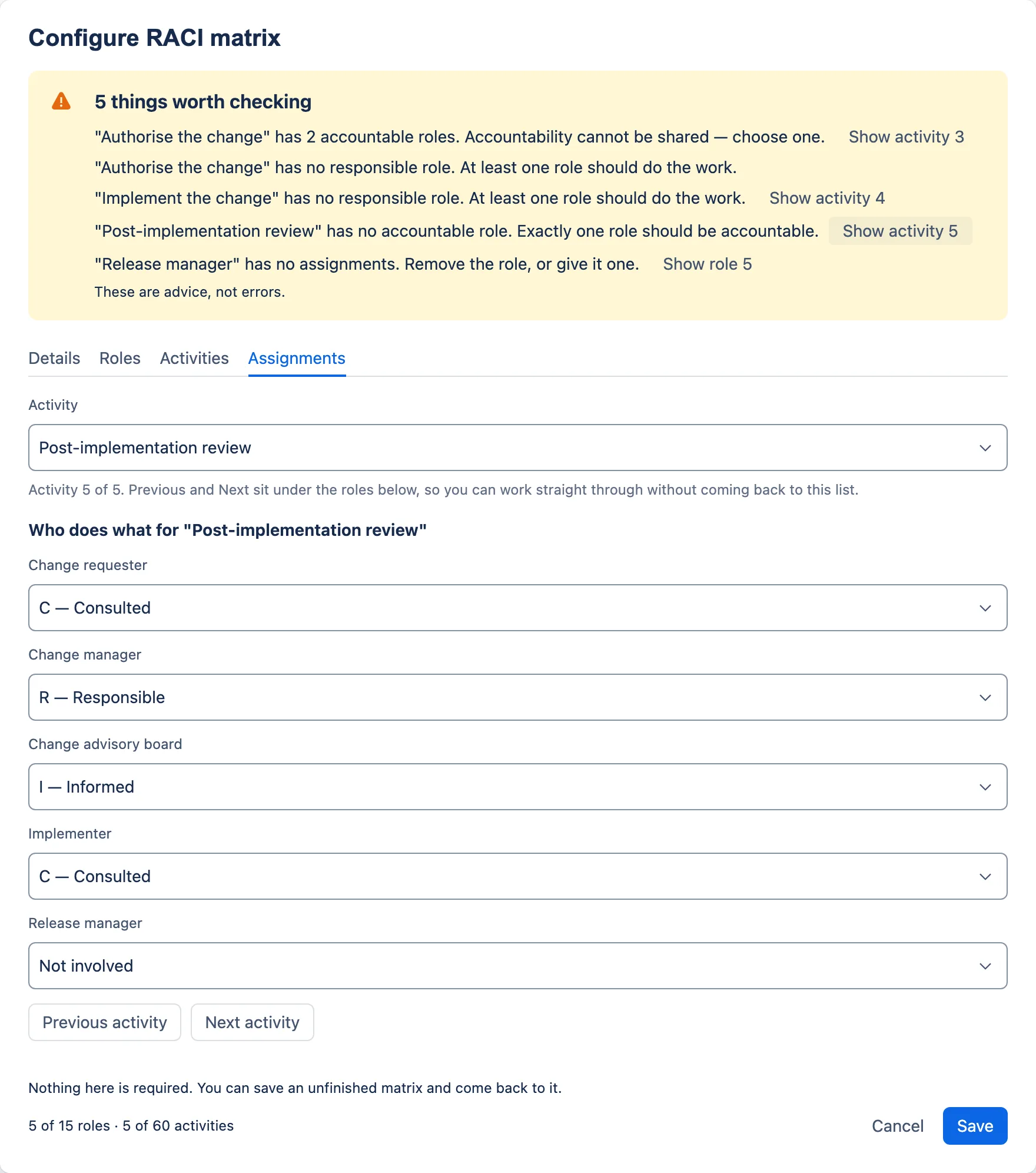
- Pick the activity from the Activity list, or start at the first one. The helper tells you where you are: Activity 5 of 7. Previous and Next sit under the roles below, so you can work straight through without coming back to this list. An activity you have not named yet appears in the list as “Activity N (unnamed)”.
- Under Who does what for “…”, choose a letter for each role. A role you have not named yet is labelled “Role N”.
- Select Next activity to move on, or Previous activity to go back. Neither is ever greyed out: Next from the last activity wraps round to the first, and Previous from the first wraps round to the last.
The options
Every role starts at Not involved, which shows on the page as a dash.
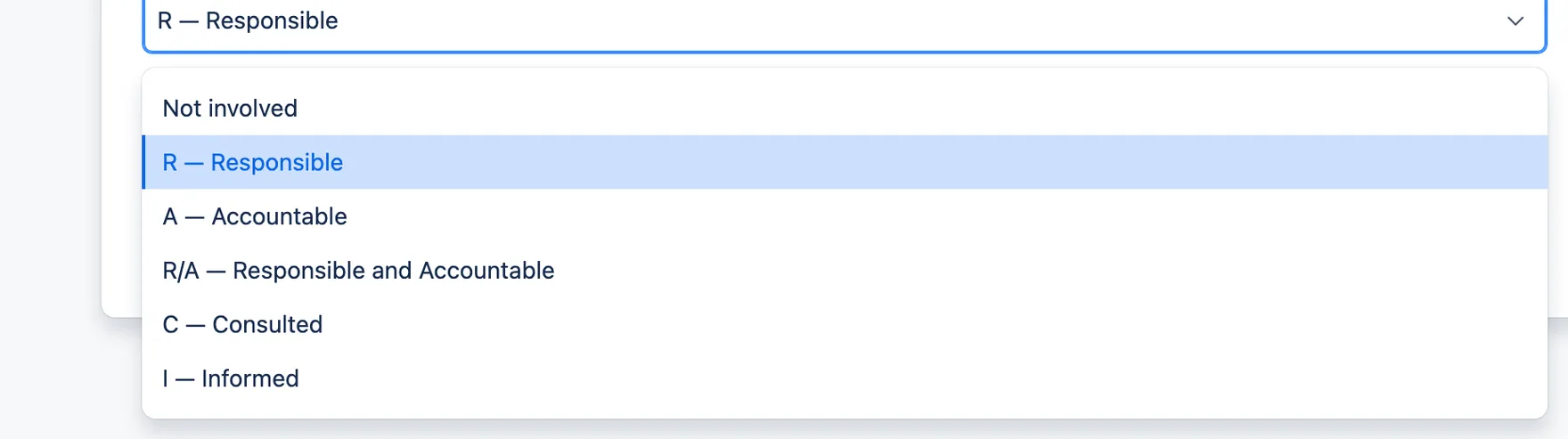
Why R/A is the only combination
Each role gets exactly one choice per activity. Most combinations would add nothing, because the stronger letter already includes the weaker one: the role doing the work is necessarily informed, and the role answering for it is necessarily consulted. “R and I” is just R; “A and C” is just A.
R/A is the exception, because doing the work and answering for it are genuinely different jobs that small teams routinely give to the same role — a service desk analyst who logs and classifies an incident, for example. For the checks in step 6, R/A counts as both Responsible and Accountable.
Using S in a RASCI matrix
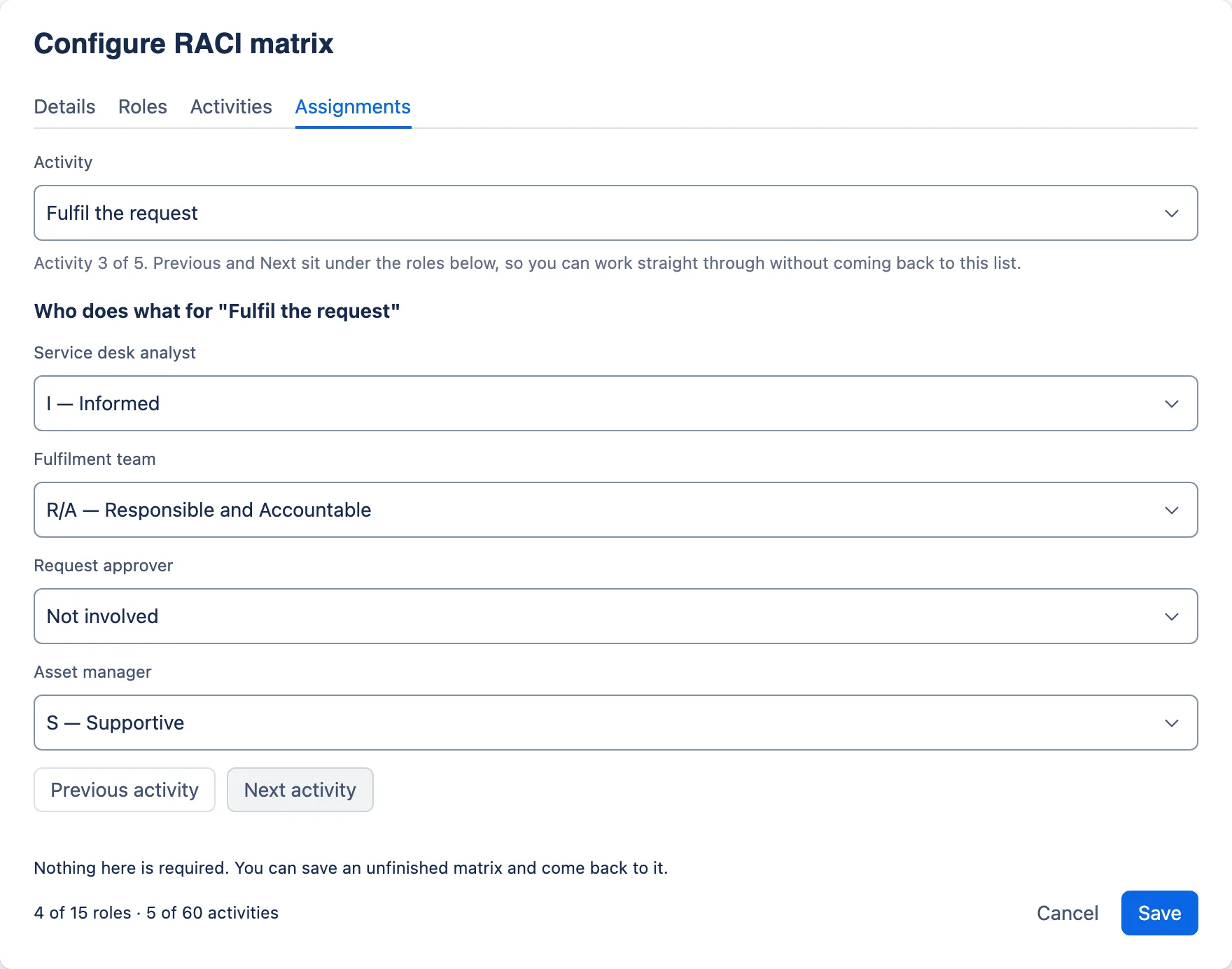
Supportive is not a lighter kind of Responsible. An activity whose only doers are marked S still has no responsible role, and the editor will say so. Someone has to own the doing; S is for the roles that help them.
6. Work through the warnings
As you fill the matrix in, a yellow banner above the tabs lists anything worth checking. It updates as you type and choose. Its title counts the items — “1 thing worth checking”, “5 things worth checking” — and it always ends with These are advice, not errors.
The warnings never stop you saving. A half-complete RACI from the first session of a workshop is a legitimate record. The banner is your list of open questions.
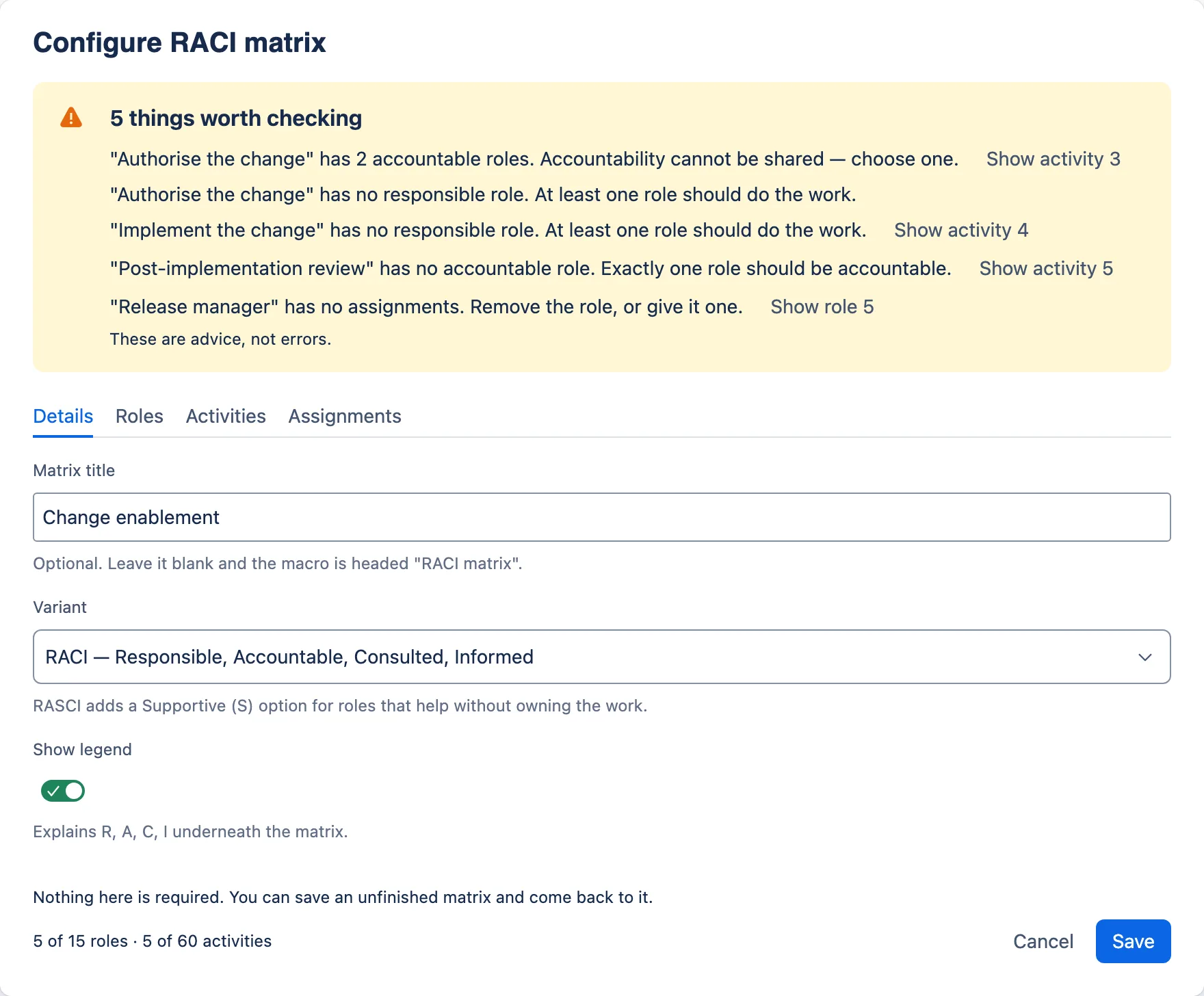
If there are more than eight, the banner shows the first eight and a Show all N button; Show fewer collapses the list again. Warnings about unnamed rows come first, then warnings about each activity in order, then warnings about each role.
What each warning means for the process
“Role N has no name. A role without a name is not saved, and its assignments go with it.” You added a role and have not typed its name. If you save now, the role and every letter you gave it disappear. Until it is named, its letters also do not count towards the other checks. Name it, or remove it.
“Activity N has no name. An activity without a name is not saved.” Same idea for a row: the whole activity goes on save, including its note and its letters.
“… has no accountable role. Exactly one role should be accountable.” Nobody answers for this step. It shows up most often at handovers — “Hand over to problem management” — and in steps everyone assumes someone else owns. Ask the room one question: if this step goes wrong, who is asked why? That role is A. If it is the role doing the work, use R/A.
“… has N accountable roles. Accountability cannot be shared — choose one.” Two roles each believe they own the outcome, which in practice means neither does. In change enablement this is classically the change manager and the CAB both marked A for “Authorise the change”. Decide where the authority actually sits: the role that makes the decision is Accountable, and a body that advises is Consulted. If both genuinely decide different things, the activity is two activities — “Authorise normal changes”, “Authorise emergency changes” — and should be split.
“… has no responsible role. At least one role should do the work.” Nobody does it. Usually the role that does the work is already a column and simply has no R yet — mark it R. If the accountable role also does the work, change its A to R/A. If the doer is missing from your list altogether, add the role. Remember that S alone does not count.
“… has no assignments. Remove the role, or give it one.” A role with no letters anywhere. Sometimes you simply have not reached its activities yet. Often it is a stakeholder added “just in case”. If it has no part in any activity, it does not belong in this matrix.
“… is accountable for every activity. Check that accountability genuinely sits with one role throughout, rather than defaulting to it.” This appears only when the matrix has at least three activities and one role is A or R/A on every one. It usually means the organisation chart drove the matrix rather than the work did — the most senior role in the room took A by default. Being accountable for the process is not the same as being accountable for each activity in it. Go through the activities and ask who would really answer for each one. In a small team the answer may genuinely be one role throughout; then leave it. It is advice.
What the warnings will not tell you
An empty banner means every activity has one A and at least one R, and every role is used. It does not mean the matrix is sound. The editor does not look for:
- Consulted everywhere. A role marked C on nearly every activity slows every decision it touches. Ask whether each C is input the work genuinely relies on, or courtesy that should be an I.
- One role doing everything. A role carrying R on almost every activity is a bottleneck, or a sign the activities are written from that role’s point of view.
- People dressed as roles. Nothing checks that a column is a role rather than a person’s name. Read the headers once with that in mind.
- The same role twice. Nothing removes duplicates. Two roles both named “Change manager” sit side by side, and two activities with the same name sit one above the other, with no warning; the letters are split between them.
The Show activity and Show role buttons
Most warnings carry a button that takes you to the row concerned. The number on the button always matches the label in the editor (“Show activity 5” goes to the row labelled Activity 5). When one row has two warnings, only the first carries the button, since both go to the same place.
| Warning | Button | Where it takes you |
|---|---|---|
| Role N has no name | Show role N | Roles tab |
| Activity N has no name | Show activity N | Activities tab |
| No accountable / several accountable / no responsible | Show activity N | Assignments tab, with that activity selected |
| No assignments / accountable for every activity | Show role N | Roles tab |
Know their limits:
- They change the tab and the selection, but cannot put the cursor in the field. The platform lets an app place focus only on something newly appearing — a new row, a confirmation — not move it to an existing field on demand. After selecting the button, click or tab into the role you want to change. The message names the activity or role, which is the fallback.
- A role button goes to the Roles tab. That is where you remove a role, but not where you give it a letter. For “has no assignments” or “accountable for every activity”, go to the Assignments tab and work through the activities concerned.
7. Remove a role or an activity
Each row has its own Remove role N or Remove activity N button. What happens next depends on what the row holds.
- A completely empty row — no name, no note, no letters — is removed at once.
- A row with anything in it asks first. The Remove button is replaced by a yellow message titled This cannot be undone, with a Keep it button (which takes focus, so a reflexive Enter is safe) and a red confirm button.
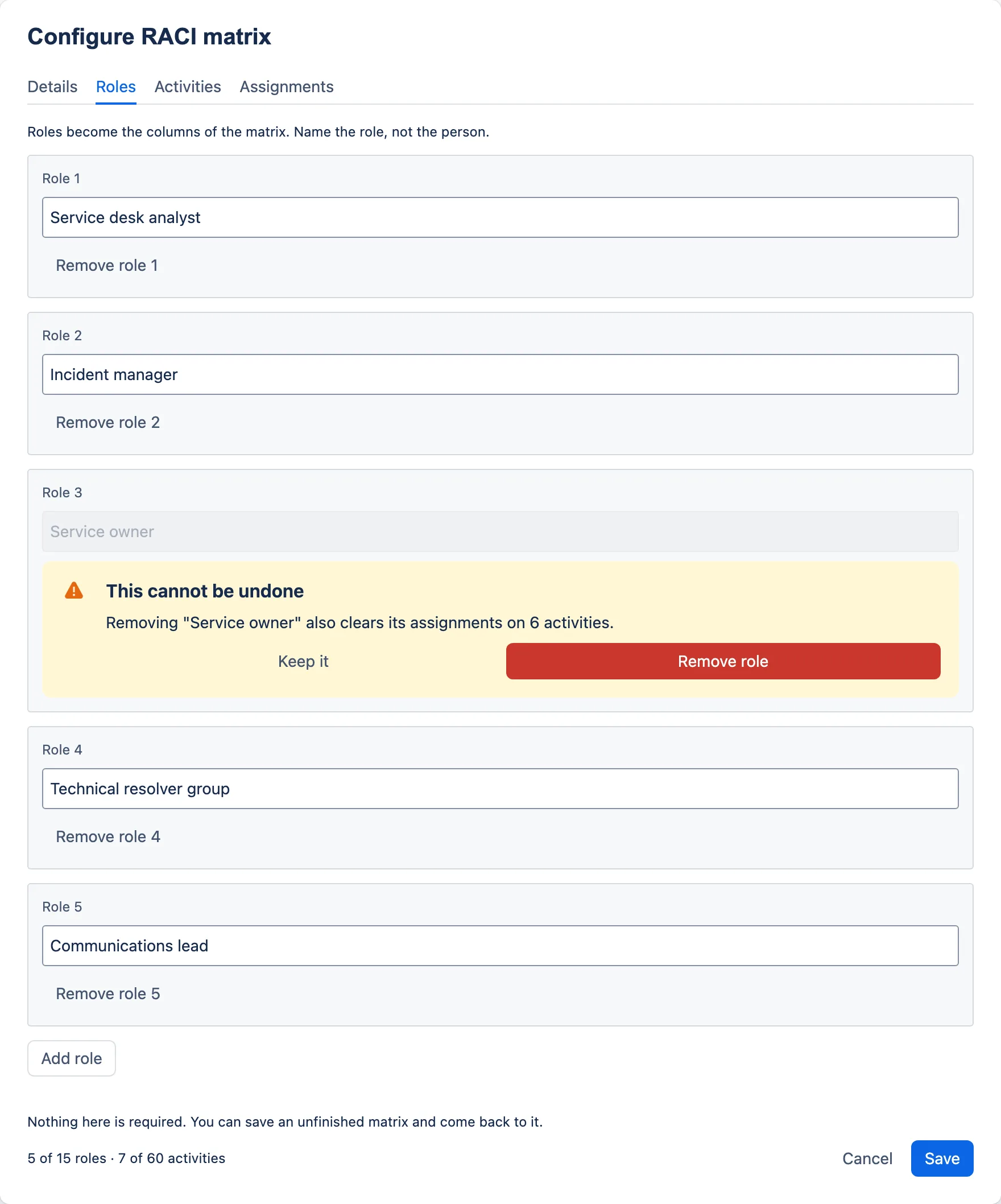
The messages you can see:
| Removing | Message |
|---|---|
| A named role with no letters | Removing “{role}” deletes the name you typed. |
| A role with one letter | Removing “{role}” also clears its assignment on 1 activity. |
| A role with several letters | Removing “{role}” also clears its assignments on {N} activities. |
| An activity with only a name | Removing “{activity}” deletes the name you typed. |
| An activity with letters and/or a note | Removing “{activity}” also clears {what it holds}. |
For an activity, {what it holds} is “the letter assigned against it” or “its {N} assigned letters”, and/or “its note”, joined with “and” — for example Removing “Authorise the change” also clears its 4 assigned letters and its note. An unnamed row is named by its label, such as “Role 3”.
Confirm with Remove role or Remove activity. While the question is on screen that row’s fields are locked — and, for an activity, its letters on the Assignments tab — so the row cannot change between asking and confirming. Only one confirmation is on screen at a time. Selecting Remove on another row replaces it with that row’s question, or clears it if that row is completely empty and goes at once. Cancel in the footer replaces it with the discard prompt, or closes the dialog if nothing has changed since it opened.
Things to know after removing:
- Removing a role removes its whole column of letters.
- Rows are labelled by position, so the rows after the one you removed are renumbered — and so are the numbers on the warning buttons.
- On the Assignments tab, the selection stays on the activity you were looking at. If you removed that very activity, it moves to the one that followed it, or to the new last activity.
- There is no undo. Cancel and Discard changes (step 8) is the way back.
8. Save, cancel or discard
Save writes the matrix into the page and closes the dialog. While it works, Save shows a spinner and Cancel is unavailable. On save:
- text is trimmed of leading and trailing spaces;
- unnamed roles and unnamed activities are dropped, with their letters and notes.
If saving fails, a red message appears in the footer: The matrix could not be saved — Check your connection and try again. Your changes are still here. Nothing is lost; try Save again.
Cancel closes the dialog at once if you have changed nothing. If you have changed anything — even added a row and left it empty — a prompt appears between the tabs and the footer instead, and the footer’s Cancel and Save buttons step aside:
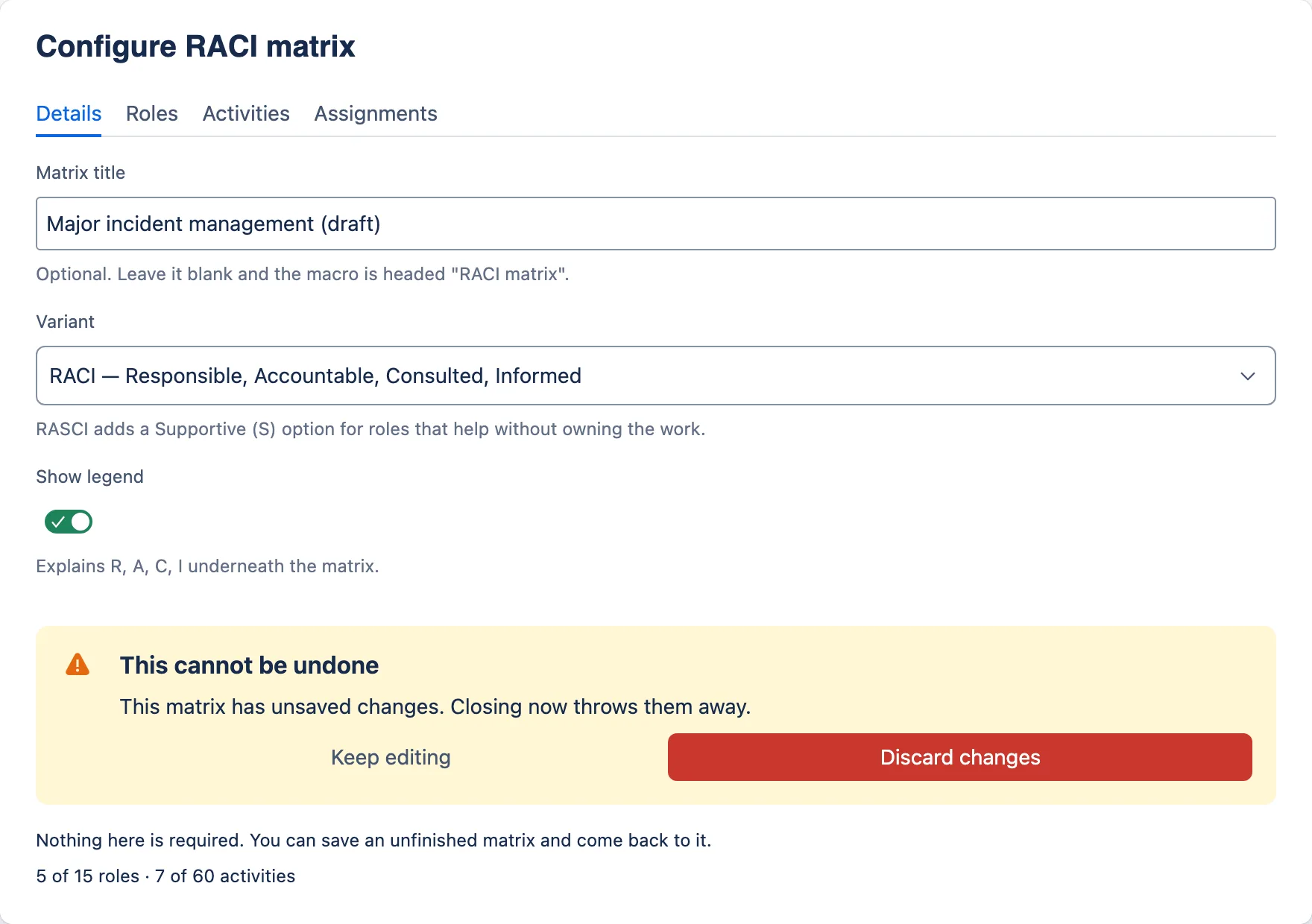
- Keep editing returns you to the dialog with everything intact.
- Discard changes closes the dialog and throws away everything since it was opened.
Closing the dialog any other way saves your work. Pressing Esc, or the dialog’s own ×, closes it without asking — Confluence does that, not the app — so the app saves what you have typed as it closes, exactly as Save would. Only Cancel, then Discard changes, throws changes away.
There is no other autosave inside the dialog. On a long session, save now and then and reopen the macro to carry on. Saving is not publishing: see step 9.
Switching from RASCI back to RACI
Changing Variant from RASCI to RACI clears every S assignment immediately, without asking. The only warning is the helper text under Variant while RASCI is selected: Switching back to RACI clears any Supportive assignments. Switching back to RASCI does not bring them back.
The way back is Cancel, then Discard changes, before you save. That also discards every other change since the dialog opened, so if you are considering the switch, save first — then a discard costs you only the switch.
9. Publish, and check what readers see
Saving the dialog is not publishing the page
This describes a page you edit and then publish or update. If your site uses live docs, or any page type where changes reach readers as you make them, there is no separate publish step and this subsection does not apply in the same way. Check which kind of page you have before a workshop.
On a page with a publish step, Save writes the matrix into the page you are editing but does not publish it. Until you publish or update the page:
- readers do not see the change. They see the page as it was last published — an older matrix or the “not yet configured” box — or nothing at all if the page is new and has never been published;
- page history has no version of it. Page history records published versions, so it can only take you back to something you published;
- restoring costs unpublished work. Restoring an earlier version takes the whole page, not only the matrix, back to that version. Treat anything saved in the dialog but not yet published as lost when you restore. If the page was never published with the matrix, there is nothing to restore.
So publish whenever the matrix reaches a state you would want to return to: after preparing it, at each break in a workshop, and when it is agreed.
What readers see
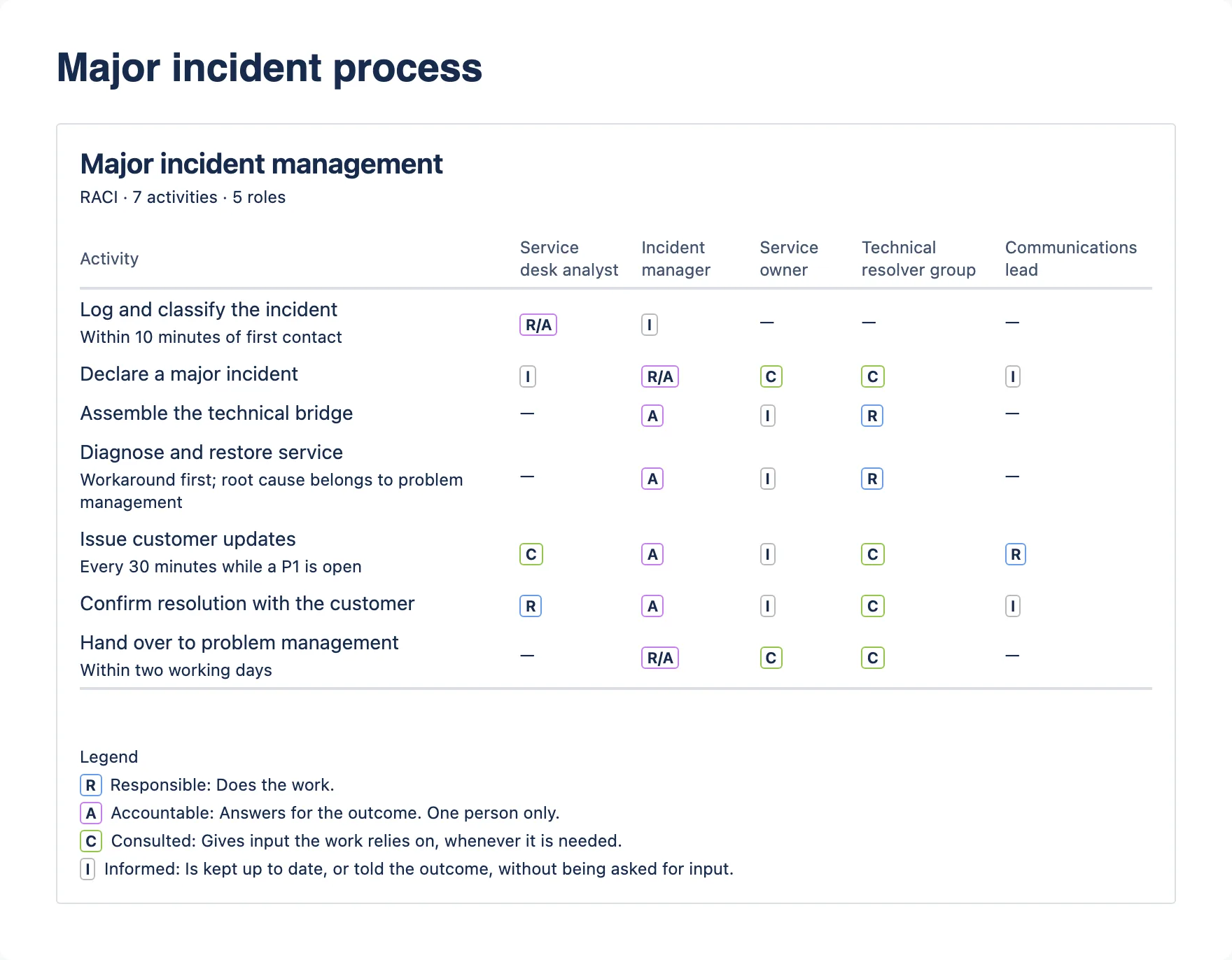
Readers see:
- The heading — your title, or “RACI matrix” if you left it blank — and a subtitle such as “RACI · 7 activities · 5 roles”.
- The table. An Activity column, then one column per role. Each letter appears as a small badge: R blue, A and R/A purple, S yellow, C green, I grey. The letter is always written in the badge, so the colour never carries the meaning on its own. A role that is not involved shows a dash (—).
- The legend, if Show legend is on. There is no separate legend line for R/A; it reads as the two letters it combines.
- A warning line, if the saved matrix still has warnings.
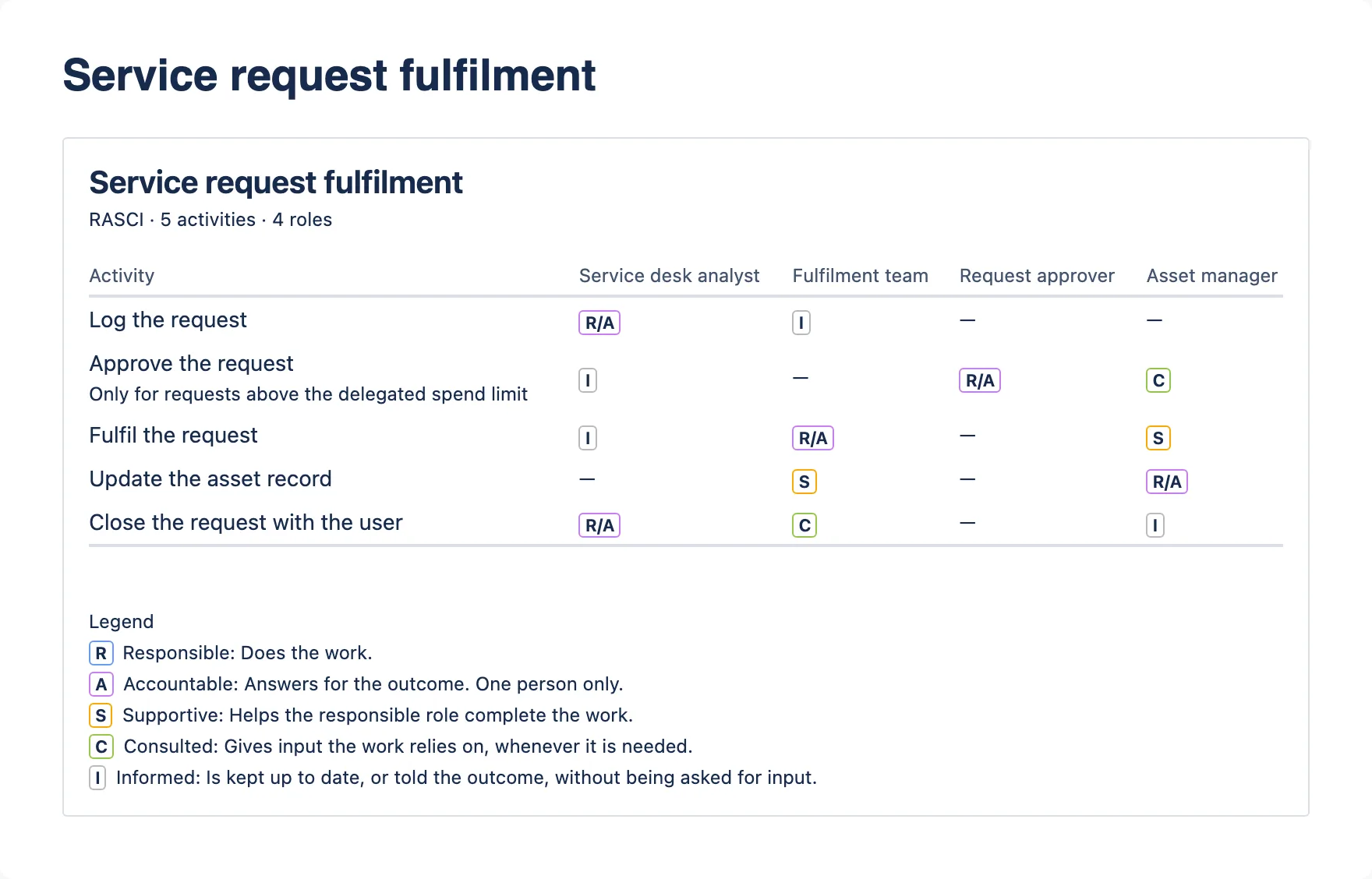
A RASCI matrix reads the same way, with “RASCI” in the subtitle, yellow S badges and an S line in the legend:
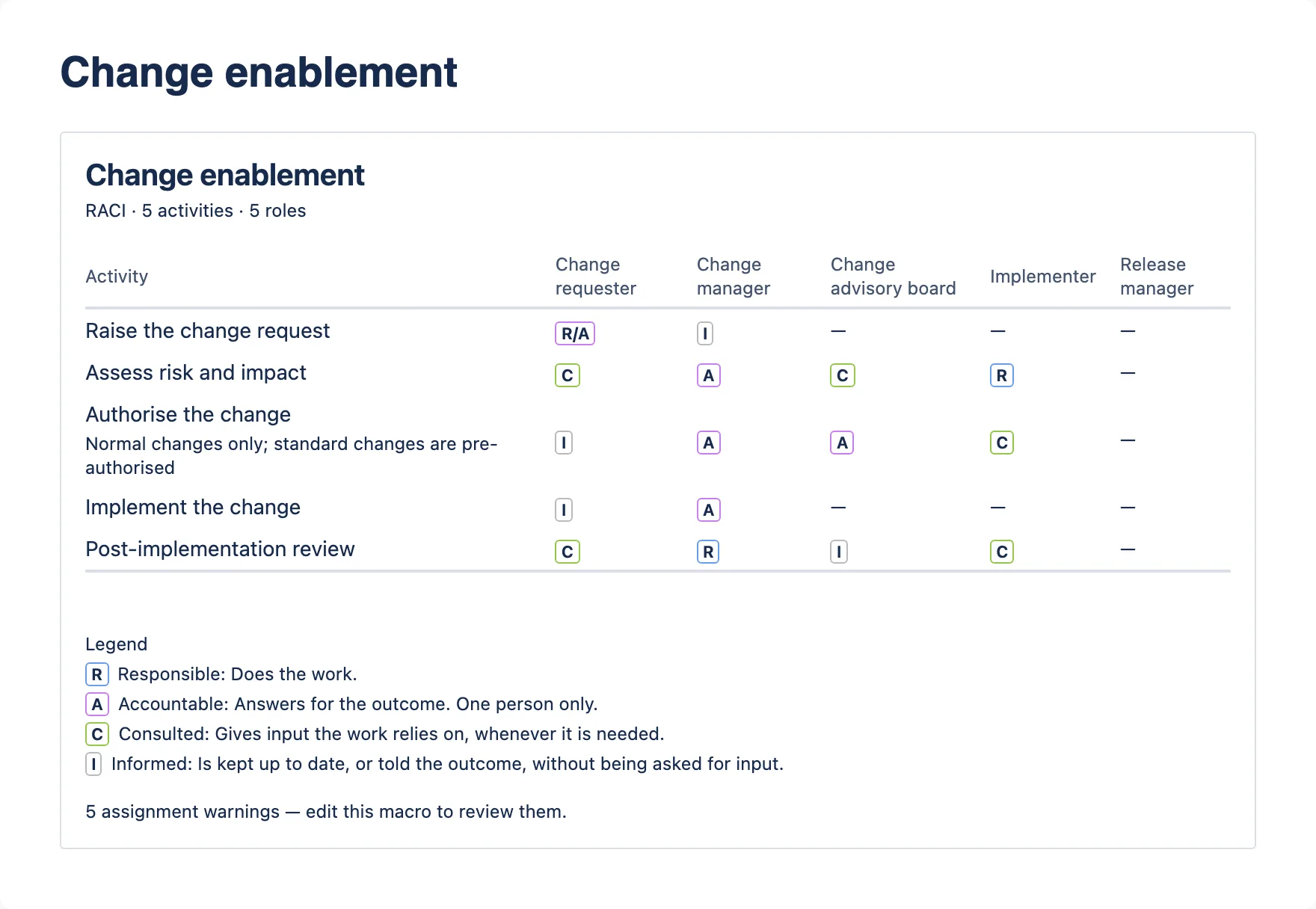
The line reads 1 assignment warning — edit this macro to review it. or {N} assignment warnings — edit this macro to review them. Every reader sees it, and there is no setting to hide it. For a draft that is arguably a feature: it tells readers the matrix is not finished. For a matrix you have agreed, either resolve the warnings or accept that a warning you have consciously decided to live with (such as “accountable for every activity” in a small team) stays in the count.
The macro shows its quiet “not yet configured” box until it holds at least one named role and one named activity. A title alone is not enough.
The matrix follows the reader’s light or dark theme. On a narrow screen the activity column keeps whole words and the roles are reached by scrolling the table sideways.
10. Run a RACI workshop with the macro
The macro is built for the room. This is a way of working that suits it.
Before the session
-
Create the page, insert the macro and fill in the Details, Roles and Activities tabs from the process documentation you already have. Get the activity order right now — rows cannot be moved later.
-
Add “(draft)” to the title until the matrix is agreed.
-
Save, then publish the page — your first checkpoint.
The banner will flag every activity (no A, no R) and every role (no assignments); that is expected. Readers see a grid of dashes and a line such as 19 assignment warnings — edit this macro to review them. (seven activities and five roles). With “(draft)” in the title that is an honest picture. If you would rather nobody saw it half-filled, restrict the page to the working group until it is agreed.
In the session
- Share your screen, open the macro and go to the Assignments tab. Let one person drive the dialog.
- Take one activity at a time. Settle the A first — one role — because that is the question that causes argument, and it is best settled with everyone present. Then the R, then C and I.
- Use Next activity to move on. You never need to go back to the list at the top.
- If an activity turns out to be two, rename it now and add the second one at the end. Note the order problem and fix it afterwards.
- Leave the banner alone while you work through the activities. Most of what it says early on is simply “not filled in yet”.
- At natural breaks, save and publish. To carry on, edit the page again and reopen the macro. It reopens on the Details tab with the first activity selected, so use the Activity list to jump back to where you were.
- Before anyone leaves, spend the last five minutes on the accountability warnings. Two of them are decisions that need the room, not tidying you can do alone: any activity that has N accountable roles, and any role that is accountable for every activity. Settle those while the people concerned are present, then save and publish.
After the session
- Open the macro. The warnings banner is your list of unresolved questions. Work through them with the Show activity buttons, and take the ones you cannot answer back to the people concerned.
- Record any decision that a reader will need in the activity’s note — “CAB advises; change authority decides”, for example.
- When it is agreed, remove “(draft)”, record the governance details on the page (step 11), save and publish.
11. Maintain the matrix
Keep the governance record on the page
An auditor asking about a RACI wants three things: who owns it, when it was agreed, and when it is next reviewed. The macro has no fields for any of them — its Details tab holds only the title, the variant and the legend switch. Write them as ordinary page text above the macro, and update them each time the matrix is re-agreed.
Review it
Review the matrix on a fixed cycle — alongside your periodic review of the process itself is a natural fit — and also whenever the process changes, a role is renamed or a team is reorganised, and after any major incident or failed change where “who owned that?” came up.
- To edit it: edit the page, open the macro, make your changes, save, and publish the page. Rename a role rather than removing and re-adding it — renaming keeps its letters.
- When a role is renamed across the organisation, rename it in each matrix that uses it. Every matrix stands alone; nothing updates the others for you.
- To see or restore an earlier version: the matrix is part of the page, so each version in page history holds the matrix as it was then. Expect an old version to look like the export rather than the page: Atlassian’s documentation says a macro’s export form is also used in page history, and this one has an export form. Not yet checked on a live site; if it holds, you will see plain letters, “RA” for R/A and “–” for an empty cell (step 12). The names and letters are the same; only the presentation differs. Read step 9 before restoring.
- To start a matrix for another process: copy the page. The matrix comes with the copy; change the title, roles and activities. A page template containing the macro, with your standard roles already filled in, works the same way. For a process you have not mapped before, start from an ITIL 4 practice instead.
Page restrictions apply to the matrix exactly as they do to the rest of the page. The app keeps no copy of its own anywhere else.
12. Export to PDF or Word
Export the page in the usual Confluence way (from the page’s menu). The matrix comes out as a real table in both formats, not a picture. It is not identical to the page:
| On the page | In the export |
|---|---|
| Title as a heading | Same (title, or “RACI matrix”) |
| Subtitle “RACI · 7 activities · 5 roles” | Not included |
| Note in small text under the activity name | On the same line: “{activity} — {note}” |
| Coloured letter badges | Plain letters |
| Role names across the top | The same, unless they cannot fit the page whole: then the columns are headed with initials (“ISM”) and a Roles list above the table gives each in full (“ISM — Information security manager”) |
| R/A and an em dash (—) for an empty cell | The same, as plain text |
| Legend under a bold “Legend” label | The legend lines as a bulleted list, without the label |
| The warning line | Not included |
An unconfigured macro exports as the sentence This RACI matrix has not been configured.
Expect earlier versions viewed in page history to use this export form too (step 11).
The same plain rendering is used for both PDF and Word, and how a very wide table fits a Word page is up to Confluence’s exporter. A matrix with many roles may export cramped; if the document is going to a board or an auditor, check it before you send it. The background is in the vendor’s decision log.
Accessibility: a matrix everyone can read
The macro is built on Atlassian’s own components, and the letters are always text. A few choices you make as the author decide how usable the matrix is for everyone else.
- Keep activity names short and put the detail in the note. The platform’s table has no concept of a row header, so a screen reader user moving across a wide matrix cell by cell hears the role (from the column header) but not the activity name. A short name is quick to go back and re-read.
- Name roles clearly. The column header is what is announced with every letter.
- Keep the matrix narrow where you can. A wide table scrolls sideways inside the macro, and that scroll area cannot be reached with the keyboard alone. Fewer, well-chosen roles help every reader.
- Put the macro under your own heading. Its title is always a level 3 heading, so place it under a level 1 or level 2 heading for a sensible page outline.
- Leave the legend on for mixed audiences.
In the dialog, if you use a screen reader:
- The warnings banner sits first, so it is read when the dialog opens. Changes to it while you edit are not announced; revisit it before you save.
- Confirmations and the discard prompt move focus to their safe button (Keep it, Keep editing). After a row is actually removed, focus is left where the browser puts it.
- Show activity N and Show role N change the tab and selection but do not move focus. Every Remove button is individually named (“Remove role 3”).
What happens if…
…the macro still says “Edit this macro to add the roles and activities you want to map” after I saved. It needs at least one named role and one named activity. A title alone does not count, and neither do unnamed rows.
…a role or activity I added has vanished after saving. It had no name. Unnamed rows are dropped on save, with their letters and notes. The banner warned about it before you saved.
…I saved, but readers still see the old matrix (or the “not yet configured” box). The page has probably not been published or updated since you saved. See step 9.
…my S assignments have disappeared. The Variant was switched from RASCI to RACI, which clears them at once. Before saving: Cancel, then Discard changes. After saving: restore an earlier version from page history — read step 9 first.
…I removed the wrong role or activity. Before saving: Cancel, then Discard changes. After saving: page history — read step 9 first.
…I clicked Show activity and the cursor is not in the field. Expected: the tab and activity are right; click into the role. See step 6.
…the matrix has two columns with the same role name. Nothing removes duplicates, and the warnings do not mention them. Decide which column keeps the letters, copy any it lacks from the other on the Assignments tab, then remove the other column.
…the save fails. The footer shows The matrix could not be saved. Your changes are still in the dialog. Check your connection and select Save again. If it keeps failing, see Save fails, or the dialog does not close in the site administrator’s runbook.
…the dialog shows “This configuration could not be read”. Something is stored for the macro but could not be opened, so the dialog refuses to save rather than replace it with a blank matrix. It offers only Close, and says Nothing has been changed. Close it and reload the page. If it keeps happening, the page’s version history holds the last version that worked; point your site administrator at this runbook entry.
…the export says “This RACI matrix has not been configured.” for a matrix that shows properly on the page. That is a fault, not something you did. Give your site administrator the page name and this runbook entry.
…readers can see a line about assignment warnings. The saved matrix still has warnings. Resolve them in the dialog; the line cannot be switched off.
…“RACI Matrix” does not appear when I search for macros. The app is probably not installed on your site. Ask your site administrator — see A macro is missing from the macro browser.
Limitations worth knowing
- No import. You cannot paste a matrix in from a spreadsheet; roles and activities are typed in. Spreadsheet import is on the roadmap if enough people ask for it.
- No reordering. New rows always go at the end. To move an activity, either retype the names of the rows around it (and re-set their letters), or remove and re-add the rows below it. Plan the order before you type.
- No roll-up. Each matrix stands alone. There is no view of every RACI in a space, and no way to see everything one role is accountable for across processes.
- One choice per role per activity. R/A is the only combined option.
- No autosave and no undo inside the dialog. Cancel and Discard changes goes back to how the matrix was when you opened the dialog; page history goes back further (step 9).
- No governance fields. Owner, date agreed and next review belong in page text around the macro.
- Editing is a desktop job. The dialog is wider than a phone. The finished matrix reads on any screen.
- The first column does not stay in place when you scroll a wide matrix sideways, so on a narrow screen the activity names scroll out of view.
- The page’s warning line cannot be hidden.
- The export differs from the page in the ways listed in step 12.
- 15 roles and 60 activities per matrix.
Quick reference
Fields and limits
| Tab | Field | Limit | Default |
|---|---|---|---|
| Details | Matrix title | 120 characters | Blank (headed “RACI matrix”) |
| Details | Variant | RACI or RASCI | RACI |
| Details | Show legend | On or off | On |
| Roles | Role N | 60 characters; up to 15 roles | — |
| Activities | Activity N | 160 characters; up to 60 activities | — |
| Activities | Note | 240 characters | Blank |
| Assignments | One choice per role, per activity | Not involved, R, A, R/A, (S), C, I | Not involved |
Typing stops when a field is full. With emoji and some other symbols it can stop a little before the stated number — never after it. There is no character counter in this macro.
Warnings, and what to do
| Message | What to do |
|---|---|
| Role N has no name. A role without a name is not saved, and its assignments go with it. | Name the role, or remove it. |
| Activity N has no name. An activity without a name is not saved. | Name the activity, or remove it. |
| “{activity}” has no accountable role. Exactly one role should be accountable. | Decide who answers for the step; mark them A, or R/A if they also do it. |
| “{activity}” has {N} accountable roles. Accountability cannot be shared — choose one. | Keep one A. Advisers become C. If both genuinely decide, split the activity. |
| “{activity}” has no responsible role. At least one role should do the work. | Mark the doer R, change the A to R/A, or add the missing role. S does not count. |
| “{role}” has no assignments. Remove the role, or give it one. | Assign it where it belongs, or remove it. |
| “{role}” is accountable for every activity. Check that accountability genuinely sits with one role throughout, rather than defaulting to it. | Check each activity. If it is genuinely true, leave it. Appears only with three or more activities. |
The banner closes with These are advice, not errors. None of these blocks a save.
Confirmations and prompts
| When | Title | Message | Buttons |
|---|---|---|---|
| Removing a role with content | This cannot be undone | Removing “{role}” deletes the name you typed. / …also clears its assignment on 1 activity. / …also clears its assignments on {N} activities. | Keep it · Remove role |
| Removing an activity with content | This cannot be undone | Removing “{activity}” deletes the name you typed. / …also clears {the letter assigned against it / its {N} assigned letters} and/or {its note}. | Keep it · Remove activity |
| Cancel with unsaved changes | This cannot be undone | This matrix has unsaved changes. Closing now throws them away. | Keep editing · Discard changes |
Other messages
| Where | Text |
|---|---|
| Dialog footer | Nothing here is required. You can save an unfinished matrix and come back to it. |
| Dialog footer counter | {r} of 15 roles · {a} of 60 activities |
| Roles tab at the limit | You have reached the limit of 15 roles. A matrix wider than this stops being readable on a page. |
| Activities tab at the limit | You have reached the limit of 60 activities. Consider splitting the process across two matrices. |
| Assignments tab, nothing to assign | Add at least one role and one activity before assigning letters. |
| Save failed | The matrix could not be saved — Check your connection and try again. Your changes are still here. |
| Stored matrix unreadable | This configuration could not be read (Close only; “Nothing has been changed.”) |
| Page, not configured | RACI Matrix — Edit this macro to add the roles and activities you want to map. |
| Page, warning line | 1 assignment warning — edit this macro to review it. / {N} assignment warnings — edit this macro to review them. |
| Export, not configured | This RACI matrix has not been configured. |
Related guides: Reading service management pages · Confluence site administrator · All guides · Project README