
Readers, stakeholders and auditors
Reading service management pages
You read pages that contain these macros, and did not configure any of them.
For anyone who reads Confluence pages that contain macros from ServiceAccord but does not edit them: a stakeholder reading a process page, a customer who has been sent an SLA page, an auditor checking governance evidence, a team member checking what they are responsible for.
By the end you will be able to tell the three macros apart, read each one and know what every letter, colour and label means, know which few things the app works out for itself, export a page and know exactly how the export differs, and find out what changed and when. You do not need to know how the app works.
The screenshots are rendered from the app’s own source code in a local harness, using the same Atlassian design-system components Confluence uses; the page around each macro is simplified and a live site may differ in detail. See About the screenshots. The people, services and figures in them are fictional.
Were you sent a page? Start here
| If you were sent… | Read | Then keep to hand |
|---|---|---|
| An SLA, an OLA, a supplier contract schedule, or a page of service level targets | Task 4 | Agreement types |
| A service review, review minutes or a quarterly report | Task 3 | RAG statuses |
| A process page with a grid of letters | Task 2 | RACI letters |
| A page to check as governance evidence | Tasks 2 to 6, including the evidence sections at the end of tasks 2, 3, 4 and 6 | Who decides what |
Each task stands alone. The evidence sections are for auditors; everyone else can skip them.
Before you start
- You only need to be able to view the page. Nothing to install, nothing to switch on. The macros follow the page’s permissions exactly: if you can see the page, you can see the macros on it; if you cannot, there is nowhere else their contents are kept.
- You cannot break anything. Reading, scrolling and exporting change nothing.
- The app sends nothing anywhere when you view the page. It has no analytics, no tracking and no connection to anything outside Confluence. The contents of each macro are stored in the page itself.
- Almost everything you see was typed or chosen by a person. The app does not calculate a RAG status, measure a service or decide who is accountable. It makes two judgements of its own, afresh on every view: whether a service review action is overdue, and how many warnings each macro has. It also counts a RACI matrix’s activities and roles.
1. Recognise which macro you are looking at
Each configured macro sits in a bordered box with a bold heading at the top and a small line of text under it.
| If the small line under the heading reads… | It is a… |
|---|---|
RACI · 7 activities · 5 roles or RASCI · … |
RACI Matrix — who does what (task 2) |
a review period and a date, such as Q3 2026 (July to September) · 10 Sept 2026 |
Service Review Record — how a service performed, and what happens next (task 3) |
Service level agreement (SLA), Operational level agreement (OLA) or Underpinning contract |
Service Level Targets — what has been committed to (task 4) |
A service review record with no review period and no review date has no small line at all. You will still recognise it by the Overall status line, which every one shows.
Things that are the same in all three
- Colour never carries meaning on its own. Every coloured label — a RACI letter, a RAG status, the Overdue mark — has its text inside it. The coloured labels display in capital letters, so a status of Amber appears as AMBER.
- Dates are shown in your own format. A stored date such as 13 September 2026 appears as “13 Sept 2026” if Confluence uses British English for you, or “Sep 13, 2026” for US English. The format follows the language and region Confluence reports for you, or your browser’s if it reports none. A date never moves to the day before or after because of your time zone.
- A missing line means a blank field. If a service review has no Chair line, nobody typed a chair. Nothing is hidden from you except where this guide says so (compact view and switched-off columns in task 4).
- A bare box means an unfinished macro. See What happens if….
2. Read a RACI matrix
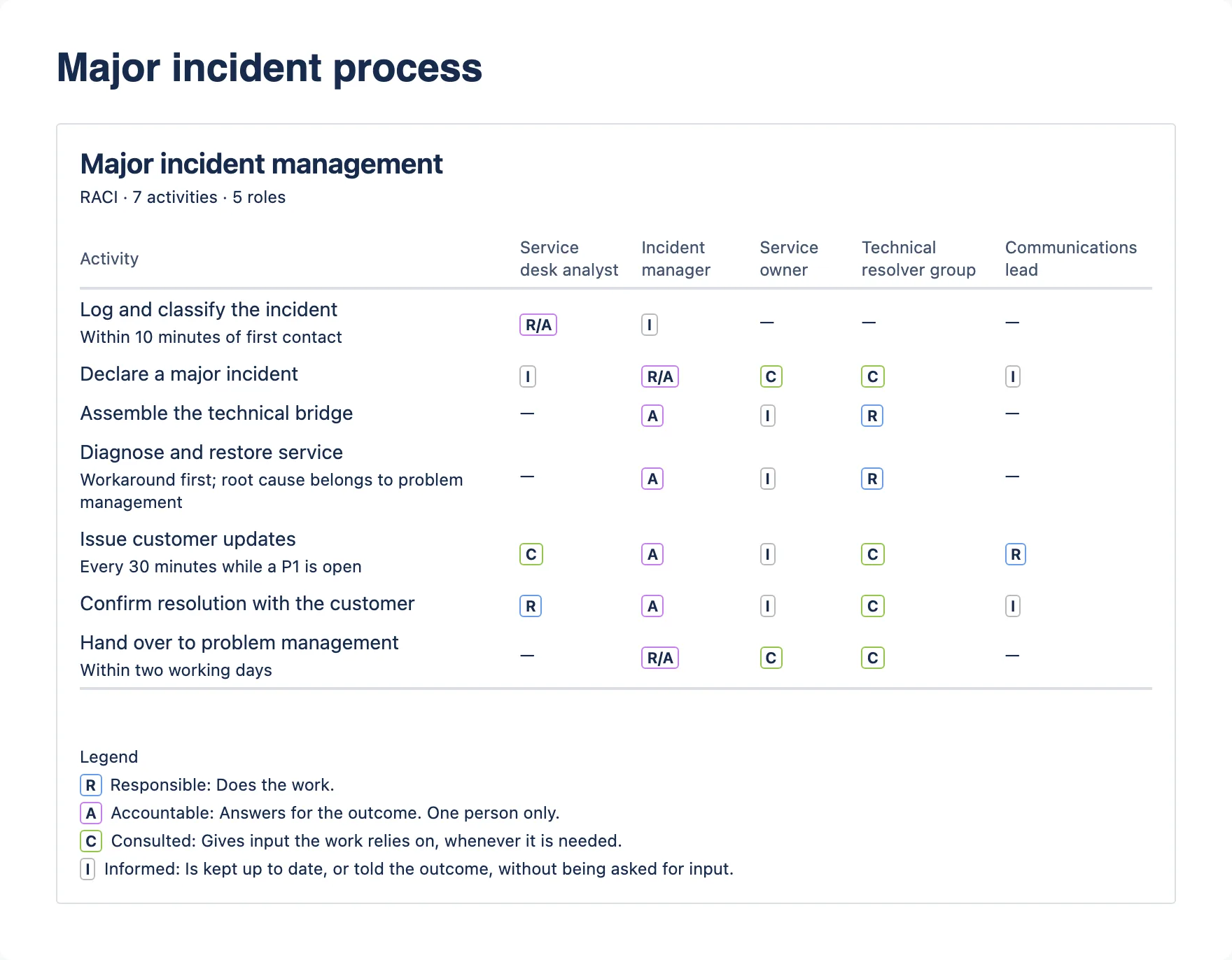
Rows, columns and cells
- Each row is an activity — a step in the process. Smaller text under the activity name is a note: a condition, a time limit, a clarification.
- Each column is a role. Roles should be named for the job, not the person. The editor asks authors to do that but cannot enforce it, so you may see a person’s name as a role.
- Each cell says how that role is involved in that activity.
| Cell | Colour | Means |
|---|---|---|
| R | Blue | Responsible — does the work. |
| A | Purple | Accountable — answers for the outcome. One person only. |
| R/A | Purple | Responsible and Accountable — the same role does the work and answers for it. Common in small teams. |
| S | Yellow | Supportive — helps the responsible role complete the work. RASCI matrices only. |
| C | Green | Consulted — gives input the work relies on, whenever it is needed. |
| I | Grey | Informed — kept up to date, or told the outcome, without being asked for input. |
| — | none | This role has no part recorded in this activity. |
R/A is the only combination the app allows; you will never see “A/C” or “R/C”. To find what you are responsible for, read down your role’s column. Every R or R/A is work you do; every A or R/A is an outcome you answer for.
The four checks
The app checks every matrix four ways, and so can you. Two checks apply to each activity (row): exactly one A or R/A, and at least one R or R/A. Two apply to each role (column): at least one letter in the column, and not A or R/A in every row once there are three or more activities. Each of these counts as one warning:
| Look for | Why it matters |
|---|---|
| A row with no A or R/A | Nobody answers for the outcome. |
| A row with two or more As (or R/As) | Accountability is shared, so in practice nobody holds it. |
| A row with no R or R/A | Nobody is recorded as doing the work. |
| A column that is all dashes | A role is listed but has no part in anything. |
| A column that is A or R/A in every row (three or more activities) | Possibly deliberate, but often a sign the organisation chart drove the matrix rather than the work. |
A matrix can be saved while it fails these checks. The page then says how many times.
The legend
If the page owner left the legend switched on, a Legend block under the matrix spells out each letter, word for word as in the table above. There is no legend line for R/A: it means exactly R plus A. If there is no legend, the owner switched it off; the letters mean the same.
RACI and RASCI
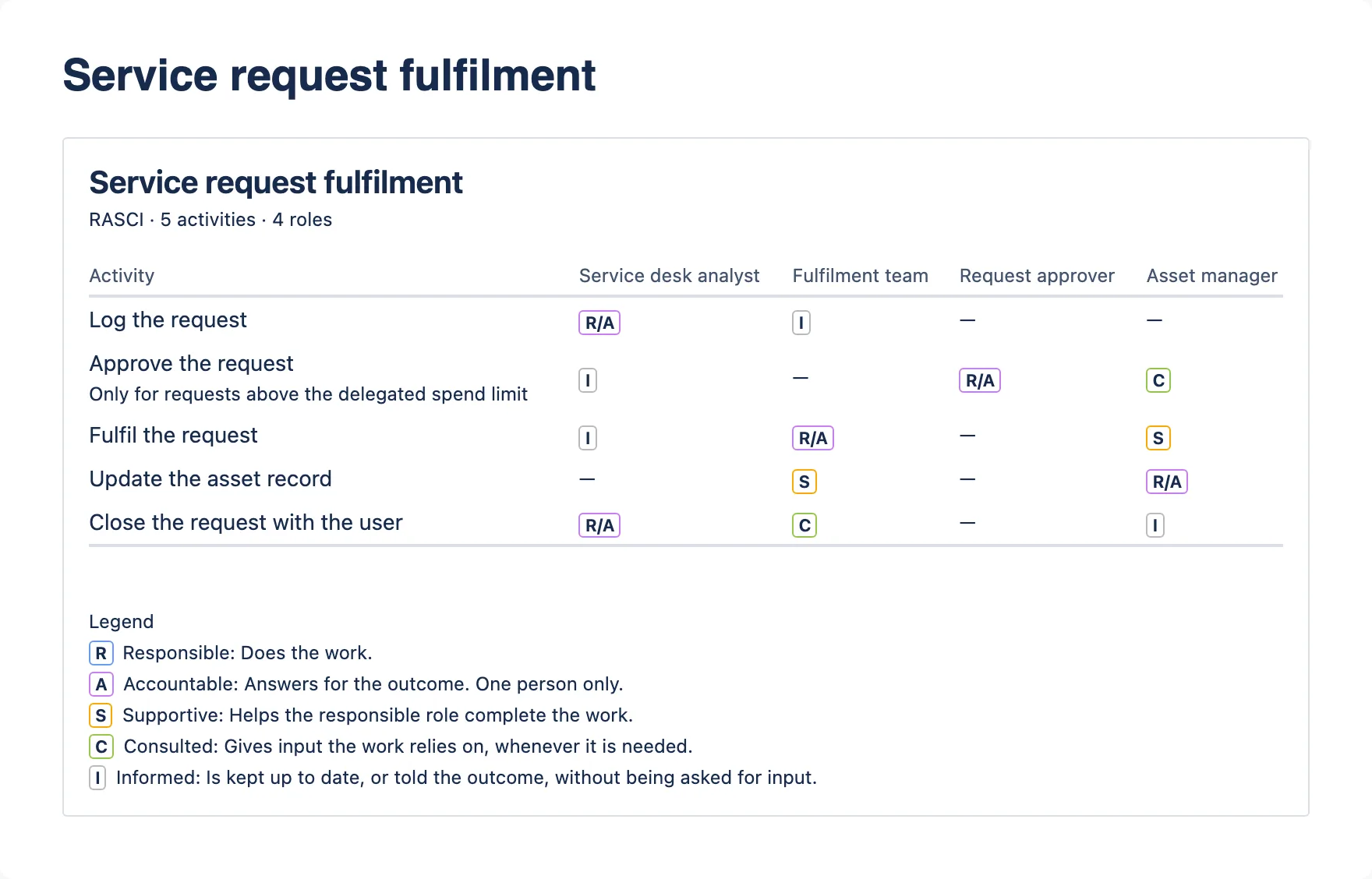
A RASCI matrix adds S — Supportive: a role that helps with the work without owning it. An S is not an R. An activity with only an S and no R still has nobody responsible.
The warning note
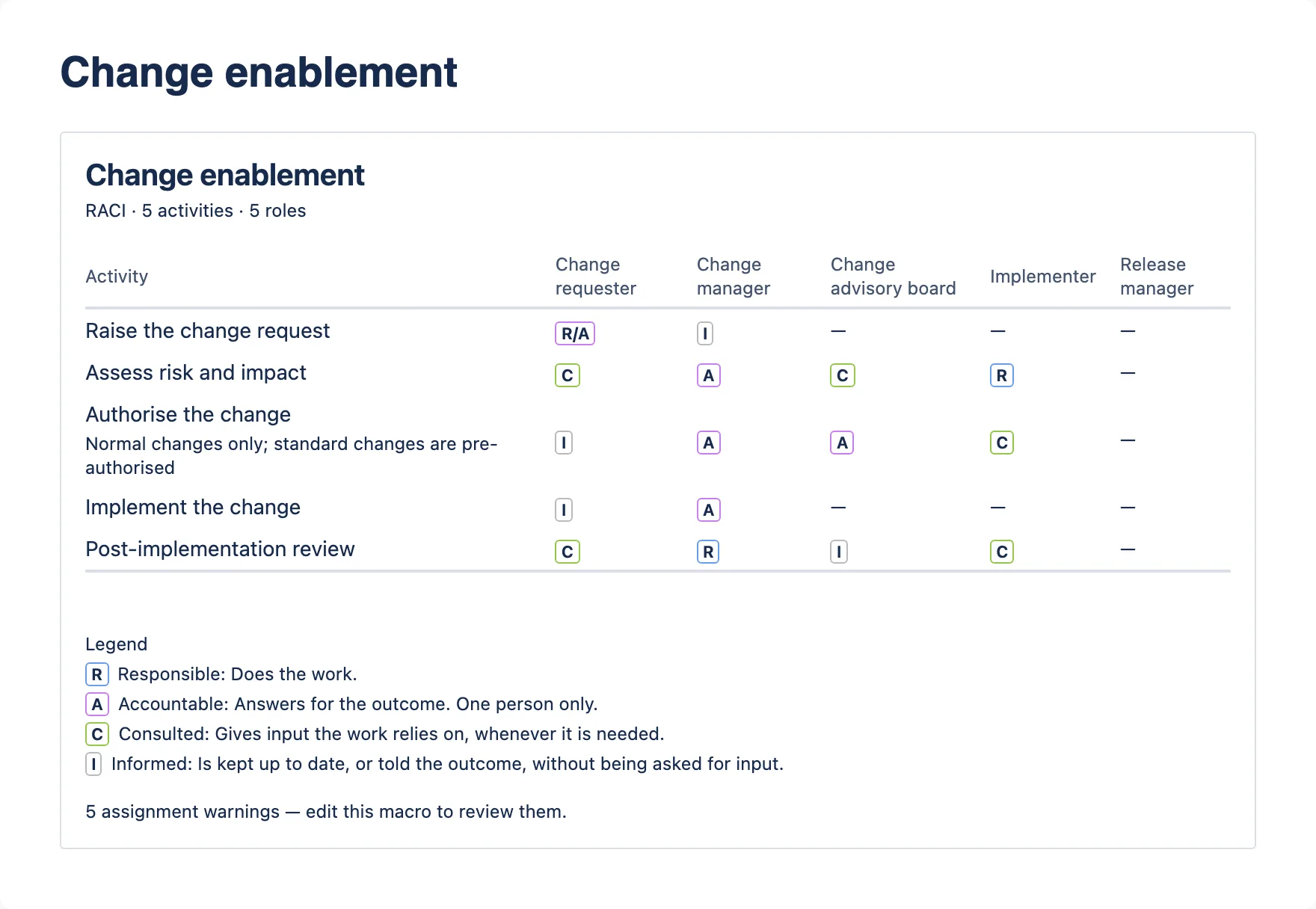
If the matrix fails any of the four checks, a line of small text appears at the very bottom: “1 assignment warning — edit this macro to review it.” or “5 assignment warnings — edit this macro to review them.”
Nobody types this note. The app works the count out itself, every time the page is viewed, by running the matrix through the same four checks the editor uses. The author cannot switch it off.
What it means for you: the matrix is published with gaps in it. The note is deliberately quiet — the detail is only visible to someone who can edit the macro — but you can usually find the problems yourself. In the example, “Authorise the change” accounts for two warnings (two accountable roles, nobody responsible), “Implement the change” and “Post-implementation review” one each, and the empty “Release manager” column the fifth.
What to do: do not rely on a flagged row for who is accountable or responsible until the page owner has confirmed it. Tell the page owner, and say which row you mean. You cannot see or clear the warnings yourself.
If you are checking evidence
The warning count is the app’s judgement, not the author’s claim. A matrix with no warning note shows that every listed activity has one accountable and at least one responsible role, that every listed role has a part, and — on a matrix of three or more activities — that no one role is accountable for everything. It does not show that the list of activities or roles is complete — a missing activity or role is invisible to the checks — or that the right role is accountable. For how the note behaves in an export, see task 6.
3. Read a Service Review Record
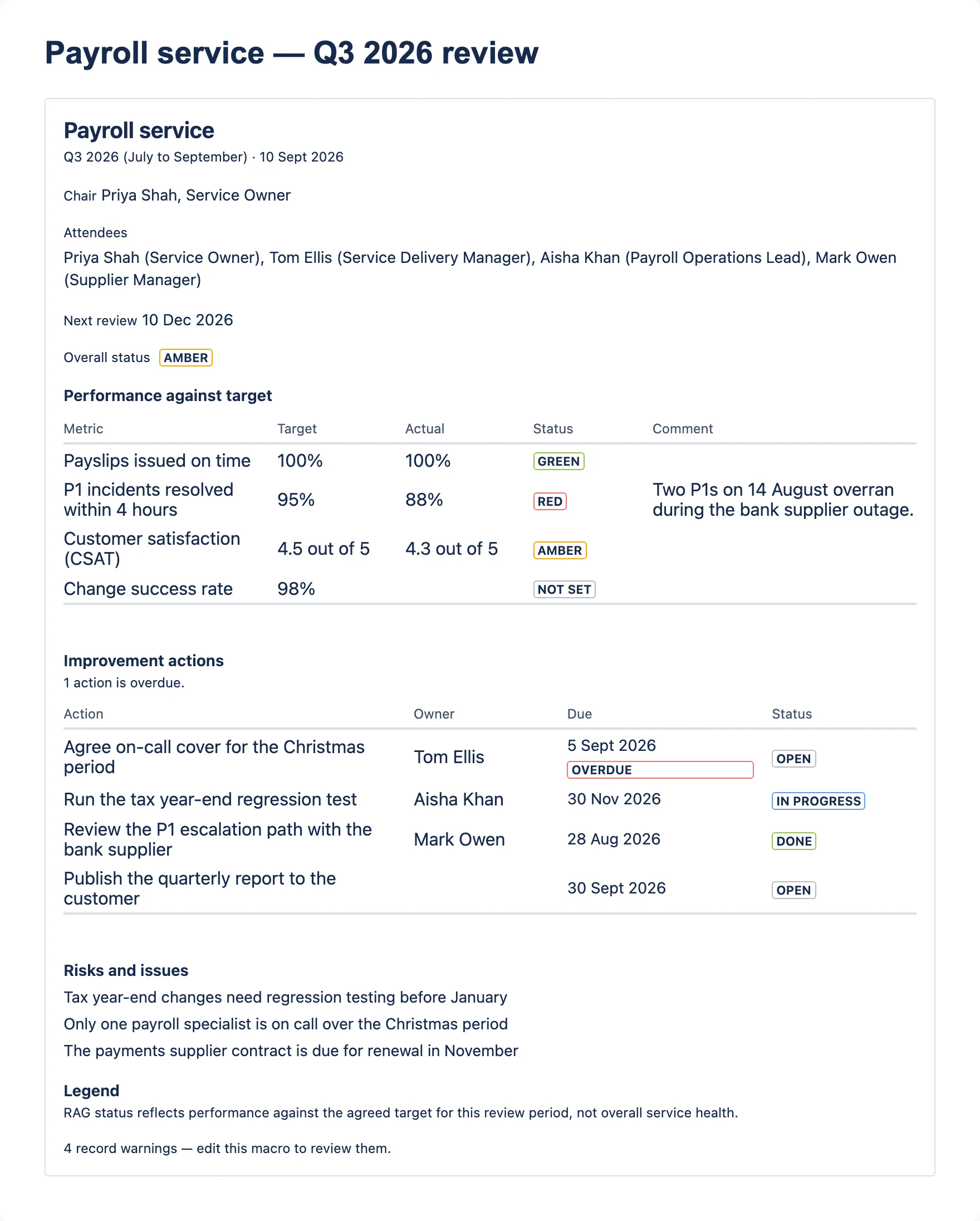
A service review record is the minute of one review meeting. Read it top to bottom.
The header
- Heading — the service reviewed. “Service review” if none was typed.
- Small line — the review period (typed freely, for example “Q3 2026 (July to September)”) and the date the review was held.
- Chair, Attendees and Next review — each shown only if filled in. Attendees are joined with commas.
When a value is too long to sit beside its label, it drops onto its own line under the label, as the attendee list does in the screenshot. Nothing is cut off.
Overall status
Every service review record shows Overall status with one of four labels: Green (green), Amber (yellow), Red (red) or Not set (grey, meaning nobody has chosen one). The overall status is chosen by a person, not calculated from the KPIs. In the example it is Amber although one KPI is Red. That is a legitimate judgement, not a fault.
The KPI table
If the record has KPIs, their table comes first, under the heading Performance against target:
| Column | Holds |
|---|---|
| Metric | What was measured. |
| Target | What was agreed. |
| Actual | What was achieved in the period. |
| Status | A RAG label: Green, Amber, Red or Not set. |
| Comment | Why, usually for anything not Green. |
Things to read carefully:
- The app does not compare target with actual. The status is the reviewer’s choice. Check it against the numbers yourself.
- A blank Actual means the figure achieved was not recorded. “Change success rate” in the example has a target of 98%, no actual and no status: there is no evidence either way.
- A Red or Amber with no comment means nobody recorded why.
What RAG means here
The app does not define thresholds for Green, Amber and Red; your organisation does, if it has. A common reading is Green for met, Amber for at risk or narrowly missed, Red for missed. Where the page owner has left it switched on, a Legend heading near the foot of the record introduces a sentence that settles the scope:
RAG status reflects performance against the agreed target for this review period, not overall service health.
In other words, a Green KPI says the target was met this period. It does not say the service is healthy, and a Red one does not say the service is failing. If the sentence is absent, either the owner switched it off or nothing on the record has a status yet; the meaning has not changed.
Improvement actions and “overdue”
The actions table, under the heading Improvement actions, lists actions agreed at the review: Action, Owner, Due and Status (Open, In progress or Done). A blank Owner means nobody was named.
An action is marked overdue with a bold due date and a red OVERDUE label, and a line above the table counts them: “1 action is overdue.” or “3 actions are overdue.” Nobody types the overdue mark. The app works it out itself, each time the page is viewed. The rule is precise:
- An action is overdue when its due date is strictly before today and its status is not Done.
- Due today is not overdue. It becomes overdue tomorrow.
- Done is never overdue, however late it was completed.
- An action with no due date is never overdue.
- “Today” is your own calendar date, in your own time zone, taken from the device you are reading on.
Readers in different time zones. Two readers can see different answers while their calendar dates differ, for an action due on the earlier of their two dates: it is already overdue for the reader who has reached the next day, and still due today for the other. Sydney is 9 to 11 hours ahead of London, so that window is roughly the London afternoon and evening, every day. Each reader is right for where they are. Every other action shows the same to both.
Risks and issues
A Risks and issues heading, then one line per risk or issue, as typed.
What the warning line does not tell you
The editor warns the author about a KPI with a target but no actual, a Red or Amber KPI with no comment, an action with no owner and an action past its due date. The published page counts these warnings but does not list them: a line of small text at the foot of the record reads “1 record warning — edit this macro to review it.” or “4 record warnings — edit this macro to review them.” Like the RACI warning note, nobody types it; the app works it out on every view, and because an overdue action counts, the number follows your own date. It tells you the record has gaps, not which ones — so look for the gaps, and tell the page owner.
If you are checking evidence
- The overdue mark describes the actions as of today, not as of the review. A record nobody has touched can show more overdue actions next month than it did on the day of the review. An earlier version does not freeze the marks either (task 5).
- A status carries no date. Done says nothing about when an action was done, or whether it was done late. See task 5.
4. Read Service Level Targets
Agreement type: who is committing to whom
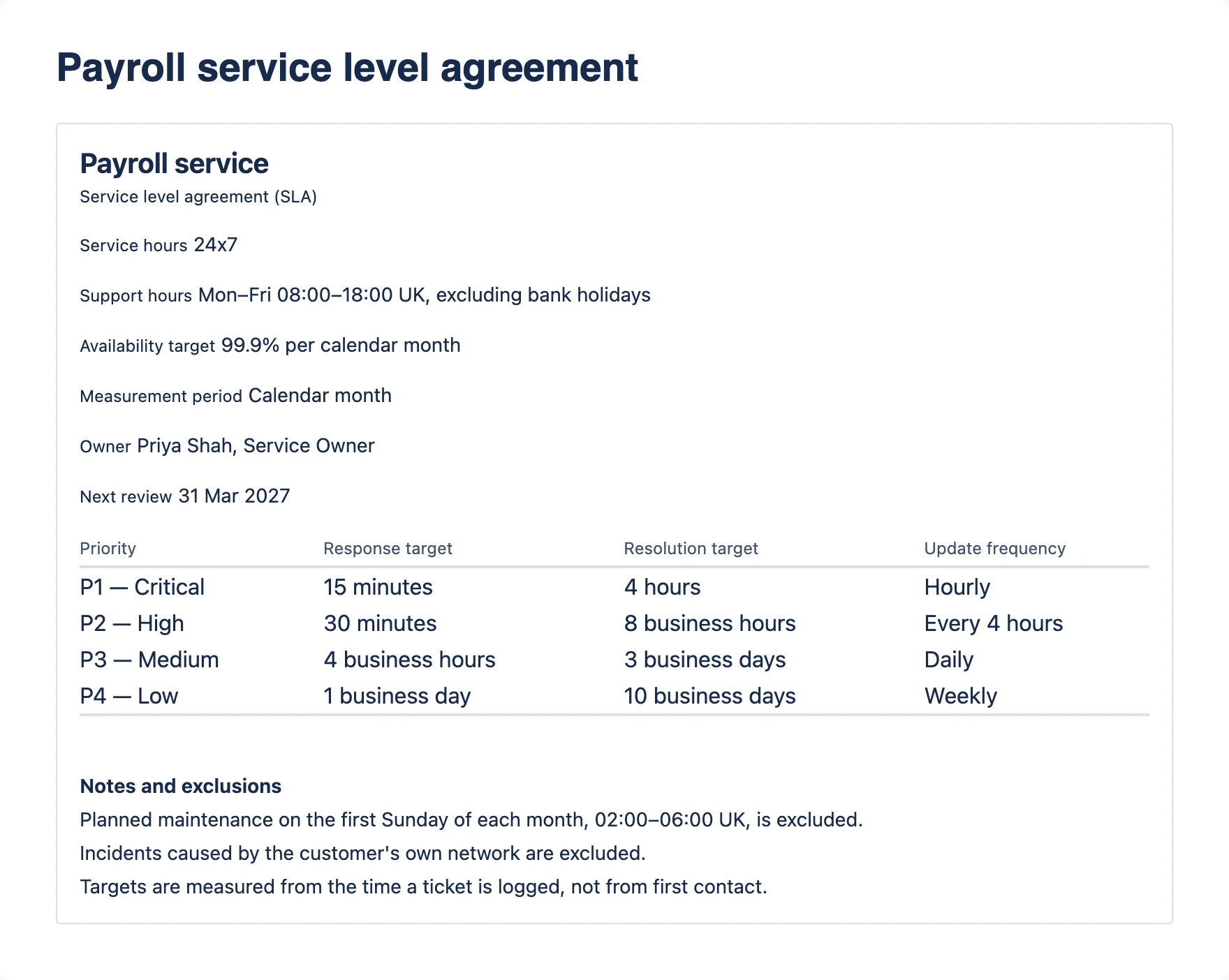
The small line under the heading always names the kind of agreement. It matters more than anything else on the page, because it tells you whose promise you are reading. Whether any of these is contractually binding is a matter for your agreements, not for this page.
| Type | Between | What it means for you |
|---|---|---|
| Service level agreement (SLA) | The service provider and its customer. | The targets the customer has been promised. If you are the customer, this is the one that is about you. |
| Operational level agreement (OLA) | Two teams inside the same organisation. | An internal commitment that helps the provider meet its SLA. A customer is not a party to it. |
| Underpinning contract | The service provider and an external supplier. | What a supplier has committed to. The binding terms are in the contract itself; this page states the targets. |
Service hours and support hours
These are two different things, and confusing them is a classic source of dispute:
- Service hours — when the service is meant to be available. “24x7” in the example.
- Support hours — when the support team is actually staffed. “Mon–Fri 08:00–18:00 UK, excluding bank holidays” in the example.
A payroll service can be available all weekend with nobody on hand to fix it.
The targets table
One row per priority, with Priority, Response target, Resolution target and, if the owner has not switched it off, Update frequency. A dash (–) in a cell means no target is stated for that priority.
The clock basis. The convention the editor states to authors is:
- a target marked business hours or business days counts only during the support hours, and pauses outside them;
- a target with no such qualifier runs continuously, nights and weekends included.
A worked example with the payroll SLA above, and an incident logged at 16:00 on a Friday:
- P1 resolution, “4 hours” — no qualifier, so the clock runs straight through: due by 20:00 that Friday.
- P2 resolution, “8 business hours” — two business hours on Friday (16:00–18:00), the clock pauses for the weekend, six more from 08:00 Monday: due by 14:00 Monday, unless Monday is a bank holiday.
The page does not print this rule. It is how the author was asked to write the targets, not something the app enforces or measures. When the clock starts is not part of the rule; look for it in the notes (the example says “Targets are measured from the time a ticket is logged, not from first contact”). If a cell is ambiguous, ask the owner.
Availability, measurement period, notes and exclusions
- Availability target — for example “99.9% per calendar month”.
- Measurement period — the window the targets are measured over.
- Owner — the person or team accountable for the agreement.
- Next review — when the agreement is next due to be reviewed. A date in the past means the review is late.
- Notes and exclusions — one point per line: maintenance windows, excluded incident types, when the clock starts. Read these before relying on any number above them.
A service level targets page states targets. It does not show whether they were met. That is what a service review record’s KPI table is for.
What the warning line does not name
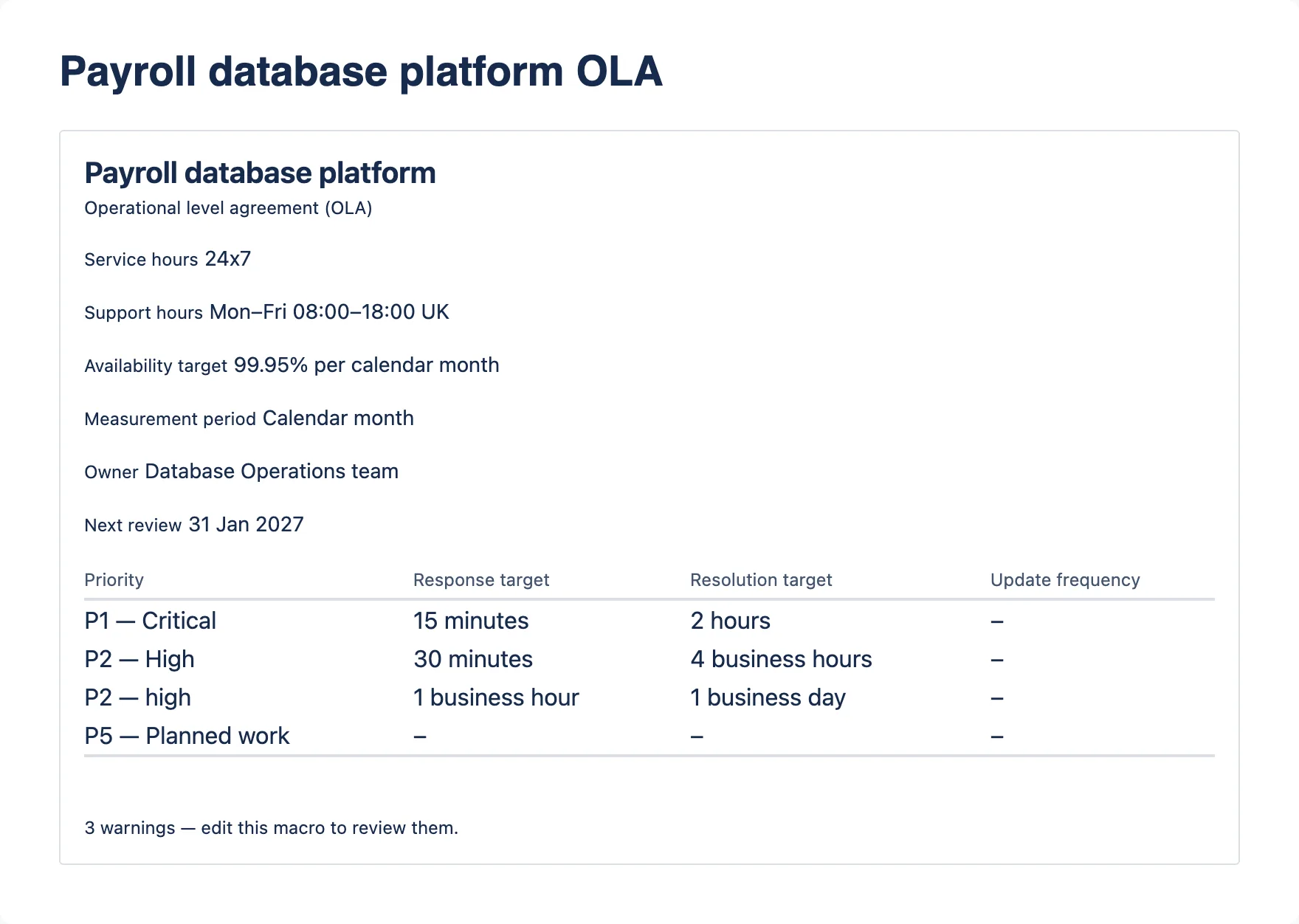
The OLA screenshot shows three things the editor warns the author about. The page counts them in a line of small text at the foot — “3 warnings — edit this macro to review them.” (or “1 warning — edit this macro to review it.”) — but does not say which they are:
- The same priority twice (“P2 — High” and “P2 — high”) with different targets. You cannot tell which one applies. Ask the owner.
- A priority with no times against it (“P5 — Planned work”, dashes throughout). It commits to nothing.
- An Update frequency column of dashes all the way down. No update frequency has been stated for any priority. The dashes mean nothing was stated, not that no updates are needed.
Compact view
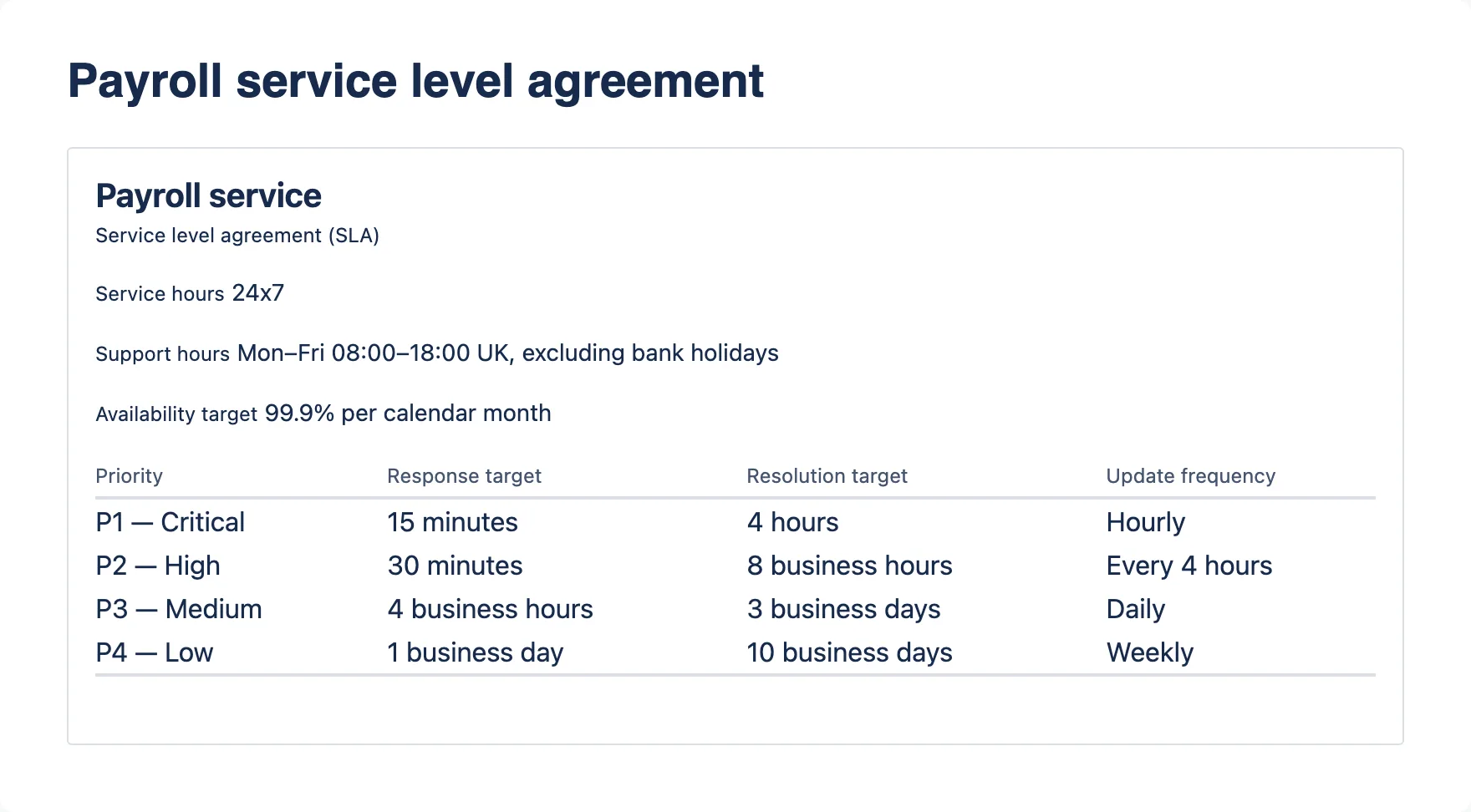
The owner can switch a set of service level targets to compact view. It keeps the heading, the agreement type, service hours, support hours, the availability target and the whole targets table, and hides the measurement period, owner, next review date and notes and exclusions.
Nothing on the page tells you compact view is on. If you are relying on these targets and there are no notes, the notes may simply be hidden. Exporting the page shows them (see task 6), or ask the owner.
Similarly, if there is no Update frequency column, the owner has switched it off. Any update frequencies typed in are kept but not shown, on the page or in an export.
If you are checking evidence
Check that the chain holds: OLA and underpinning contract targets should leave room for the SLA they support, as the OLA’s 2-hour P1 resolution does for the SLA’s 4 hours. And remember that a page in compact view may hold notes and exclusions you cannot see.
5. Check what changed, and when
Each macro’s contents are stored inside the page, so the page’s version history is the record of what the macro said and who changed it. Open the page’s ••• menu and look for its history. Because the contents are part of the page, each version carries the macros as they were at that version.
The macros themselves carry no “last updated” stamp and no author, and a status carries no date. A service review’s date is the date someone typed, not the date it was saved. The page history is the only record of when an action was marked Done, or when a RAG status changed.
Expect an earlier version to look like the export, not the page. Atlassian’s documentation says a macro’s export form is also used when a page is viewed in page history (Change the frontend with UI Kit). These three supply their own export, so expect it here. An earlier version should then look like task 6 describes: plain text and tables, no colours, no warning line, no RAG sentence, compact view ignored, and dates in the server’s format. The stored contents are the same, so the history is still the record of what was typed and when; only the presentation differs. The overdue marks are not frozen: in an earlier version they are worked out when you view it, against the server’s date that day (probably UTC). An exported PDF or Word file, by contrast, is fixed when it is made. This has not yet been checked on a live site.
If you are gathering evidence, record the version you relied on, not just the page. For exported documents, see If the export is evidence.
6. Export the page to PDF or Word
Open the page’s ••• menu and choose Export, then PDF or Word. Each macro exports as plain headings, paragraphs and real tables you can read and copy — not a picture of the macro. The export is built from the same stored contents as the page, so the facts match. The presentation does not, and some differences matter. Earlier versions in page history are expected to use this export form too (task 5).
Differences in every export
- No colour. RACI letters and RAG statuses are plain text.
- Dates are always day-first British English in an export (“10 Sept 2026”). The page formats dates for you in your browser, so a US English reader sees “Sep 10, 2026” on the page and “10 Sept 2026” in the document. The day is the same.
- PDF may look plainer than a normal Confluence PDF. Because the app supplies its own export, Confluence produces the PDF with the same renderer it uses for Word. A RACI matrix whose role names cannot fit a portrait page whole is exported with initials across the top and a Roles key above the table, so no header breaks inside a word.
- An unfinished macro exports as one sentence, such as “This RACI matrix has not been configured.” (all three are in Messages you may see).
RACI matrix
| On the page | In the export |
|---|---|
| R/A, and an em dash — in an empty cell | The same, as plain text |
| Role names across the top | The same, unless they cannot fit the page whole: then the columns are headed with initials (“ISM”) and a Roles list above the table gives each in full (“ISM — Information security manager”) |
| Note in small text under the activity | Note in the same cell: “Activity name — note” |
Subtitle RACI · 7 activities · 5 roles |
Not exported |
| Bold “Legend” label, then the letter lines | The letter lines as a bulleted list, no label |
| Warning note at the foot | Not exported. An exported matrix gives no sign that it has warnings, so check the page itself |
Service Review Record
| On the page | In the export |
|---|---|
| Heading is the service name, e.g. “Payroll service” | Heading is “Service review — Payroll service” |
| Review period and review date in the small line | Separate “Review period:” and “Review date:” lines |
| Next review appears before Overall status | Next review appears after Overall status |
| Small headings “Performance against target”, “Improvement actions”, “Risks and issues” and “Legend” | The same headings, except “Legend” |
| Improvement actions, then Risks and issues | Risks and issues first, then Improvement actions |
| Red OVERDUE label and “1 action is overdue.” | The status reads “Open (overdue)” or “In progress (overdue)”; no summary line |
| The RAG sentence under “Legend” (if switched on) | Never exported, even when it is switched on on the page. If your audience needs the caveat, add it yourself |
| Warning line at the foot | Not exported. An exported record gives no sign that it has warnings |
Overdue in an export follows the same rule as the page (task 3), but “today” is the server’s calendar date at the moment of export — probably UTC — not yours. The export can therefore differ from the page for as many hours a day as your time zone is from the server’s: if the server uses UTC, up to 11 hours a day in Sydney, 4 to 5 in New York, and none or one in London.
Service Level Targets
| On the page | In the export |
|---|---|
| Heading is the service name | Heading is “Service level targets — Payroll service” |
| Agreement type in the small line | An “Agreement type:” line |
| Compact view hides owner, measurement period, next review, notes | Compact view does not apply. Everything is exported, notes and exclusions included |
| Notes and exclusions, one per line | Notes and exclusions as a bulleted list |
| Warning line at the foot | Not exported |
A switched-off Update frequency column stays off in the export.
If the export is evidence
An exported document shows the macros’ stored contents at the moment of export, with overdue judged against the server’s date on that day, and it stays that way — unlike an earlier version viewed in page history. The app’s part of the document carries no page version, no export date and no “as at” line, and it leaves out the warning lines and the RAG sentence. On its own, it cannot tell a later reader which version of the page it came from or when it was made. If you keep one as evidence, write the page version and the export date beside it, and use the page history (task 5) for when anything changed — the export shows only where things stood.
7. Read on a phone, a narrow window or in dark theme
Dark theme
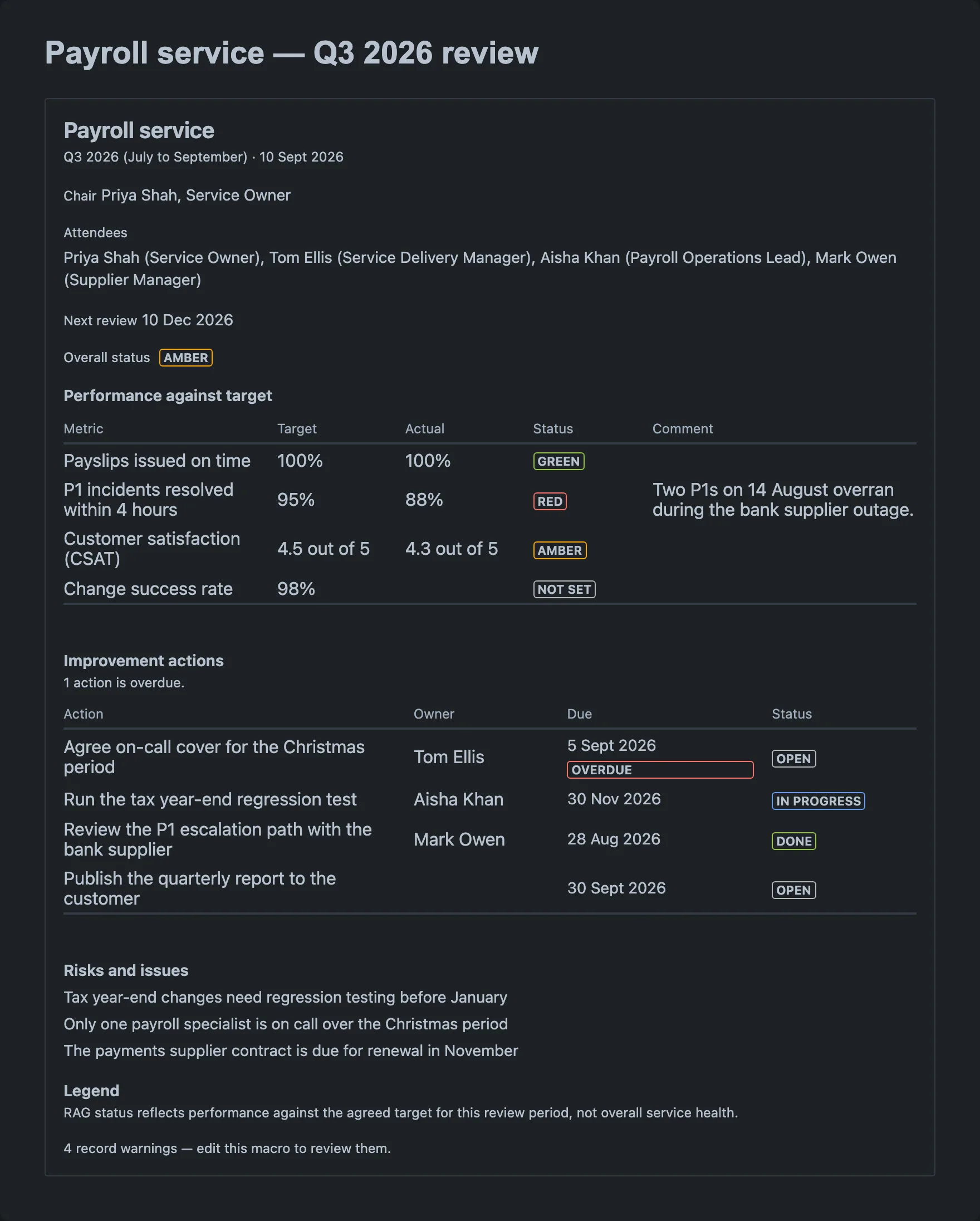
The macros follow the theme you have chosen in Confluence, light or dark.
Phones and narrow windows
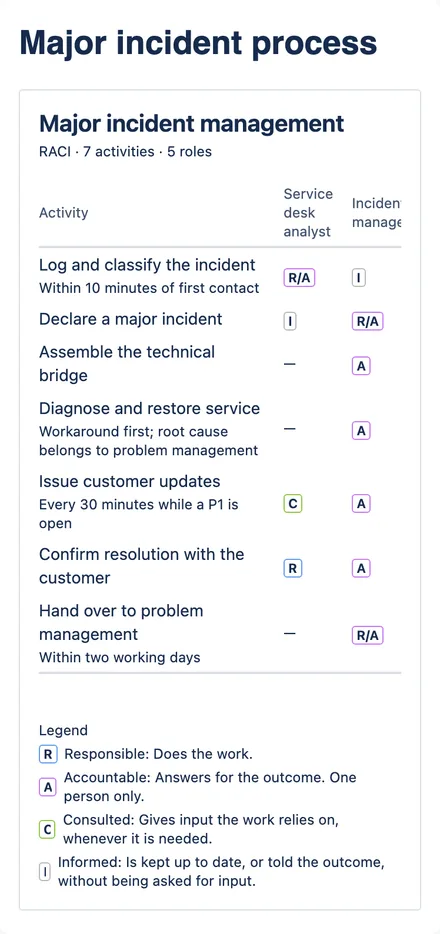
The macros are readable on a narrow screen, with limits:
- A RACI matrix keeps its activity column readable. It never narrows past whole words; the role columns go off to the side instead.
- The rightmost columns scroll sideways. In the screenshot, most of the role columns are not visible until you swipe the table left. The table scrolls inside its box; the rest of the page stays put. The service review’s tables behave the same way.
For a wide matrix, turn the phone sideways, use a wider window, or read the exported document. Behaviour inside the Confluence mobile app has not yet been checked on a live site.
8. Read with a screen reader or the keyboard
- Every table has a name, which a screen reader announces: “RACI matrix: Major incident management” (or “RASCI matrix: …”), “Performance against target”, “Improvement actions”, and “Service level targets for Payroll service”.
- Column headers are announced, so moving across a RACI row tells you which role each letter belongs to.
- There are no row headers. The first column (the activity, the KPI metric, the priority) is an ordinary cell. When you move along a row, the activity name is not repeated; move back to the first cell to hear it again.
- Letters, statuses and the Overdue mark are text, so they are read out, not implied by colour.
- Each macro heading is a level-3 heading. A service review’s Performance against target, Improvement actions, Risks and issues and Legend, and Notes and exclusions on a service level targets page, are level 4. Navigating by headings finds them.
- The sideways-scrolling area around a wide table cannot be reached with the keyboard. Without a mouse, you cannot scroll a wide table sideways. Screen reader table navigation should still reach every cell, because the cells are there even when scrolled out of sight. Zooming out, a wider window or the exported document are the other ways round it.
- The scrolling areas have no names of their own. A service review has up to three — around the KPI table, the actions table and the risks and issues — which a screen reader lists as unnamed regions it cannot tell apart. The table inside each of the first two carries the name; the risks and issues region holds no table, so nothing in it is named.
These are limits of the Atlassian components the app is built from; the full list is in the what it does not do. A full accessibility audit on a live site has not yet been run; the procedure is in the accessibility run-book.
What happens if…
A macro shows only its name and one line of advice



The macro has been placed on the page but not filled in yet — or, for a RACI matrix, it does not yet have at least one named role and one named activity. It is not an error. The advice is written for whoever edits the page; tell the page owner if you expected content there. If a macro that used to show content now shows this box, tell the page owner: the page history holds the versions where it was filled in.
A macro shows a heading and very little else
An unfinished record. For example, a service level targets macro where only the agreement type has been changed, to OLA or underpinning contract, shows the heading “Service level targets”, the agreement type and nothing more. Ask the owner whether it is still being written.
A space appears for a moment before the macro
Normal. The macro draws nothing until the page has handed it its contents, rather than flashing an empty box.
The exported document says a macro “has not been configured”, but the page shows it
That should not happen, and it is a fault worth reporting, not a blank macro. Tell the page owner or your Confluence site administrator. Exports are not yet recorded as checked against a live Confluence site (see the vendor’s internal test plan), and this is the most likely way for an export to go wrong.
The overdue marks are not what you expected
Overdue is judged against today every time the page is viewed, so an action that was on time at the review can be overdue now. A colleague in another time zone can see a different answer and both of you be right (task 3). An export uses the server’s date instead of yours (task 6).
The macros do not appear, or Confluence shows a message where they were
The app may not be installed on your site, or may have been removed. The contents are still stored in the page. Ask your Confluence site administrator (site administrator guide).
You think something on the page is wrong
You cannot change it. Tell the page owner — a page comment or a message naming the macro and the row is enough. The page history shows who has edited the page.
Limitations worth knowing
- You cannot edit the macros. Only someone who can edit the page can change them. Their guides are RACI Matrix, Service Review Record and Service Level Targets.
- No roll-up across pages. Each macro stands alone. There is no view of everything your role is accountable for across a space, and no list of every overdue action. You read each page.
- No reminders. The app sends no email and no notification. An action becomes overdue on the page, and only someone looking at the page will see it.
- Tables cannot be sorted or filtered on the page.
- Warnings are listed only in the editor. On the page, each macro shows only a count. Look for the gaps yourself.
- Compact view hides notes and exclusions on a service level targets page, with no sign on the page that it has.
- Exports differ from the page in the ways listed in task 6.
- Narrow screens scroll wide tables sideways; a RACI matrix keeps its activity names in whole words.
- Described from the source, not yet from a live site. This guide describes what the app’s code does. The manual checks on a real Confluence site — including export to PDF and Word, earlier page versions, dates across time zones, the Confluence mobile app, public pages viewed without logging in, and a full accessibility audit — are not yet recorded as run. They are listed in the vendor’s internal test plan.
Quick reference
Who decides what
| On the page | Set by |
|---|---|
| RACI letters, activities, roles and notes | The author |
RACI subtitle counts (7 activities · 5 roles) |
The app, counting the rows and columns |
| RACI warning note | The app, on every view, from the four checks |
| Service review and service level targets warning lines | The app, on every view, from the same checks the editor uses |
| Overall status and KPI statuses (RAG) | The author |
| Overdue marks and the overdue count | The app, on every view — against your own date on the page, the server’s date in an export or an earlier version |
| Everything else — names, dates, targets, hours, notes | The author |
RACI letters
| Letter | Colour | Meaning |
|---|---|---|
| R | Blue | Responsible — does the work. |
| A | Purple | Accountable — answers for the outcome. One person only. |
| R/A | Purple | Responsible and Accountable. Exported as “RA”. |
| S | Yellow | Supportive — helps the responsible role complete the work. RASCI only. |
| C | Green | Consulted — gives input the work relies on, whenever it is needed. |
| I | Grey | Informed — kept up to date, or told the outcome, without being asked for input. |
| — | none | No part in this activity. Exported as “–”. |
RAG statuses (Service Review Record)
| Label | Colour | Means |
|---|---|---|
| Green, Amber, Red | Green, yellow, red | The author’s judgement against target for the period |
| Not set | Grey | Nobody has chosen |
| Overdue (actions only) | Red | Due date before your today, status not Done |
RAG reflects performance against the agreed target for the review period, not overall service health. Open and In progress actions become overdue the day after their due date; Done actions, and actions with no due date, never do.
Agreement types (Service Level Targets)
| Type | Between |
|---|---|
| Service level agreement (SLA) | Provider and customer |
| Operational level agreement (OLA) | Teams inside the same organisation |
| Underpinning contract | Provider and an external supplier |
Business hours and business days count only during support hours; a target with no qualifier runs continuously.
Messages you may see
| Where | Text | Means |
|---|---|---|
| RACI, empty | “Edit this macro to add the roles and activities you want to map.” | Not filled in yet. |
| Service review, empty | “Edit this macro to record the service, review period and outcomes.” | Not filled in yet. |
| Service level targets, empty | “Edit this macro to record the service, its agreement type and its targets.” | Not filled in yet. |
| RACI, foot | “1 assignment warning — edit this macro to review it.” / “{N} assignment warnings — edit this macro to review them.” | Worked out by the app: the matrix fails one or more of the four checks. Tell the page owner. |
| Service review, above actions | “1 action is overdue.” / “{N} actions are overdue.” | Counted against your own date. |
| Service review, foot | “1 record warning — edit this macro to review it.” / “{N} record warnings — edit this macro to review them.” | Worked out by the app: the record has gaps the editor warns about, such as a Red KPI with no comment. Tell the page owner. |
| Service level targets, foot | “1 warning — edit this macro to review it.” / “{N} warnings — edit this macro to review them.” | Worked out by the app: for example, a priority used twice or with no times against it. Tell the page owner. |
| Service review, under “Legend” | “RAG status reflects performance against the agreed target for this review period, not overall service health.” | The scope of every RAG label. |
| Export | “This RACI matrix has not been configured.” / “This service review record has not been configured.” / “These service level targets have not been configured.” | Unfinished macro — or a fault, if the page shows content. |
Size limits
The most a macro can hold, so you know nothing is being cut off on the page: a RACI Matrix 15 roles and 60 activities; a Service Review Record 40 KPIs and 40 actions; Service Level Targets 12 targets (priority rows).