
Service level managers
Service level manager: Service Level Targets
You agree service levels, and then have to defend them.
For the person who agrees service levels and then has to publish them where both sides can see them: a service level manager, a service owner, or whoever holds the pen on SLAs with customers, OLAs with internal teams and underpinning contracts with suppliers.
It takes you from a blank page to a published agreement with its hours and clock basis stated plainly, through the OLAs and contracts beneath it, to a signature-pack export and the review cycle.
The screenshots are rendered from the app’s own source code in a local harness, so the Confluence page and dialog frame around them is simplified and a live site may differ in detail — see About the screenshots.
Before you start
- The app must be installed on your site. If you cannot find Service Level Targets when you insert a macro, ask your Confluence administrator (see A macro is missing from the macro browser).
- You need edit permission on the page. The targets are stored in the page itself, so whoever can edit the page can edit the targets.
- Use a desktop browser. The configuration dialog is wider than a phone. The published page can be read on a phone, where a wide targets table scrolls sideways inside the macro.
- Have the agreed content to hand. The macro records what was agreed; it does not help you negotiate it. Know the priority scheme and its definitions, the service and support hours (with time zone), each target and its clock basis, the availability target and how it is measured, the exclusions, the owner, and when the agreement is next reviewed.
One thing to be clear about from the start: this macro states targets. It does not measure or report performance against them. Actual figures for a period belong in a service review — see Service manager: Service Review Record.
1. Decide what you are publishing
Every Service Level Targets macro is one agreement. The first question is which kind.
| Agreement type (as the dialog names it) | Between | Typical reader |
|---|---|---|
| Service level agreement (SLA) | You, the service provider, and your customer | The customer, account managers, the service desk |
| Operational level agreement (OLA) | You and another team inside your own organisation | The internal support team that has to meet it |
| Underpinning contract | You and an external supplier | Supplier management, the supplier, procurement |
Naming the type stops arguments about who owes what to whom: “P1 resolved in 4 hours” means one thing when a customer can hold you to it, another when it is an internal team’s commitment to you. The type is shown under the heading on every published macro and in every export.
One macro per agreement, for one service. Do not put two services’ targets in one table, and do not mix an SLA and its supporting OLA in one macro. If a service has different targets for different customers, that is two agreements and two macros.
A layout that works well:
- one page per agreement, with the macro under an ordinary heading, and the agreement’s wider text as normal Confluence content around it: scope, priority definitions (what makes an incident a P1, the impact and urgency matrix if you use one, and who may assign or change a priority), responsibilities, escalation and signatories;
- the SLA page links to the OLA and underpinning contract pages that support it (task 10).
2. Insert the macro
- Open the page and edit it.
- Type
/where you want the targets, search for Service Level Targets, and insert it. Its description in the macro list is “State agreed response, resolution and availability targets for a service.” - The macro shows a quiet placeholder: Service Level Targets, with “Edit this macro to record the service, its agreement type and its targets.”
- Edit the macro to open the dialog titled Configure service level targets. A loading spinner shows briefly (screen readers announce it as “Loading configuration”), then the dialog opens on the Service tab. It always opens on that tab.
The dialog has three tabs — Service, Targets and Measurement — and a footer with Cancel and Save. Nothing is required. The footer says so every time: “Nothing here is required. You can save an unfinished agreement and come back to it.” A half-drafted agreement saved during a negotiation is a normal state, not an error.
The macro’s heading on the page is always a level-3 heading. Put the macro under a level-1 or level-2 heading on the page so the document outline makes sense, particularly in an export.
3. Fill in the Service tab
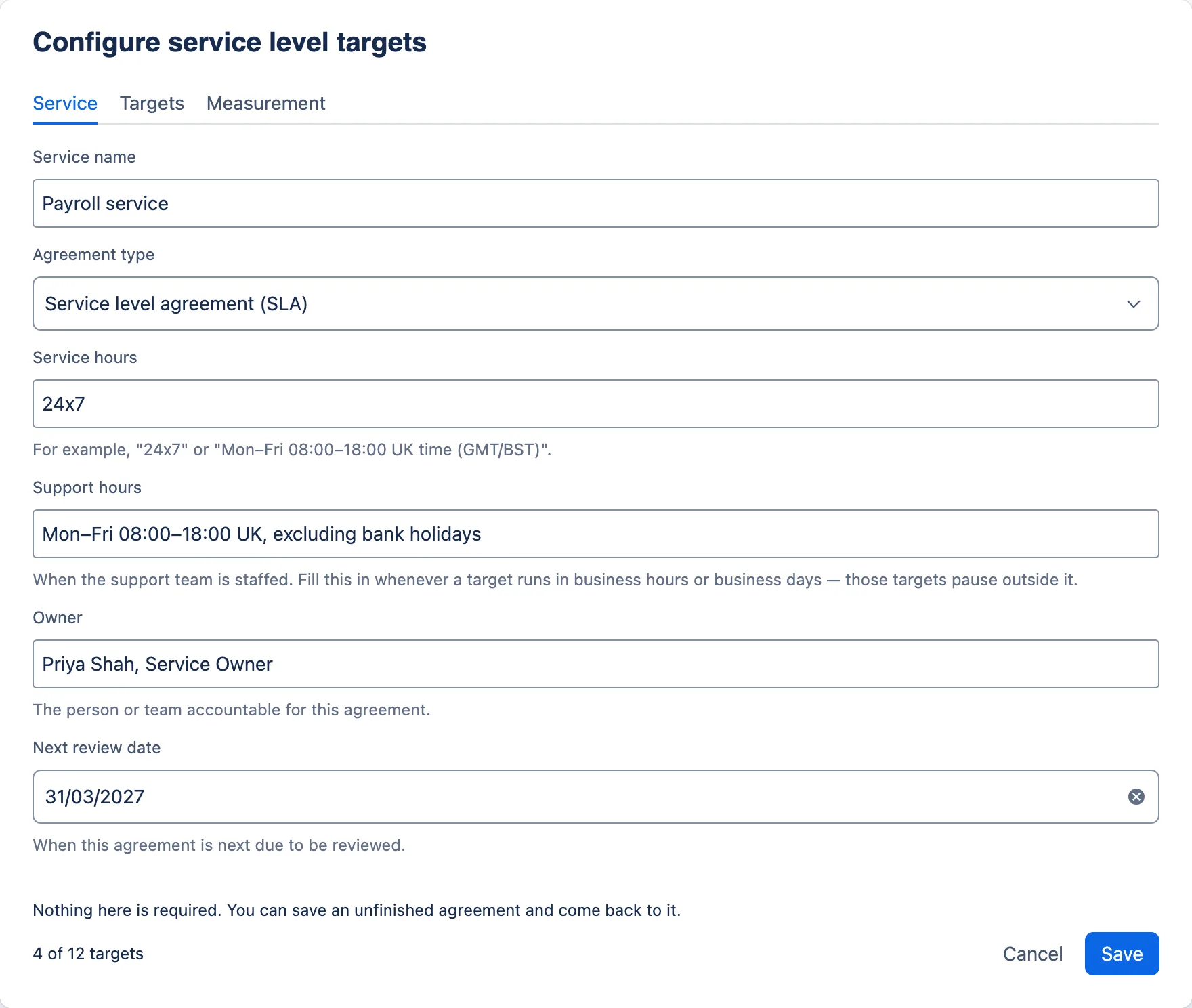
| Field | What to put in it |
|---|---|
| Service name | The service as the customer knows it. It becomes the macro’s heading. |
| Agreement type | “Service level agreement (SLA)” (the default), “Operational level agreement (OLA)” or “Underpinning contract”. |
| Service hours | When the service is meant to be available. Helper text: For example, “24x7” or “Mon–Fri 08:00–18:00 UK time (GMT/BST)”. |
| Support hours | Helper text: “When the support team is staffed. Fill this in whenever a target runs in business hours or business days — those targets pause outside it.” |
| Owner | Helper text: “The person or team accountable for this agreement.” |
| Next review date | A date picker. Helper text: “When this agreement is next due to be reviewed.” |
Service hours and support hours are separate on purpose. They are frequently different — a payroll service available around the clock, supported only in office hours — and treating them as one is a classic source of dispute. The customer reads “24x7” as “you will fix it at 3 a.m.”; the support team reads it as “the system is up at 3 a.m.”. Two fields make you say which is which.
Three habits that prevent arguments later:
- State a time zone precisely in both fields: “UK time (GMT/BST)” or “Europe/London”, not just “UK”, and never a zone such as “CET” that is only right for half the year. A reader in another country will otherwise apply their own.
- Say which public holidays apply. “Excluding bank holidays” is ambiguous in the UK: England and Wales, Scotland and Northern Ireland have different ones. Name the calendar.
- Fill in support hours whenever any target is measured in business hours or business days, even if they match the service hours, as the helper says. A business-hours target needs a stated clock to pause against (task 4).
Every text field on this tab holds up to 120 characters; typing simply stops at the limit.
4. Build the targets on the Targets tab
Read the clock rule first
The Targets tab opens with two sentences. The first is the rule the targets run to:
Response and resolution targets run to the clock stated in each cell. A target marked “business hours” or “business days” pauses outside the support hours you set on the Service tab; a target with no such qualifier runs continuously.
In practice:
- The words in the cell are the clock. “4 hours” means four elapsed hours, round the clock, nights and weekends included. “4 business hours” means four hours of support hours.
- Only two qualifiers are named. The sentence recognises “business hours” and “business days” and nothing else; singular forms such as “1 business hour” or “1 business day” count. Read literally, “2 working days”, “NBD”, “in-hours” or “office hours” have no qualifier and run continuously — almost never what was meant. Use the two named phrases, or define your own term in Notes and exclusions. When a target deliberately runs round the clock, say so (“4 hours, calendar time”) rather than leaving it to the absence of a qualifier.
- An unqualified target outside support hours is a promise to work outside support hours. With support hours of Mon–Fri 08:00–18:00, a P1 logged at 17:00 on a Friday with a resolution target of “4 hours” is due at 21:00 that Friday. If nobody is on call, that target is broken before it starts. Either staff for it and say so, or qualify it. The Payroll SLA in these screenshots has exactly this shape — 24x7 service, office-hours support, P1 resolved in 4 hours — so its notes need an on-call statement to be credible.
- A business-hours target stretches across closed time. The same Friday, a P2 logged at 16:00 with “8 business hours” gets two hours on Friday and six on Monday: due at 14:00 on Monday.
- “Business day” needs a definition. Is it one full day of support hours, “by the same time next business day”, or “by close of the next business day”? Those are three different commitments — the last two are deadlines, not durations. Decide, and write it in Notes and exclusions.
- The rule does not cover update frequency. It speaks of response and resolution targets only. Qualify each frequency in the cell (“Every 4 business hours”) or state its clock in Notes and exclusions — see Decide whether to show update frequency.
The app calculates nothing from these words, and the rule is shown only to you, the author — not on the published page or in the export. Your readers usually need it, so restate it in Notes and exclusions, along with anything else that starts, stops or pauses the clock (task 5).
Start from the default ladder
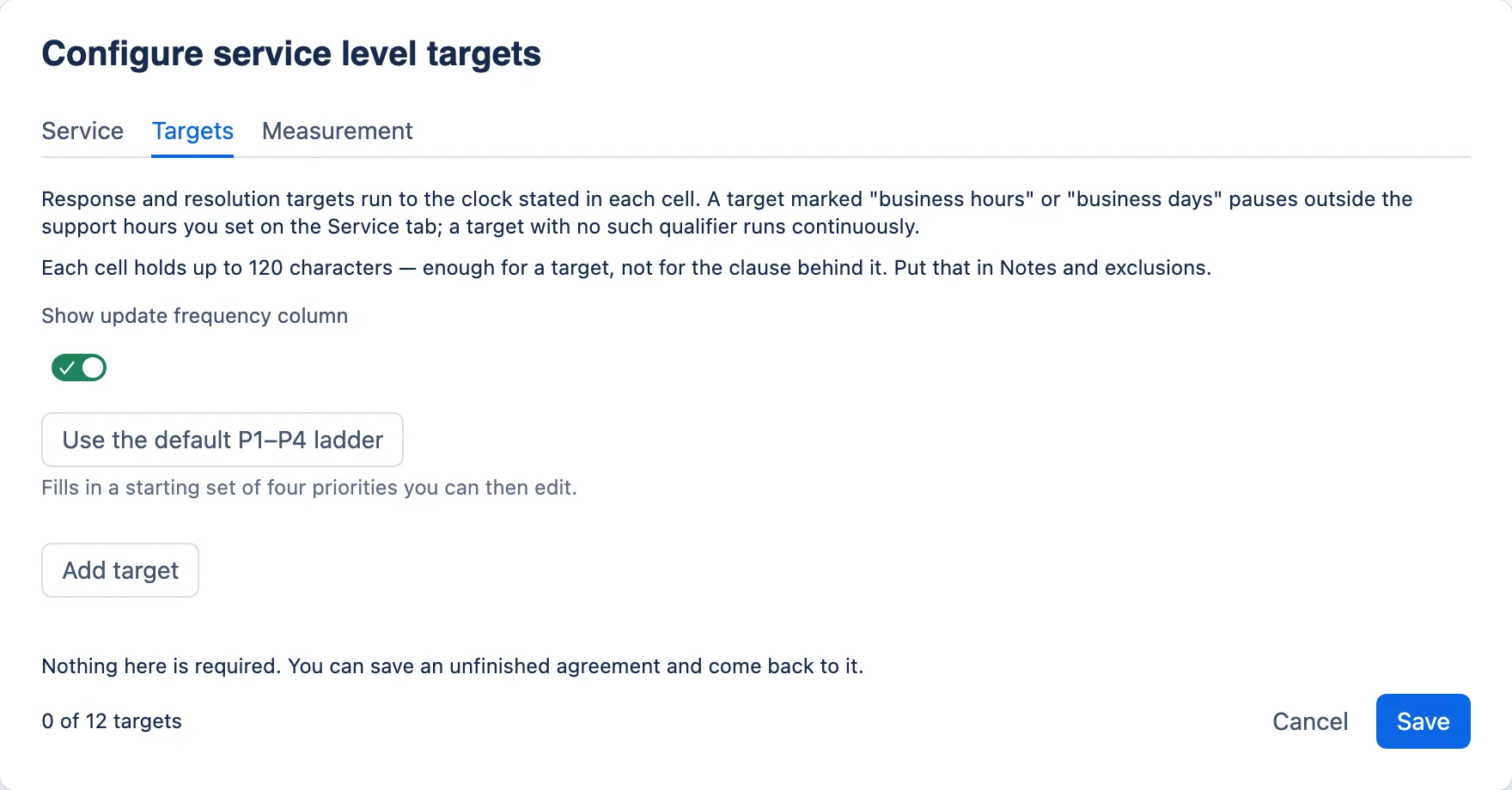
Use the default P1–P4 ladder fills in four rows, each with a priority, response target, resolution target and update frequency, all of which you can edit:
| Priority | Response target | Resolution target | Update frequency |
|---|---|---|---|
| P1 — Critical | 15 minutes | 4 hours | Hourly |
| P2 — High | 30 minutes | 8 business hours | Every 4 hours |
| P3 — Medium | 4 business hours | 3 business days | Daily |
| P4 — Low | 1 business day | 10 business days | Weekly |
Read the clock bases before you accept them. P1 and P2 response, and P1 resolution, are unqualified — they run continuously. The other response and resolution targets pause outside support hours. None of the update frequencies has a stated clock, so a customer can read P2 as promising an update every 4 hours through the night on a ticket whose resolution clock has stopped. Treat the ladder as a starting point, not a recommendation for your service.
The button is there only while the tab has no targets. Once you use it or add a target it disappears; remove every target and it comes back.
Make it your own priority scheme
Every label and value is editable. If your organisation uses Severity 1–3, “Priority A–D”, or P1–P5 with a planned-work level, change the priority cells to match — the scheme your service desk actually uses is the one the page should show. Nothing in the app depends on the letters “P1”.
The cell holds the label; it cannot hold the definition. “P1 — Critical” means nothing in a dispute unless the page also says what makes an incident Critical and who decides. Put the definitions in the page text around the macro, or in Notes and exclusions.
- Add target adds an empty row at the end, with the cursor in its priority field.
- Targets appear on the page in the order they appear here. There is no way to reorder rows, so add them in the order you want them read, highest priority first. To move one later you have to retype the cells.
- A row needs a priority to be kept. A row without one is dropped when you save, along with anything else typed in it — the warnings banner tells you before that happens.
- The tab holds up to 12 targets. At 12, Add target is greyed out and the dialog says: “This macro holds up to 12 targets — remove one to add another.” The footer keeps count: “4 of 12 targets”.
Keep each cell to the target
The second sentence on the tab:
Each cell holds up to 120 characters — enough for a target, not for the clause behind it. Put that in Notes and exclusions.
Take it literally. “4 business hours” belongs in the cell. “4 business hours from the time the ticket is assigned to the resolver group, excluding time awaiting customer response” belongs in Notes and exclusions, with the cell saying “4 business hours”. A table of short cells is readable; a table of clauses is not, and readers skip it.
When a target cell gets close to its limit, a hint appears under it — “12 of 120 characters left.” and, at the end, “This field is full at 120 characters.” — and the field stops accepting text.
Decide whether to show update frequency
Show update frequency column is on by default. Update frequency — how often the customer hears about progress on an open incident — is worth committing to for the high priorities, and many agreements do. If yours does not, switch the column off.
If you keep it, give it a clock. The tab’s clock rule covers response and resolution only, so “Every 4 hours” says nothing about nights and weekends. Write “Every 4 business hours” or “Hourly, 24x7” in the cell, or add a line to Notes and exclusions such as “Update frequencies run during support hours only.”
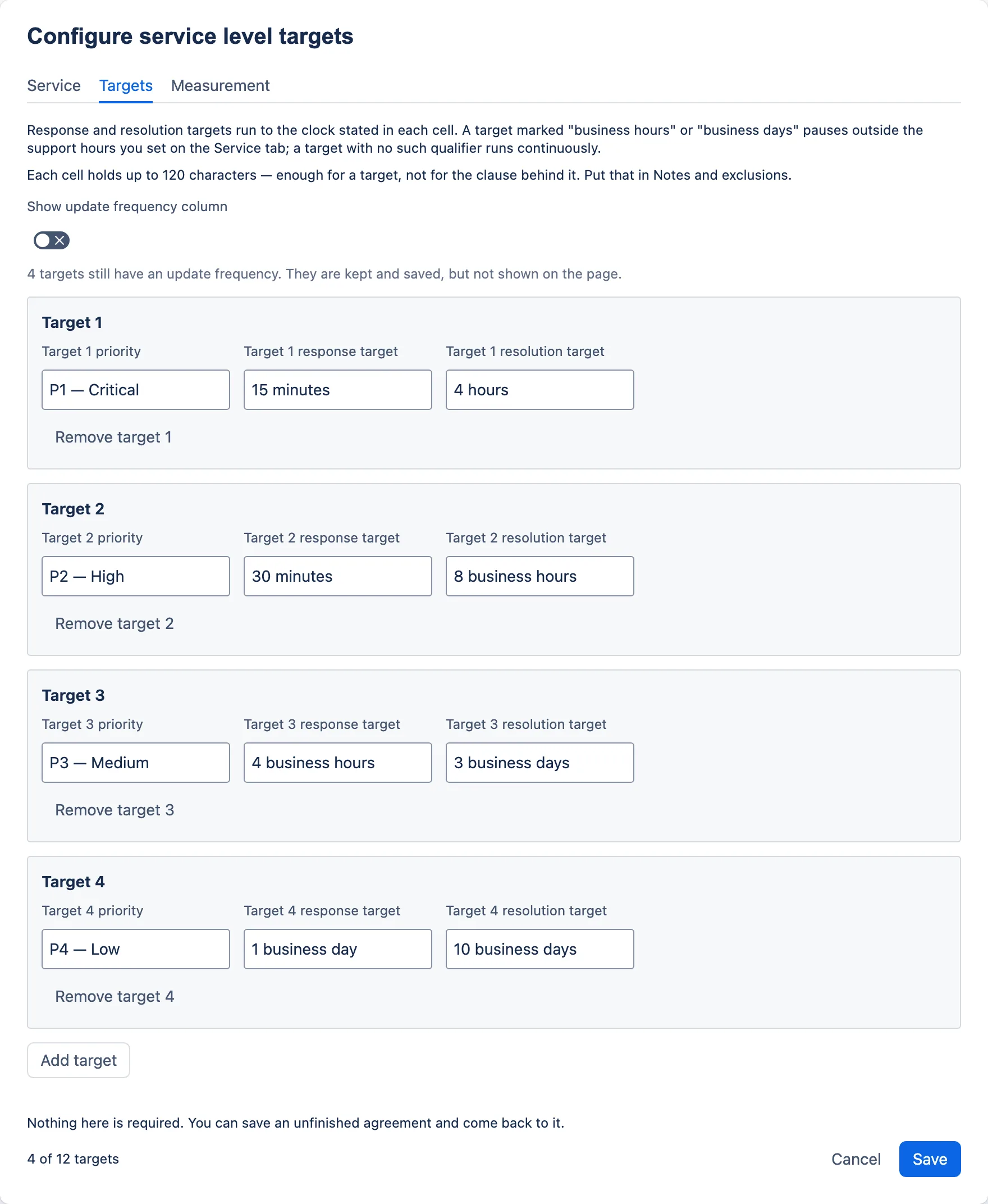
Switching it off hides the field on every row of the dialog and removes the column from the published page and from the export. It does not delete anything. Values already typed are kept and saved, and the note under the switch says how many: “1 target still has an update frequency. It is kept and saved, but not shown on the page.” or “4 targets still have an update frequency. They are kept and saved, but not shown on the page.”
Switch the column back on and the values are there again. If you want them gone, switch the column on, clear the cells, and switch it off. If you use the default ladder while the column is off, the ladder’s update frequencies are filled in anyway, and the note will say so.
5. Complete the Measurement tab
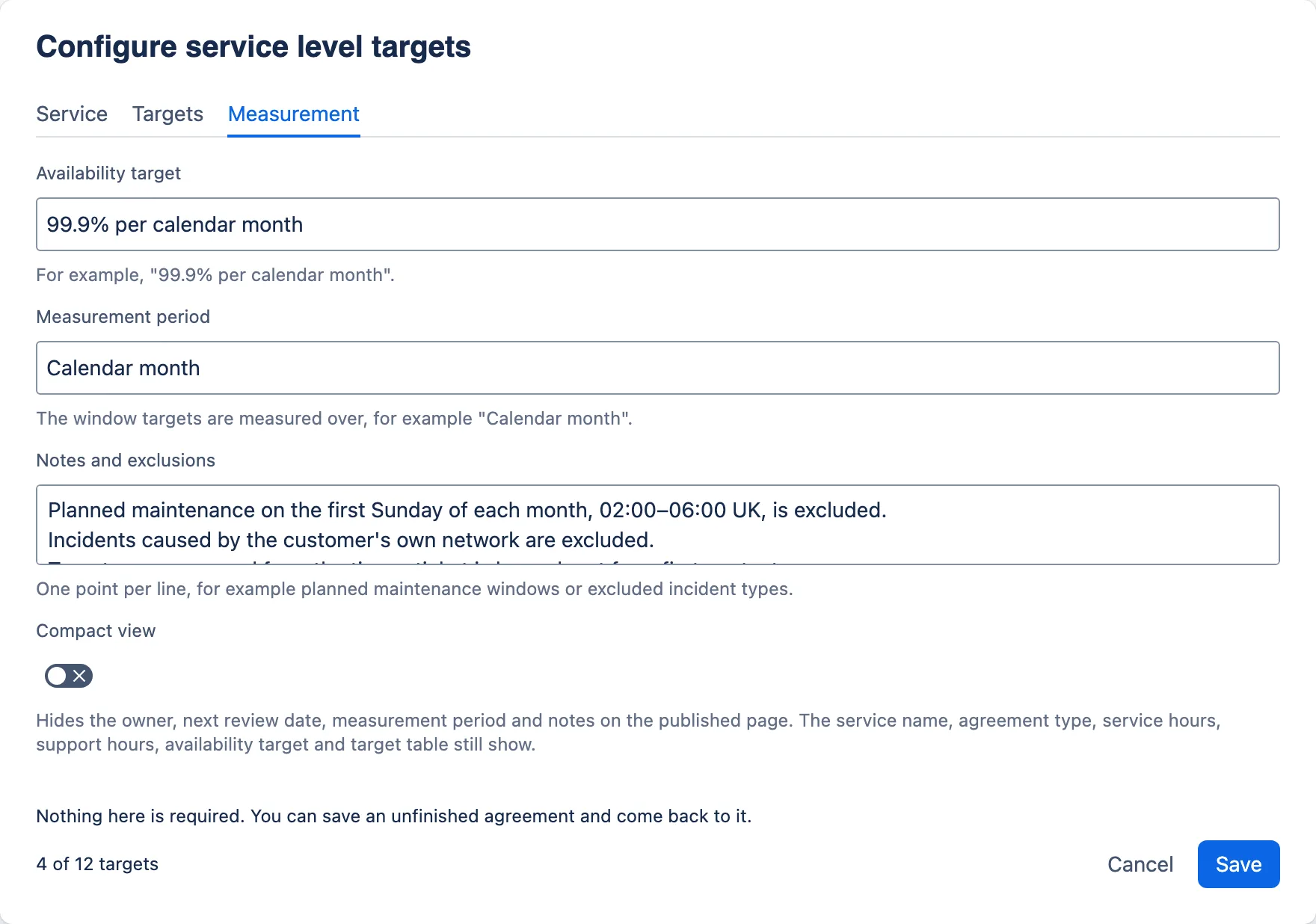
| Field | What to put in it |
|---|---|
| Availability target | Helper text: For example, “99.9% per calendar month”. Up to 120 characters. |
| Measurement period | Helper text: The window targets are measured over, for example “Calendar month”. Up to 120 characters. |
| Notes and exclusions | Helper text: “One point per line, for example planned maintenance windows or excluded incident types.” Up to 2,000 characters. |
| Compact view | A switch, off by default. See task 9. |
Availability target and measurement period are free text. The app does not interpret them, so write exactly what was agreed. Include the period in the availability figure itself if it helps a reader (“99.9% per calendar month”) — the compact view shows the availability target but hides the measurement period.
Notes and exclusions is where the clauses go. One point per line. Blank lines are ignored. Good candidates:
- the clock rule, in your own words, so readers see it (task 4), and the clock for update frequencies;
- priority definitions, and who may assign or change a priority, if they are not in the page text;
- any out-of-hours or on-call cover that unqualified targets rely on;
- planned maintenance windows, and whether they count against availability;
- whether availability is measured across service hours or around the clock;
- when the clock starts, what counts as a response, and when it pauses;
- excluded incident types and causes (“Incidents caused by the customer’s own network are excluded.”);
- what “business day” means, and which holiday calendar applies.
The text is plain: no formatting, no links. Near the limit of 2,000 characters a hint appears under the box, as with the target cells.
6. Check the warnings
As you work, a yellow banner may appear above the tabs, titled “1 thing worth checking” or “{N} things worth checking”. It never stops you saving. It ends with: “These are advice, not errors.” If there are more than eight, the first eight are shown with a Show all {N} button (and Show fewer to collapse again).
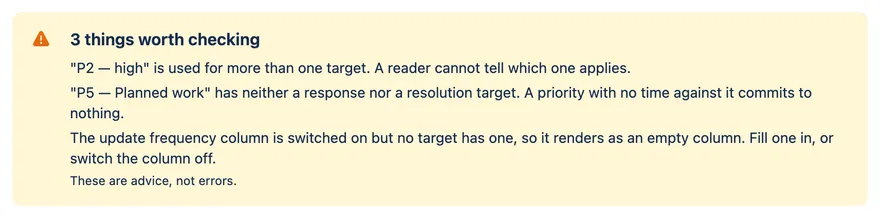
Readers see a count, not the list. If you save with a warning in place, the page shows the problem as it is, and a line of small text at the foot of the macro reads “1 warning — edit this macro to review it.” or “{N} warnings — edit this macro to review them.” Every reader sees it, in full and compact view alike; there is no setting to hide it, and it is never exported. See the OLA in task 10, which was published with all three of these still in it.
| Warning | What it means | What to do |
|---|---|---|
| Target N has no priority. A target without one is not saved. When the row holds anything else, the sentence goes on to name it: “…is not saved, and its resolution target and update frequency go with it.” | A row has a blank priority. On save the whole row is dropped, with everything typed in it. | Type a priority, or remove the row. |
| “{priority}” has neither a response nor a resolution target. A priority with no time against it commits to nothing. | Both time cells are blank for that priority. An update frequency alone does not count. | Add at least one target time. If the priority genuinely carries no commitment, say so in a cell (“No target — scheduled work”) so the reader knows it is deliberate. |
| “{priority}” is used for more than one target. A reader cannot tell which one applies. | Two rows share a priority label. | Merge them, or rename one. |
| The update frequency column is switched on but no target has one, so it renders as an empty column. Fill one in, or switch the column off. | The column is on and every update frequency is blank, so the page would show a column of dashes. | Fill in the frequencies, or switch the column off. |
Two things worth knowing about the duplicate-priority check:
- It ignores capital letters and spaces at either end of the label. “P2 — High” and “P2 — high” match, as in the screenshot.
- It does not ignore anything inside the label. “P2 — High” and “P2 - High” (a hyphen instead of a dash), or “P2 High”, are treated as different and raise no warning, though a reader would take them as the same priority. Check near-duplicates by eye.
7. Remove a target
Each row has its own Remove target N button.
- A row with nothing typed in it is removed at once.
- A row with anything in it asks first, in place, where the button was.
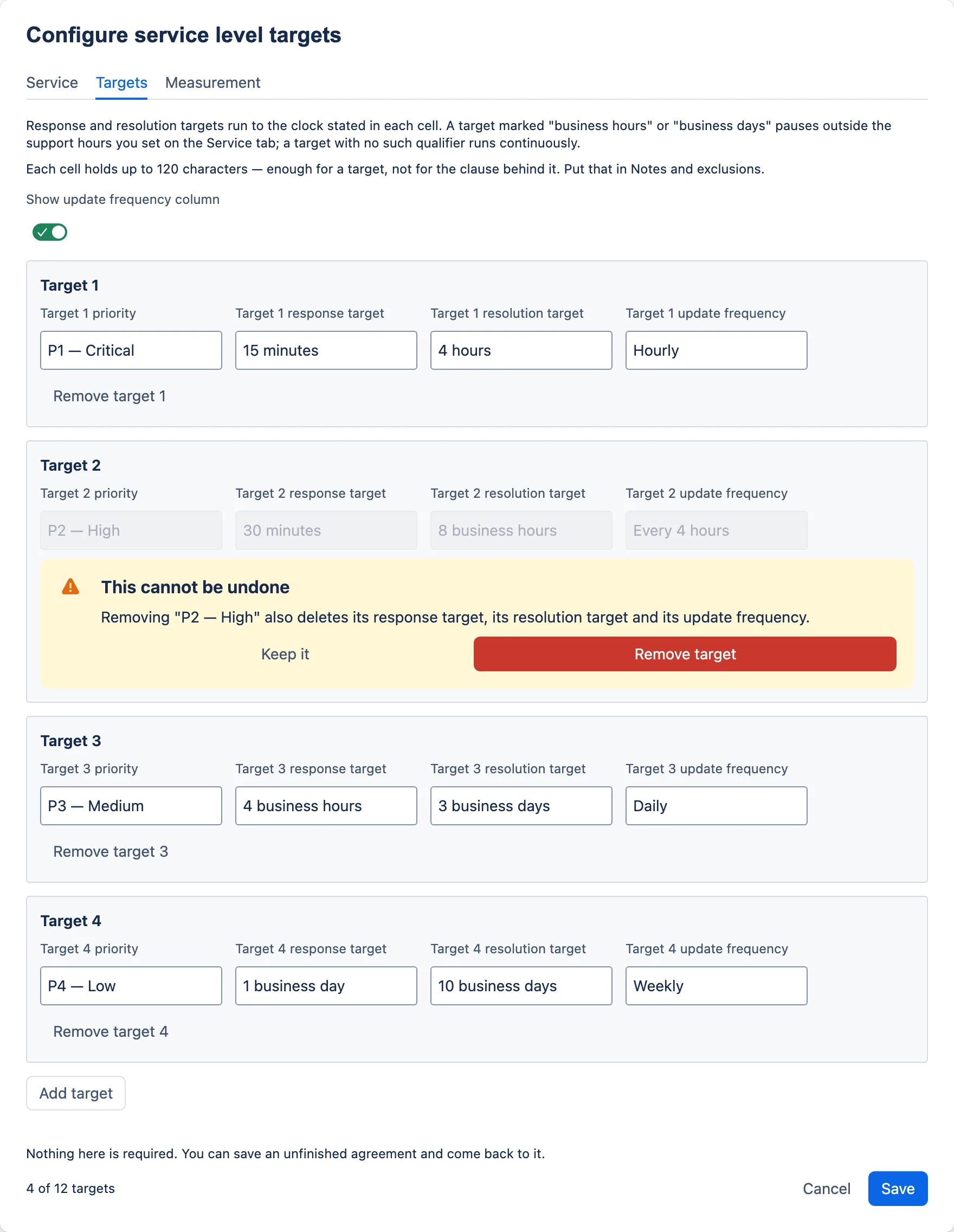
The confirmation lists only the cells that hold something, or, if only the priority is filled
in, says Removing "{priority}" deletes the text you typed. A row with no priority is named
“Target N”. An update frequency is listed even when the column is switched off, because the
value is still there.
Keep it has the focus and is the safe choice; the red Remove target removes the row. While the question is on screen that row’s fields are locked, so it cannot change between asking and confirming. Only one question is on screen at a time: pressing Remove on another row replaces it, and pressing Cancel in the footer abandons it.
Rows below the removed one move up and are renumbered. Nothing is permanent until you save, so Cancel and Discard changes will still bring a removed row back.
8. Save, cancel or discard
- Save is never blocked by a warning. While it works, the button shows a spinner and Cancel is unavailable; when it succeeds the dialog closes and the macro on the page shows the targets. Readers see the change the same way they see any other edit to the page — on a page with a publish or update step, once you take it.
- What saving does to your input: text is trimmed of spaces at either end and held to its limit, rows with no priority are dropped, and only real dates are kept.
- If the save fails, a red message titled “Could not save” appears in the footer, above the buttons: “Sorry, this could not be saved. Please try again.” Your work is still in the dialog. Try again.
- Cancel with no changes closes the dialog at once.
- Cancel with changes asks first, just above the footer: “This cannot be undone” — “These service level targets have unsaved changes. Closing now throws them away.” Keep editing has the focus and takes you back. Discard changes closes the dialog and throws the changes away. While the question is showing, the footer’s Cancel and Save are hidden.
- Esc, or the dialog’s own ×, saves. Confluence closes the dialog on those without asking the app, so the app saves what you typed as it closes, exactly as Save would. Only Cancel, then Discard changes, throws changes away.
“Changes” is strict: a row you added and left empty still counts. There is no other autosave and no undo inside the dialog. After a save, the page’s version history is the way back.
9. Publish: full or compact
The Compact view switch on the Measurement tab decides how much the published page shows. Its helper text: “Hides the owner, next review date, measurement period and notes on the published page. The service name, agreement type, service hours, support hours, availability target and target table still show.”
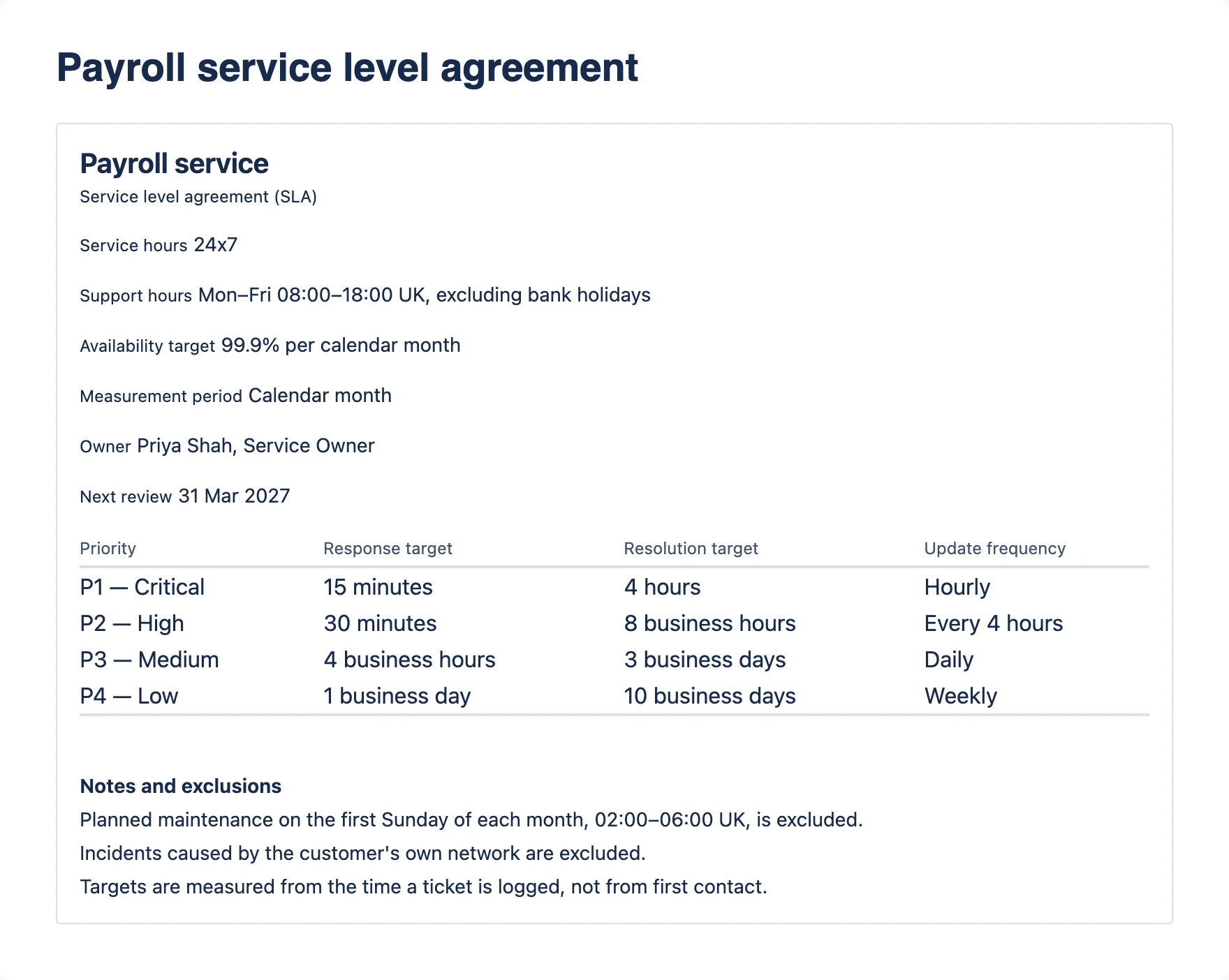
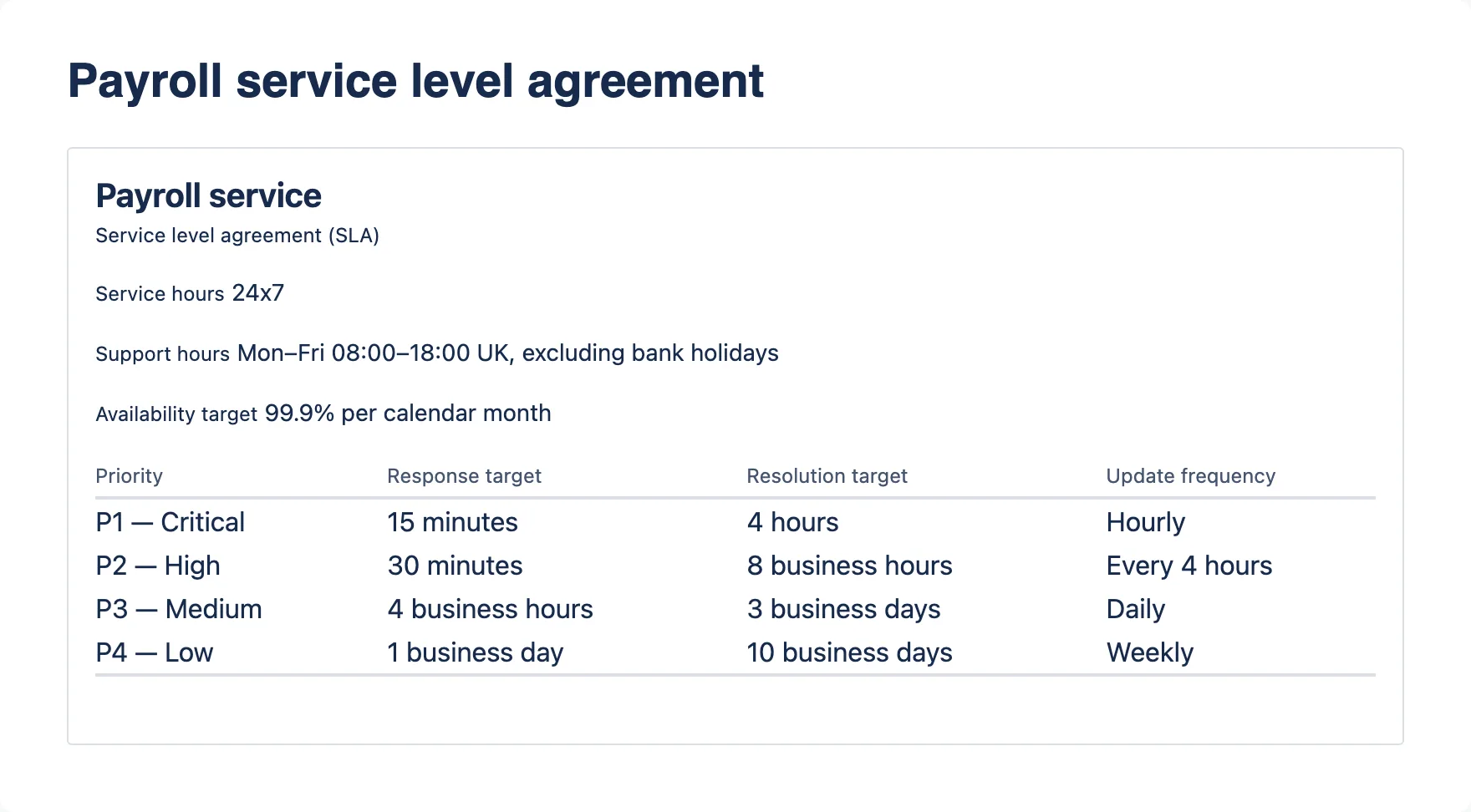
Compact hides Measurement period, Owner, Next review and Notes and exclusions. The heading, the agreement type, service hours, support hours, the availability target and the whole targets table stay.
When to use which:
- Full on the agreement page — the page that is the agreement, or the page a customer or auditor is sent to. Owner, review date and exclusions are part of what was agreed.
- Compact on summary pages — a customer-facing service catalogue entry, a service desk quick-reference page, a team’s home page. A compact page drops the exclusions and any clock rule you put in the notes, and nothing on it tells a reader that compact view is on (the reader guide warns them of exactly this). Link it to the full agreement page so the conditions are one click away.
Compact is presentation, not privacy. Everything is still stored in the macro: anyone who can edit the page can open the dialog and read it, and the export ignores compact and includes everything (task 11). Do not put anything in Notes and exclusions that the page’s readers must not see; use a separate page with its own restrictions.
In either view, an empty field leaves no blank label behind and a blank target cell shows as “–”. A next review date, wherever it appears, is shown in the reader’s own date format (“31 Mar 2027” for a UK reader), never shifted a day by their time zone.
10. Publish the OLAs and contracts that underpin the SLA
An SLA is only as good as the agreements underneath it. If the database team or a hosting supplier cannot meet their part in time, you cannot meet yours.
Publish each supporting agreement in its own macro, with the right agreement type, on its own page, and link those pages from the SLA page. The agreement type under each heading tells the reader at a glance which one they are on.
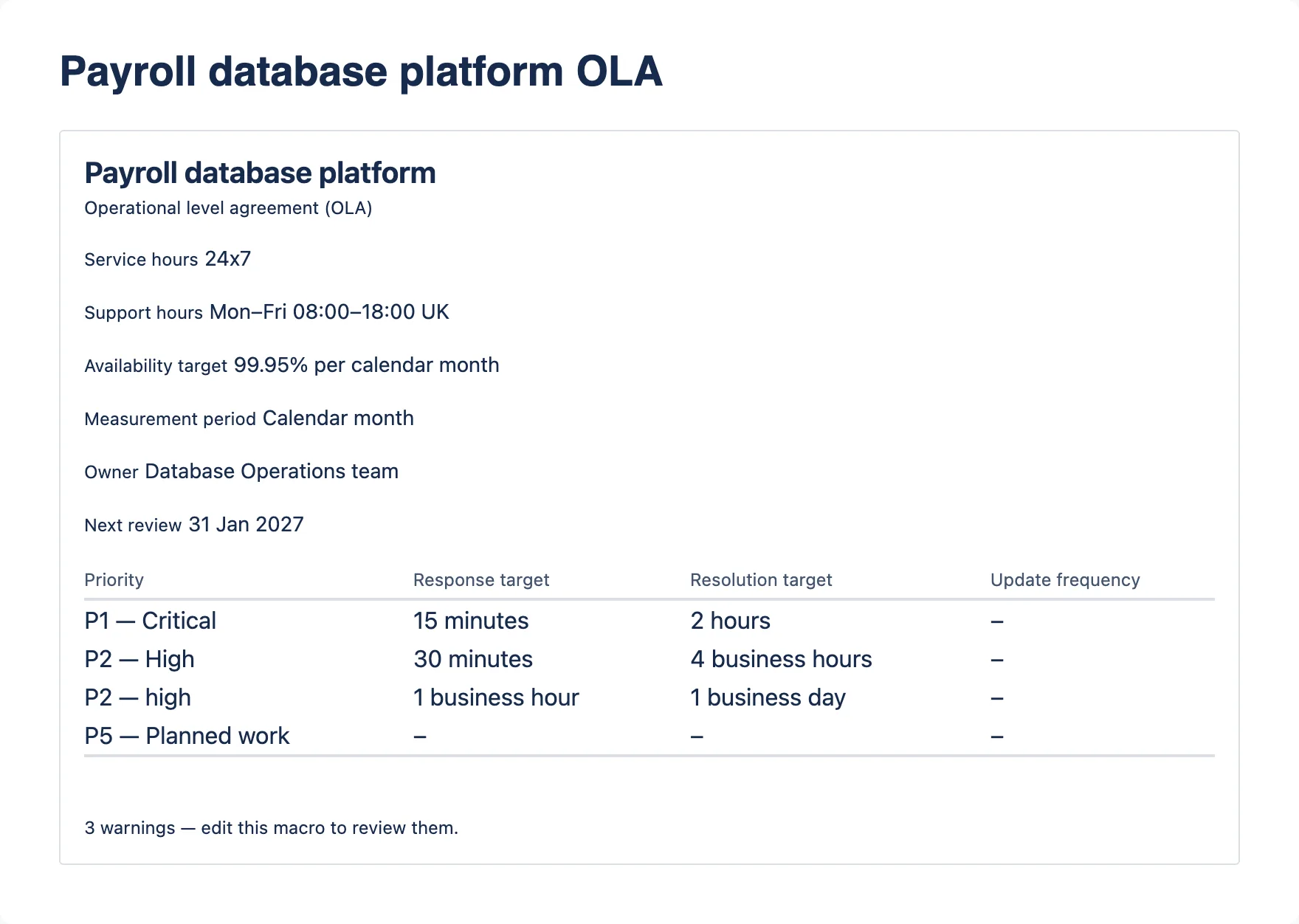
The app does not compare agreements. Each macro stands alone, and nothing checks an OLA against the SLA it supports. That check is yours. For each priority, compare the SLA and each supporting agreement side by side:
- The supporting target should be tighter. In the example, the SLA resolves a P1 in 4 hours and the database OLA in 2 hours, which leaves time for diagnosis and handover. Equal targets leave no margin at all.
- Compare like with like on the clock. “4 business hours” on an OLA whose team works Mon–Fri 08:00–18:00 can be a much longer elapsed time than “8 hours” round the clock on the SLA. Convert both to elapsed time for the awkward cases — Friday evening, a bank holiday weekend — before deciding which is tighter.
- Check the hours cover each other. The OLA above promises a P1 fix in 2 hours continuously, but its support hours are office hours. Either the team has an on-call rota that the OLA should mention, or the target cannot be met out of hours. The same test applies to the SLA itself (task 4).
- Check availability multiplies. When a service depends on several components in series, the product of their availabilities must beat the service’s target, not each one alone. Two components at 99.95% give about 99.9% — exactly a 99.9% SLA, with no margin. Three give about 99.85%, and the SLA is missed.
- Use the same priority labels and definitions in the SLA and its OLAs, so a reader can match rows.
11. Export for a signature pack
Exporting the page to PDF or Word — from the page’s own export options, as you would for any page — turns the macro into ordinary document content: headings, paragraphs and a real table that Word can edit. It does not look like the card on the page, and it is not meant to.
The export is built from the same saved data as the page, with these differences:
| Field | On the page | In the export |
|---|---|---|
| Heading | The service name (or “Service level targets”) | “Service level targets — {service name}” (or “Service level targets”) |
| Agreement type | A small line under the heading | A paragraph: “Agreement type: Service level agreement (SLA)” |
| Other details | Bold label beside the value | Paragraphs such as “Service hours: 24x7” and “Next review: …” |
| Compact view | Hides measurement period, owner, next review, notes | Ignored. Everything is exported. |
| Update frequency column | Follows the switch | Follows the switch |
| Notes and exclusions | A small heading, one line per note | A heading, then one bullet point per note |
| Warning line | “{N} warnings — edit this macro to review them.” at the foot, if there are any | Not exported |
| Dates | The reader’s own date format | Produced on Atlassian’s servers, not in your browser, so the format may differ from the page (for example, month first). The day itself does not change. |
| Earlier versions in page history | — | Expected to appear in this export form, not as the page view (task 12) |
If the macro has nothing configured, the export contains the single sentence “These service level targets have not been configured.”
Before a signature pack depends on it, export the page once from your own site and read the result. How Confluence lays out an exported table is Confluence’s business, not the app’s, and a live site can differ from what is described here.
12. Review and change the agreement
Next review date. Keep it current. The app shows it on the full page as “Next review”; it does not remind you, flag it when it passes, or do anything else with it. Put the review in your own calendar or review schedule.
Page history is the record of what was agreed when. The targets are part of the page, so each version in the page’s history holds the targets as they stood at that version, and restoring an earlier version restores its targets. How often Confluence records a version depends on the kind of page, so do not rely on every small edit having its own. Two habits make the record useful:
- change the targets only when a change has been agreed, and say what was agreed — in a version note where your page offers one, or in a dated change log on the page;
- keep signatories, approval dates and the version number in the page’s own content, beside the macro. The macro has no “agreed by” or “signed on” field.
Expect an earlier version to look different from the live page. Atlassian’s documentation, says a macro’s export form is also used when a version is viewed in page history, and this macro has its own export form. An old version is therefore expected to show every field — compact view ignored — as plain paragraphs and a table, like an export (task 11). The targets are the same stored data; only the presentation differs. This has not yet been checked on a live site.
Protect an agreed page. Anyone who can edit the page can change the targets. Page restrictions apply to the macro exactly as they do to the rest of the page, so restrict editing on an agreement once it is signed.
Copying the page copies the targets. Copy a signed agreement to draft its next version (or rely on page history — pick one and be consistent), or copy it as the start of another service’s agreement. Check every field: owner, review date and notes come across too.
What happens if…
The macro still shows “Edit this macro to record the service, its agreement type and its targets.” after I saved. The macro counts as configured once any text field on the Service or Measurement tab has something in it, a next review date is set, the agreement type is anything other than SLA, or at least one target has a priority. The two switches alone do not count. Most often the only thing typed was in a target row with no priority, which was dropped on save.
A target disappeared after I saved. It had no priority. Rows without one are not saved, and everything in them goes too. The warnings banner said “Target N has no priority…” before you saved.
My update frequency values have vanished. The Show update frequency column switch is off. The values are kept; switch it back on.
The ladder button is missing, or Add target is greyed out. The ladder appears only when there are no targets. Add target stops at 12.
I cannot type any more in a field. It is full: 120 characters, or 2,000 for Notes and exclusions. Shorten it, or move the detail into the notes.
The page shows two P2 rows, or a column of dashes. The page shows what was saved. Readers see only a count of the warnings, in a line at the foot of the macro; the dialog lists them. Open the dialog, read the banner, fix and save.
Save fails with “Could not save”. Your work is still in the dialog. Check your connection and press Save again.
The dialog says “This configuration could not be read”. Something is stored for this macro but could not be opened. The dialog will not save, so it cannot overwrite what is there: the only button is Close, and the footer says “Nothing has been changed.” Close it and reload the page. If it keeps happening, the page’s version history holds the last version that worked.
The export’s dates look different from the page. The export always writes dates day-first in British English (“1 Feb 2027”), whatever your own date format is. The day is the same.
Limitations worth knowing
- It states targets; it does not track them. No ticket data, no measured availability, no breach counts, no RAG status. Report actuals in a Service Review Record.
- It does not interpret the clock. “4 business hours” is text. The app calculates no due times and cannot tell you whether a target is achievable with your support hours.
- No field for priority definitions. Each target holds a label and three values; the definitions belong in the page text or Notes and exclusions.
- Up to 12 targets per macro. Enough for any sensible priority scheme; more usually means two agreements in one table.
- No reordering. Rows stay in the order they were added. Moving one means retyping cells.
- No comparison or roll-up. Nothing checks an OLA against its SLA, and there is no cross-page view of every agreement in a space. Each macro stands alone.
- No reminders. The next review date is displayed, not acted on.
- Plain text only. No formatting or links inside the macro. Put links in the page around it.
- Compact is not a restriction. It hides detail on the page only; the export and the dialog show everything.
- Warnings are listed only in the dialog. Readers see a count at the foot of the macro, not what the warnings are, so an unresolved warning publishes as it is.
- A wide table cannot be scrolled by keyboard. On a narrow screen the targets table scrolls sideways inside the macro, and that scroll area cannot be reached with the keyboard alone.
- Screen readers are not told when things change mid-edit. The warnings banner sits above the tabs so it is read on entering the dialog, and each confirmation puts the focus on its safe button, but new warnings and confirmations are not announced as they appear.
Quick reference
Fields
| Tab | Field | Limit | On the full page | In compact view | In the export |
|---|---|---|---|---|---|
| Service | Service name | 120 characters | Heading | Heading | In the heading |
| Service | Agreement type | SLA, OLA or Underpinning contract | Line under the heading | Yes | “Agreement type:” |
| Service | Service hours | 120 characters | Yes | Yes | Yes |
| Service | Support hours | 120 characters | Yes | Yes | Yes |
| Service | Owner | 120 characters | Yes | Hidden | Yes |
| Service | Next review date | A real date | “Next review” | Hidden | “Next review:” |
| Targets | Show update frequency column | On by default | Column shown or not | Same | Same |
| Targets | Priority, response target, resolution target, update frequency | 120 characters each; up to 12 targets | Table | Table | Table |
| Measurement | Availability target | 120 characters | Yes | Yes | Yes |
| Measurement | Measurement period | 120 characters | Yes | Hidden | Yes |
| Measurement | Notes and exclusions | 2,000 characters | “Notes and exclusions”, one line per note | Hidden | Heading and bullet points |
| Measurement | Compact view | Off by default | — | — | Ignored |
The default ladder’s values are in task 4.
Warnings
| Warning begins… | Fix |
|---|---|
| “Target N has no priority…” | Add a priority or remove the row. |
| “…has neither a response nor a resolution target…” | Add a time, or say in a cell why there is none. |
| “…is used for more than one target…” | Merge or rename. Matching ignores capitals and spaces at either end. |
| “The update frequency column is switched on but no target has one…” | Fill in frequencies, or switch the column off. |
Other messages
| Where | Message |
|---|---|
| Banner title | “1 thing worth checking” / “{N} things worth checking” |
| Banner close | “These are advice, not errors.” |
| Under the update frequency switch | “1 target still has an update frequency. It is kept and saved, but not shown on the page.” / “{N} targets still have an update frequency. They are kept and saved, but not shown on the page.” |
| At the target limit | “This macro holds up to 12 targets — remove one to add another.” |
| Near the limit of a target cell or Notes and exclusions | “{N} of {limit} characters left.” / “This field is full at {limit} characters.” Other fields stop silently at 120. |
| Footer | “Nothing here is required. You can save an unfinished agreement and come back to it.” and “{n} of 12 targets” |
| Removing a target | “This cannot be undone” — Removing "{priority}" deletes the text you typed. or Removing "{priority}" also deletes … — Keep it / Remove target |
| Cancel with changes | “This cannot be undone” — “These service level targets have unsaved changes. Closing now throws them away.” — Keep editing / Discard changes |
| Save failed | “Could not save” — “Sorry, this could not be saved. Please try again.” |
| Stored data unreadable | “This configuration could not be read” — Close only |
| Empty macro on the page | “Service Level Targets” — “Edit this macro to record the service, its agreement type and its targets.” |
| Foot of the macro on the page | “1 warning — edit this macro to review it.” / “{N} warnings — edit this macro to review them.” |
| Empty macro in an export | “These service level targets have not been configured.” |